Configuring SuccessFactors SaaS Picklists
SailPoint aggregates data from the SuccessFactors connector based on the picklist configuration. SailPoint provides a default picklist but you can add additional custom or standard attributes.
A picklist is a configurable set of options or selection lists used to populate a data input field having one or more predefined values in the SuccessFactors system.
Note
Assign the following permissions to the service user along with the existing permissions to download the picklist-values.csv file.
Admin Center Permissions:
- Monitor Scheduled Jobs
- Manage Scheduled Jobs
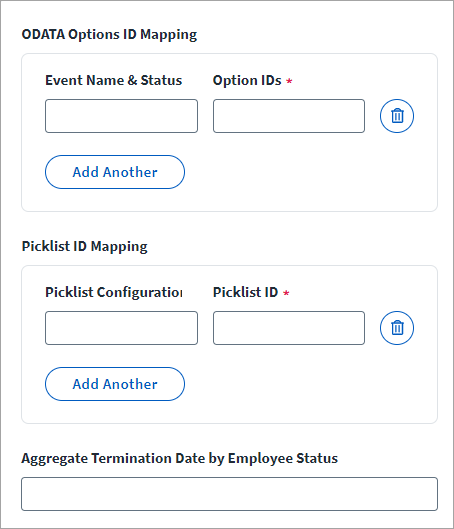
Screenshot
Caution
The figure shows the default values to fetch data. You cannot change the Event Name & Status or Picklist Configuration Name fields. Changing these values may cause the connector to not work properly. If you need to modify the Option IDs or Picklist IDs from the default to match your tenant configuration, refer to Exporting and Verifying the Picklist Values.
If you delete a default entry or need to modify an entry to match your default tenant configuration, complete the following steps:
- Select Add Another to add a default value that may have been deleted.
-
Do one of the following:
- For ODATA Options ID Mapping, enter the Event Name & Status for lifecycle events or employee status based on which connector aggregates the data, and the Option ID associated with the event and employee status picklist.
- For Picklist ID Mapping, enter the Picklist Configuration Name and associated SuccessFactors Picklist ID.
-
To Aggregate Termination Date by Employee Status, enter the status codes separated by a comma. For more information on termination statuses, refer to Termination Date.
- Select Save.
Default Event Name and Status Values
Use the following table to re-enter the default values for Event Names & Status.
Note
The following values are provided as examples. The values may be different for your organization. Provide the values that apply to your environment.
| Event Name & Status | Option IDs |
|---|---|
| SCWK | 30768 |
| EmplStatus-InActiveOptionIds | 4601,4602,4598,4600 |
| Hire | 3669 |
| Rehire | 3676 |
| EmplStatus-ActiveOptionIds | 4595,4603,4596,4597,4599 |
For example:
<entry key="odataEventOptionIdMap">
    <value>
        <Map>
            <entry key="EmplStatus-ActiveOptionIds" value="4595,4603,4596,4597,4599"/>
            <entry key="EmplStatus-InActiveOptionIds" value="4601,4602,4598,4600"/>
            <entry key="Hire" value="3669"/>
            <entry key="Rehire" value="3676"/>
            <entry key="SCWK" value="30768"/>
        </Map>
    </value>
</entry>
Default Picklist Configuration Name Values
Use the following table to re-enter your organization's default Picklist Option ID names by matching the values in the Picklist ID column with those in the Picklist Configuration Name column.
Note
The Picklist Configuration Name can't be changed or added in the Default Picklist Configuration map, whereas the Picklist ID should match the values present in your environment.
| Picklist Configuration Name | Picklist ID |
|---|---|
| employeeTypePicklist | employee-type |
| employeeStatusPickList | employee-status |
| employeeClassPickList | EMPLOYEECLASS |
For example:
<entry key="picklistConfigMap">
    <value>
        <Map>
            <entry key="employeeClassPickList" value="EMPLOYEECLASS"/>
            <entry key="employeeStatusPickList" value="employee-status"/>
            <entry key="employeeTypePicklist" value="employee-type"/>
        </Map>
    </value>
</entry>
Picklist Sets and Values
The following tables list the default picklist sets and values used in this connector.
For Life Cycle Events
| ^picklistId | OptionID | external_code | en_US |
|---|---|---|---|
| Event | 3669 | H | Hire |
| Event | 3676 | R | Rehire |
| Event | 30768 | SCWK | SCWK |
For Employee Status
| ^picklistId | OptionID | external_code | en_US |
|---|---|---|---|
| employee-status | 4595 | A | Active |
| employee-status | 4596 | U | Unpaid Leave |
| employee-status | 4597 | P | Paid Leave |
| employee-status | 4598 | R | Retired |
| employee-status | 4599 | S | Suspended |
| employee-status | 4600 | T | Terminated |
| employee-status | 4601 | F | Furlough |
| employee-status | 4602 | O | Discarded |
| employee-status | 4603 | D | Dormant |
Exporting and Verifying the Picklist Values
Export the picklist values from your SuccessFactors managed system and compare the values to the default values listed on Configuring Picklists. If the default values set in the SuccessFactors connector are not aligning with the managed system values, then the corresponding account is not aggregated.
Note
For the most up-to-date and detailed instructions for obtaining picklist values, refer to Exporting Picklists in the SAP Help Portal.
Perform the following procedure to export picklist values:
- In SuccessFactors, go to Admin Center.
-
Search for and select Import and Export Data.
The Import and Export Data page displays.
-
In the Select the action to perform dropdown, select Export Data.
- In the Select Generic Object dropdown, select Picklist or Picklist-Values. Keep the default settings for the other settings.
-
Select Export.
A new job request is submitted for the picklist export.
-
Search for and select Scheduled Job Manager.
The Scheduled Job Manager page displays.
-
Refresh your browser until the job is complete and is present in the jobs list. Once the job is complete, select the Download Status of the respective job name to download the .zip file.
-
Extract the downloaded .zip file.
This .zip file contains the Picklist-Values.csv.
- For Life Cycle Events - Search for the event associated with the
picklistIdand use theOptionIdvalue as required. - For Employee Status - Search for the Employee Status associated with the
picklistIdand use theOptionIdvalue as required.
- For Life Cycle Events - Search for the event associated with the
Note
If the default values set in this connector don't align with the managed system values as described, then the corresponding account is not aggregated.
Employee Status
In the SuccessFactors source, the identity status connected to an account is based on the employee status as specified. The default statuses are:
| Enabled | Disabled |
|---|---|
| Active | Furlough |
| Dorman | Discarded |
| Unpaid Leave | Retired |
| Paid Leave | Terminated |
| Suspended |
Important
If additional employee statuses other than the default values are present on the SuccessFactors managed system, they must be added to EmplStatus-ActiveOptionIds or EmplStatus-InactiveOptionIds. Otherwise, the records corresponding to the missing option ID are not aggregated.
Termination Date
By default, this connector aggregates termination dates for the following employee statuses:
- F - Furlough
- R - Retired
- T - Terminated
To aggregate termination dates based on other PicklistID employee statuses - such as Suspended and Discarded - add the comma-separated list of external code values to the Aggregate Termination Date by Employee Status field on the Picklist Configuration page. For a full list of the Employee Status codes, refer to Picklist Sets and Values.
To find external code values associated with the PicklistID employee status:
- In the SuccessFactors managed system, go to the Admin Center.
- Search for "Picklist Center".
- Select the option Export all picklist(s) to generate a .csv file containing the picklist values.
Improving Performance for Get Account Operations
Make the following changes to improve performance when you run a Get Account operation:
- Skip authorization/permissions checks during Get Account operations.
-
Reference data mapping for the following attributes is saved after the aggregation. These saved values are used during Get Account operations:
Note
If there are any changes to the values of any of the following attributes, perform the aggregation again.
- EmployeeClass
- EmployeeType
- business phone
- employeeStatus
- AssignmentType
- division
- businessunit
- company
- cost center
Documentation Feedback
Feedback is provided as an informational resource only and does not form part of SailPoint’s official product documentation. SailPoint does not warrant or make any guarantees about the feedback (including without limitation as to its accuracy, relevance, or reliability). All feedback is subject to the terms set forth at https://developer.sailpoint.com/discuss/tos.