Filtering SuccessFactors SaaS Account Aggregation
Use account aggregation filters to limit the employee and user records that the source aggregates.
Filtering Employment Based on assignment_class
The SuccessFactors connector supports filtering specific employment records during employee and user aggregation based on the assignment_class attribute. To apply a filter based on assignment_class, submit the change to the VA using the SailPoint V3 Sources REST API.
Note
For more information on SailPoint's REST APIs, refer to Best Practices: REST API Authentication and REST API - Update Source (Partial) in the SailPoint Developer Community.
assignment_class Filter
Description: This attribute is used to filter specific employment records during employee and user aggregation.
Resolution: Use this filter to pull only those employment records that match the desired assignment_class value.
Example: If you want to fetch employment records where the assignment_class is "ST", use the following format:
[
 {
  "op": "add",
  "path": "/connectorAttributes/employmentFilter",
  "value": {
      "employment.assignment_class": "ST"
  }
 }
]
Aggregation Query Filter
The Aggregation Query Filter is used to filter employees when the Account Type to Manage setting is set to Employees.
Note
The Aggregation Query Filter is only applicable for the EmpJob entity and only property names with a sap:filterable value of true can be used in the filter query.
Viewing the EmpJob Entity
To view the EmpJob entity in your SuccessFactors tenant:
- Go to Admin Center > ODATA API DATA dictionary > Entity.
-
In the Name field, search for
EmpJob.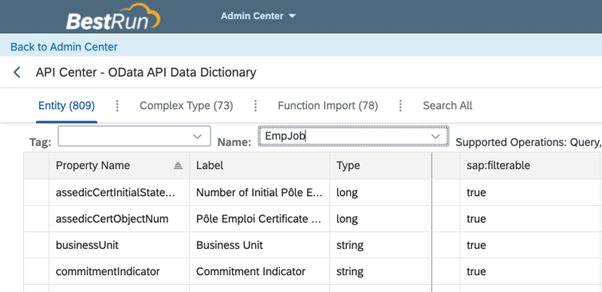
Query Examples
Use the following examples to configure your own aggregation queries.
Note
All values in a query should be enclosed in quotation marks. For example, "value".
For more information on the available operators, refer to the $filter section of the SAP SuccessFactors API Reference guide.
-
To filter employees from a specific department and division:
-
To filter employees from company A and company B:
-
To filter employees based on their start date:
Finding Proper Values (externalCode) for Query Filter Parameters
In the ODATA API, some properties require external code values to fetch the data.
For example:
In this example, 8500 is an external code for the BestRun Australia company.
To get external codes for any property from your SuccessFactors tenant:
- Go to the Admin Center.
- Go to Manage Data.
- Search for the property name. For example,
Division,Department, orPosition. -
The adjacent dropdown list contains all the associated values with labels and their codes in parentheses.
For example, in the following screenshot, Corporate is the label and CORP is its associated code so the filter query would be
businessUnit eq "CORP"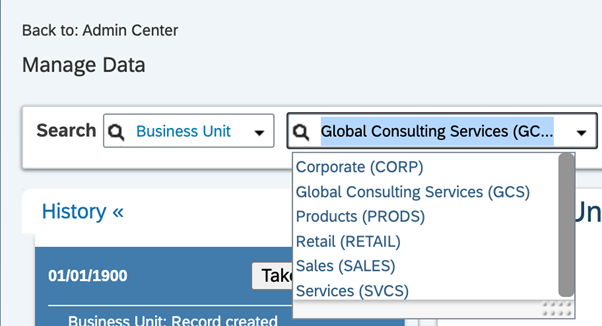
Property Names and Navigation Path for the External Code
The following table lists property names and their associated navigation path to get the external code:
| Property Name | Navigation Path for External Code |
|---|---|
| jobCode | Admin Center > Tools > Manage Data > Job Classification |
| company | Admin Center > Tools > Manage Data > Legal Entity |
| division | Admin Center > Tools > Manage Data > Division |
| department | Admin Center > Tools > Manage Data > Department |
| countryOfCompany | Admin Center > Tools > Manage Data > Country/Region |
| position | Admin Center > Tools > Manage Data > Position |
| payGrade | Admin Center > Tools > Manage Data > Pay Grade |
| location | Admin Center > Tools > Manage Organization, Pay and Job Structures > Location |
| eventReason | Admin Center > Tools > Manage Organization, Pay and Job Structures > Event Reason |
| businessUnit | Admin Center > Tools > Manage Data > Business Unit |
| costCenter | Admin Center > Tools > Manage Data > Cost Center |
| payScaleArea | Admin Center > Tools > Manage Data > Pay Scale Area |
| payScaleGroup | Admin Center > Tools > Manage Data > Pay Scale Group |
| payScaleType | Admin Center > Tools > Manage Data > Pay Scale Type |
Property Names and Navigation Path for the External Code from Picklist Center
The following table lists the properties and their associated navigation path for the external code from the Picklist Center:
| Property Name | Navigation Path for External Code |
|---|---|
| employeeClass | Admin Center > Tools > Picklist Center > EmployeeClass > Option ID of one of the picklist values |
| employmentType | Admin Center > Tools > Picklist Center > employmentType > Option ID of one of the picklist values |
| event | Admin Center > Tools > Picklist Center > event. Option ID of one of the picklist values |
| emplStatus | Admin Center > Tools > Picklist Center > employee-status > Option ID of one of the picklist values |
Validating Query Filters
To validate query filters during test connection processes:
- In the SailPoint SuccessFactors SaaS connector configuration page, go to Aggregation Settings > Filter Criteria For Employees.
- Enter the query filter statement you want to validate in the Aggregation Query Filter field.
-
Select Validate Aggregation Query Filter.
The query validation occurs when the test connection operation is performed.
Documentation Feedback
Feedback is provided as an informational resource only and does not form part of SailPoint’s official product documentation. SailPoint does not warrant or make any guarantees about the feedback (including without limitation as to its accuracy, relevance, or reliability). All feedback is subject to the terms set forth at https://developer.sailpoint.com/discuss/tos.