Aggregation
After you create and test the connection, you can load accounts and entitlements, but you must first discover the schema and identify attributes to use for required identity data before loading accounts or entitlements. To learn more about Aggregation, refer to Aggregation Overview.
Discovering the Schema
You must discover the schema and identify the attributes to use for the required identity data before doing anything else.
Caution
If this source is going to be used as an authoritative source for an identity profile, the Account Name and Account ID both need to be unique. If they are not unique, the source accounts could correlate to the first Identity that includes that ID/Name instead of creating an additional Identity.
Prerequisite: Ensure you entered an Account SQL query into the source connection. For more information, refer to Account Query Settings.
- From your connector page, go to Import Data > Account Schema.
- Select Discover. The Account SQL Query is executed and the discovered attribute names are presented.
- Set the appropriate attributes as Account ID and Account Name.
Account Aggregation
After you discover the schema and identify the required attributes, you can load accounts.
Note
When aggregating accounts or entitlements, you must have the appropriate details of the account SQL query and group SQL query for the test connection. This helps prevent aggregation failures while the test connection is successful.
Prerequisite: Ensure you entered an account SQL query into the source connection. For more information, refer to Account Query Settings.
- Go to the Import Data tab and start a Manual Aggregation. For more information, refer to Starting a Manual Aggregation.
- Check the results in the Aggregation Activity log.
Entitlement Aggregation
You must add the entitlement schema using the REST API for entitlement aggregation in the SQL Loader connector.
For example, you can use the following request body:
{
    "id": "string",
    "name": "string",
    "nativeObjectType": "string",
    "identityAttribute": "string",
    "displayAttribute": "string",
    "hierarchyAttribute": "string",
    "includePermissions": true,
    "features": [
        "string"
    ],
    "configuration": {},
    "attributes": [
        {
            "name": "string",
            "type": "STRING",
            "schema": {
                "type": "ACCOUNT_CORRELATION_CONFIG",
                "id": "string",
                "name": "string"
            },
            "description": "string",
            "isMultiValued": true,
            "isEntitlement": true,
            "isGroup": true
        }
    ],
    "created": "string (date-time)",
    "modified": "string (date-time)"
}
Data Merge Support in Aggregation
If the data for a single account spans multiple rows of a database table, you can merge the data for a successful aggregation.
Add the mergeRows, mergeColumns, and indexColumns attributes using the REST API.
For the information on using the REST APIs for the attributes and keys, refer to:
- API to get source details - Lists all sources in SailPoint
- API to get specific Source's current schema details - Lists the Schemas that exist on the specified Source in SailPoint
- API to add new schema Attribute to source - Creates a new Schema on the specified Source in SailPoint
Direct Permissions
The SQL Loader connector supports the following direct permissions:
- Permissions directly assigned to accounts and groups as direct permissions during account and entitlement aggregation
- Revocation of the aggregated permissions for an account through certification
Configure Direct Permissions
Perform the following steps to configure direct permissions and their aggregation, for the account or the group schema of your SQL Loader connector.
Screenshot

- In SailPoint, go to Connections > Sources and select your SQL Loader connector.
- In the connector page, go to Edit Configuration > Query Settings.
- Select the edit button for the account or group schema on which you want to enable direct permissions.
- Select Additional Query Settings.
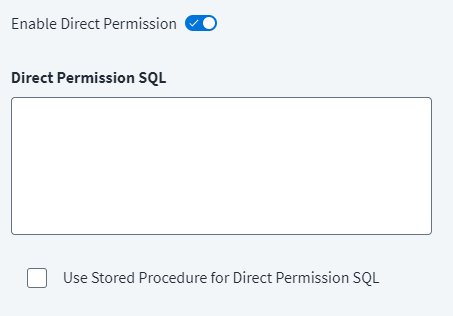
- Toggle Direct Permissions on. A text field for Direct Permission SQL displays.
- Enter the Direct Permission SQL query. For more information, refer to Direct Permission SQL.
- Select Save.
Direct Permission SQL
Direct Permission SQL is used to pull the direct permission data from a permission table. The permission table must contain at least an Identity attribute column. SailPoint pulls permission data using an SQL query to refer to the Identity attribute during the aggregation process.
The SQL query must be written in such a way that ResultSet data contains Target as a first column and Permission as a second column. Optionally, you can add a third column and set it as Annotation.
For example, if you reference a permission table named Permission and you use $(identity) as the identity attribute, you could use the following SQL query:
SELECT column4 AS TARGET,column5 AS PERMISSION FROM Permission p WHERE CONCAT(TRIM(CONCAT(p.column1,'\ ')), TRIM(p.column2)) = '$(identity)';
Multiple Group Objects
The SQL Loader connector supports multiple group objects for Entitlement Aggregation. You can set up attributes such as entitlements and roles. You must add a new group schema and update the existing account schema, if required, using the REST APIs.
For new multiple group objects, the new_object.mergeRows attribute must be present with null/false as a value. For example, if the new group schema object type is role, ensure the role.mergeRows attribute is present for the source.
Group Hierarchy
If the group schema has any attribute that holds the hierarchy of that group type, then you can define hierarchyAttribute and use childHierarchy to set the correct parent-child relationship.
For example, you can refer the following request body for the REST API to add new schema with hierarchy attribute. Refer to the following for more information:
- API to get source details - Lists all sources in SailPoint
- API to add new schema Attribute to source - Creates a new Schema on the specified Source in SailPoint
{
    "nativeObjectType": "ROLE",
    "identityAttribute": "NAME",
    "displayAttribute": "DISPLAY_NAME",
    "hierarchyAttribute": "ROLES",
    "includePermissions": false,
    "features": [],
    "configuration": {
        "childHierarchy": "true"
    },
    "attributes": [
        {
            "name": "NAME",
            "type": "STRING",
            "schema": null,
            "description": "An internal name for the role",
            "isMulti": false,
            "isEntitlement": false,
            "isGroup": false
        },
        {
            "name": "DISPLAY_NAME",
            "type": "STRING",
            "schema": null,
            "description": null,
            "isMulti": false,
            "isEntitlement": false,
            "isGroup": false
        },
        {
            "name": "STATUS",
            "type": "STRING",
            "schema": null,
            "description": null,
            "isMulti": false,
            "isEntitlement": false,
            "isGroup": false
        },
        {
            "name": "ROLES",
            "type": "STRING",
            "schema": null,
            "description": null,
            "isMulti": true,
            "isEntitlement": true,
            "isGroup": false
        }
    ],
    "id": "2c91808f79180d49017918643cb60153",
    "name": "ROLE",
    "created": "2021-01-25T12:07:25.596Z",
    "modified": null
}
Loading a Single Account or Group
Loading a single account or group is helpful when you want to check the status of an account or entitlement.
The normal SQL syntax is:
Select * from <TableName> where NativeIdentity = '$(identity)'
For example:
Select * from Users where UserID = '$(identity)'
- You configure the SQL query for accounts in the Single Account SQL Query field in Account Query Settings.
- You configure the SQL query for groups in the Single Group SQL Query field in Group Query Settings.
Account Status
For the SQL Loader source, to set an account as enabled or disabled based on the values inside a specific column, you can add the IIQDisabled (string) attribute in the source account schema. For more information, refer to Adding Attributes to a Source Schema.
The following SQL query can be used to set up the state for the account:
Documentation Feedback
Feedback is provided as an informational resource only and does not form part of SailPoint’s official product documentation. SailPoint does not warrant or make any guarantees about the feedback (including without limitation as to its accuracy, relevance, or reliability). All feedback is subject to the terms set forth at https://developer.sailpoint.com/discuss/tos.