Configuring SailPoint for Atlassian Cloud Jira Service Management
In SailPoint, configure the following items for your Atlassian Cloud Jira Service Management Integration Module:
On the Summary panel you can review the general settings and parameters for the connectivity and authentication.
Note
All activity on the Service Desk connector appears as events in Search and on the Activity tab of an identity.
Ticket Creation
In a centralized approach spanning many users and resources to strengthen IT controls and provide proof of compliance to auditors and executive management, you can create a ticket for your integration, based on your requirement. A ticket has all relevant data filed for further processing.
Note
Atlassian Cloud Jira Service Management Integration Module supports only Service Request and Incident.
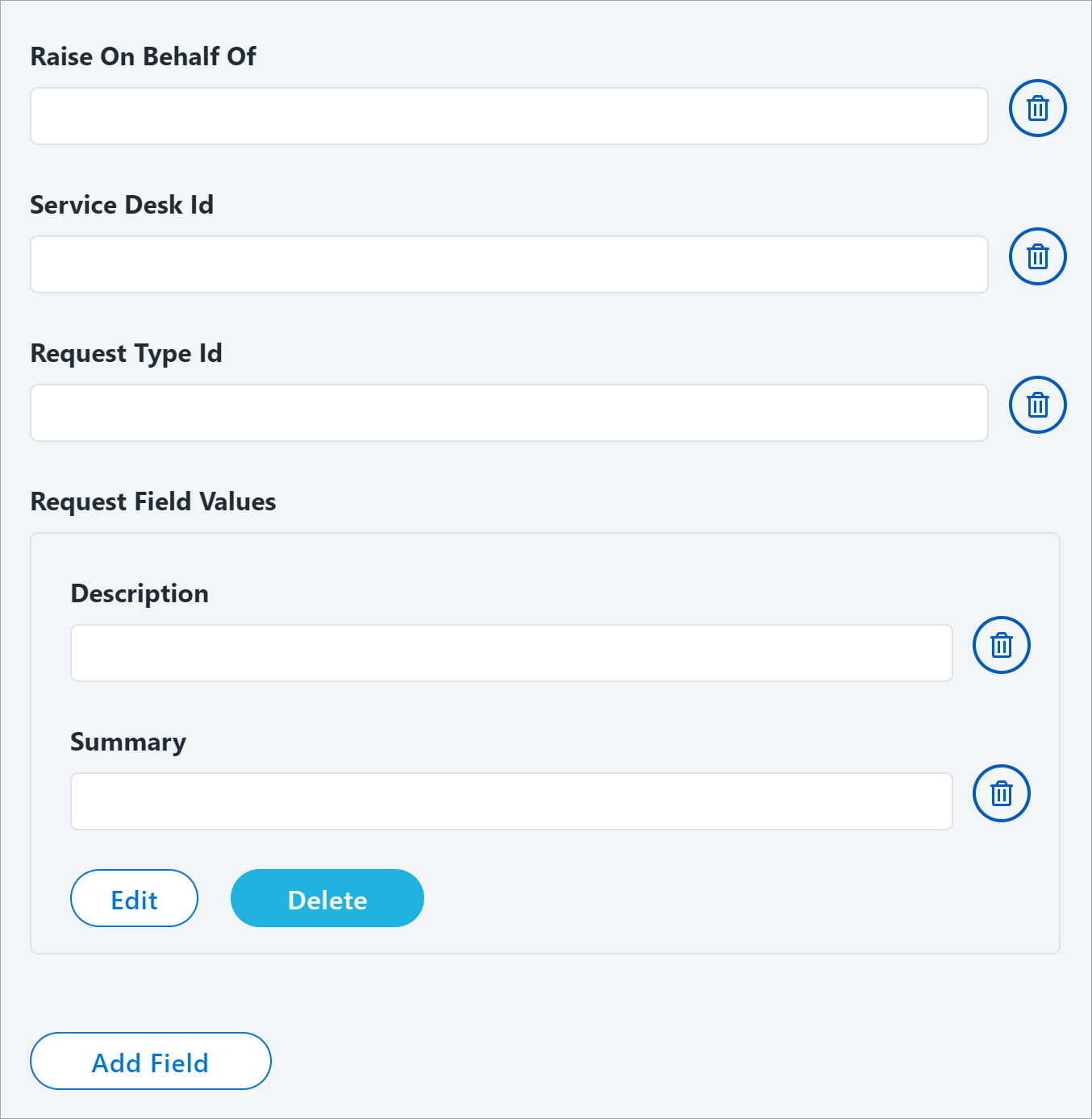
The contents of a service request or incident define the components of the provisioning task that are added to the Atlassian Cloud Jira Service Management system ticket. SailPoint recommends that you include the Apache Velocity variables as needed to meet your specific use cases.
Screenshot
-
Enter the Raise On Behalf of for the ticket you are creating. The default value is:
To modify
Default_Jira_Account_IDdo one of the following:- Replace the
Default_Jira_Account_IDwith the service account name for the Jira user from the Requester Source. - Replace the
Default_Jira_Account_IDwith a Jira user's account name that you want to use as the reporter's name for the ticket generated by this integration.
- Replace the
-
Enter the Service Desk Id in the Atlassian Cloud Jira Service Management system. To obtain the Service Desk Id, execute the following request from POSTMAN with valid credentials.For example,
https://demo.atlassian.net/rest/servicedeskapi/servicedesk. -
Enter the Request Type Id. For example,
ServiceRequest:10002andIncident:10004Ensure that the Request Type Id belongs to the same project that is used. To obtain the Request Type Id, execute the following request from POSTMAN with valid credentials:
https://demo.atlassian.net/rest/servicedeskapi/servicedesk/{serviceDeskId}/requesttype -
Complete the following in the Request Field Values:
- In Description, enter the main body of the request in the Atlassian Cloud Jira Service Management system that includes the details about the request.
- In Summary, enter the title or summary of the request in the Atlassian Cloud Jira Service Management system.
Add a Field
To add a field in ticket creation, select Add Field and enter the relevant details for the new field. The field types are:
- Single Value
- Multi Valued
- Grouped Key-Value Pair
For example, if you want to add a Single Value custom attribute such as custom_attr in the request to the Atlassian Cloud Jira Service Management system, add the custom_attr field using the Single Value type. The corresponding value can be either static or dynamic. For the dynamic value, use the Velocity Template Expression.
Note
The ticket number generated on the Service Desk system for the corresponding provisioning action can be seen under Search > Account Activity details of the identity. For more information, refer to Account Activity Using Search.
Create Ticket Advanced Properties
Select View Advanced Properties to add other details of the ticket.
Screenshot
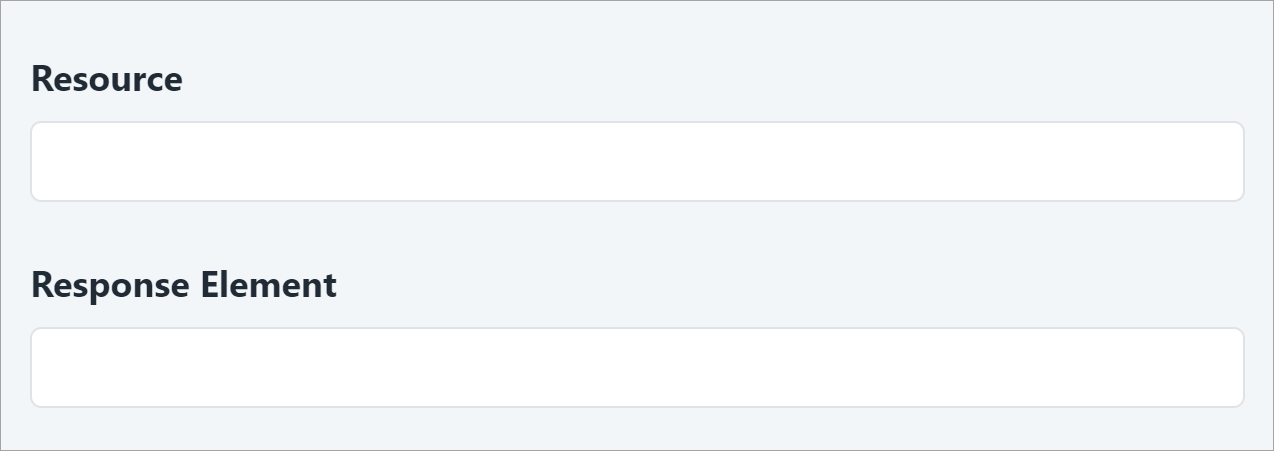
- Enter the Resource used for the request ticket. This is the ticket creation REST endpoint. Do not provide the base URL in the value. The base URL is appended to this endpoint value. Enter only the remaining endpoint URL. For example,
/rest/servicedeskapi/request. - Enter the Response Element for the request ticket. This value is the JSON path expression that provides information about where to find a ticket number. For example,
issueKey. - Select Save.
Status Mapping
You can map the service request status to the corresponding status of the activity on the Atlassian Cloud Jira Service Management system.
Screenshot
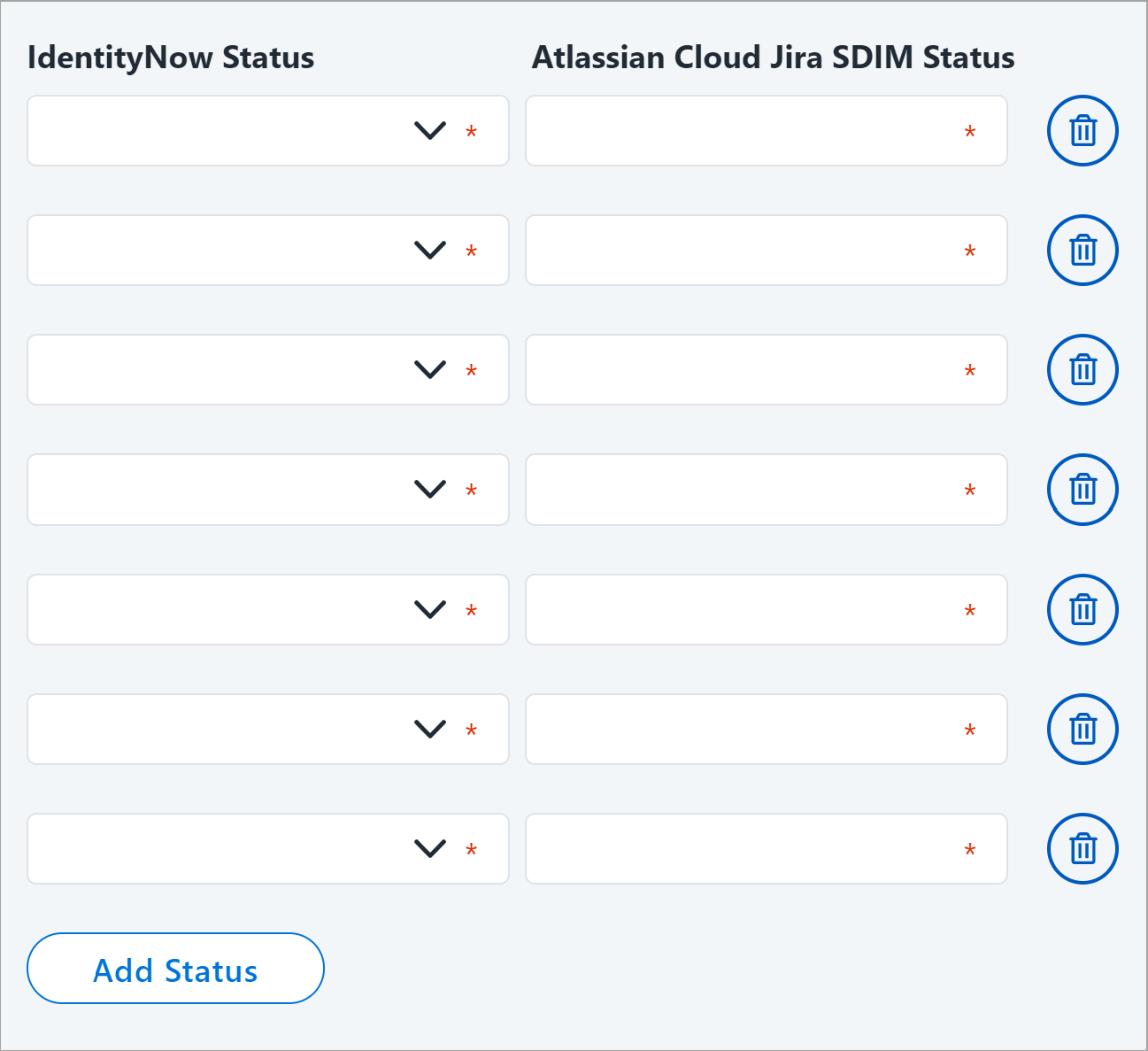
- Select Add Status to add another row for status mapping.
- Enter an Identity Security Cloud Status. The types are:
- Committed
- Queued
- Failed
-
Enter the Atlassian Cloud Jira Service Management SDIM Status, the types are dependent upon the request type.
Status Options for Service Request
| Entry key (Atlassian Cloud Jira Service) | SailPoint Value |
|---|---|
| Completed | Committed |
| Canceled | Failed |
| Blocked | Queued |
| Waiting for support | Queued |
| Waiting for customer | Queued |
| Escalated | Queued |
| In Progress | Queued |
| Pending | Queued |
| Closed | Committed |
| Resolved | Committed |
Status Options for Incident
| Entry key (Atlassian Cloud Jira Service) | SailPoint Values |
|---|---|
| Resolved | Committed |
| Closed | Committed |
| Canceled | Failed |
| Work In Progress | Queued |
| Open | Queued |
| Blocked | Queued |
| Pending | Queued |
| Completed | Committed |
Check Status Interval
You can add and delete a status as per your organizational needs. The Atlassian Cloud Jira Service Management Integration Module checks the status on tickets at regular intervals. The status must have at least one committed value. For more information on status check configuration, refer to the SailPoint Developer Portal:
- Getting the time check configuration of queued tickets
- Updating the time check configuration of queued tickets
Status Mapping Advanced Properties
Select View Advanced Properties to add other details of the status mapping.
Screenshot
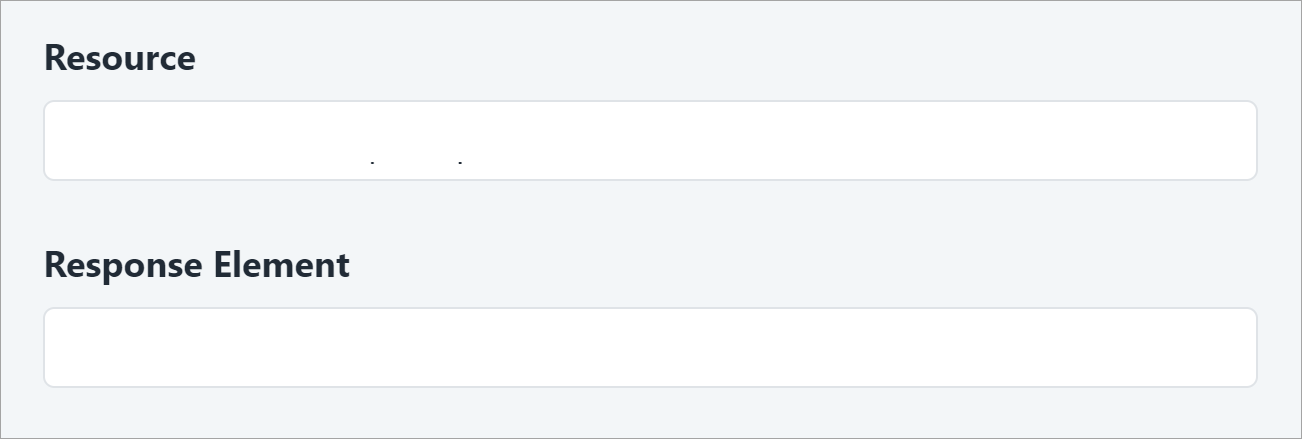
- Enter the Resource used for the status mapping. For example,
/rest/servicedeskapi/request/$ticketId. - Enter the Response Element for the status mapping. This value is the JSON path expression that has information on the service request status. For example,
$.currentStatus.status. - Select Save.
Requester Source
Screenshot

- In the Requester Source field, enter the source name through which the Atlassian Cloud Jira Service Management system's users are aggregated.
- Select Save.
Documentation Feedback
Feedback is provided as an informational resource only and does not form part of SailPoint’s official product documentation. SailPoint does not warrant or make any guarantees about the feedback (including without limitation as to its accuracy, relevance, or reliability). All feedback is subject to the terms set forth at https://developer.sailpoint.com/discuss/tos.