Integrating SailPoint with SAP Portal
Integration
This is an integration and requires additional licensing or subscriptions to utilize it. For more information, contact your customer success manager.
Connecting SailPoint to your SAP Portal allows to integrate information and applications across the enterprise to provide an integrated single point of access to information, enterprise applications, and services both inside and outside an organization. SailPoint's SAP Portal module uses the UME service to perform user management. The User Management Engine (UME) provides a centralized user management for all Java applications and can be configured to work with user management data from multiple data sources.
The UME can be configured to read and write user-related data from and to multiple data sources, such as Lightweight Directory Access Protocol (LDAP) directories, the system database of the AS Java, and user management of an AS ABAP.
The SAP Portal - User Management Web Service manages the following entities of SAP User Management Engine (UME):
- User
- Groups
- Role (UME and Portal)
Note
To view the latest features, enhancements, and fixes for all SaaS connectors, refer to the SaaS Release Notes page.
Supported Features
The SAP Portal source supports the following features:
- Load and *provision SAP Portal Accounts
- *Password management
- *Access Certifications (certification of entitlements connected to accounts)
- Delete Account
Note
Before you can use any item above marked with an asterisk (*), SailPoint must activate the feature for your site.
For the SAP Portal source, the Roles group object is supported for Read operation. The following entitlements are also supported for ADD/ REMOVE operation:
- Roles
- Groups
For more information on features, refer to Source Features.
Note
If SAP Portal is integrated with an external LDAP data source, and you need to aggregate more than 1000 users and associated information from the source, it is recommended to enable pagination using the extended search size attribute. For more information, refer to Enable Pagination in SAP Portal.
Enable Pagination in SAP Portal
- Open the User Management console (UME) of SAP Portal.
- Select the Configuration tab.
-
Select Modify Configuration to download the LDAP Data Source xml and add the following line under
<privateSection>Note
The desired extended size should be the optimum value greater than 1000.
-
Browse and upload the modified LDAP Data Source XML file.
- Save the changes, and then sign in to the SAP server and restart the SAP Portal instance.
Privilege Classification
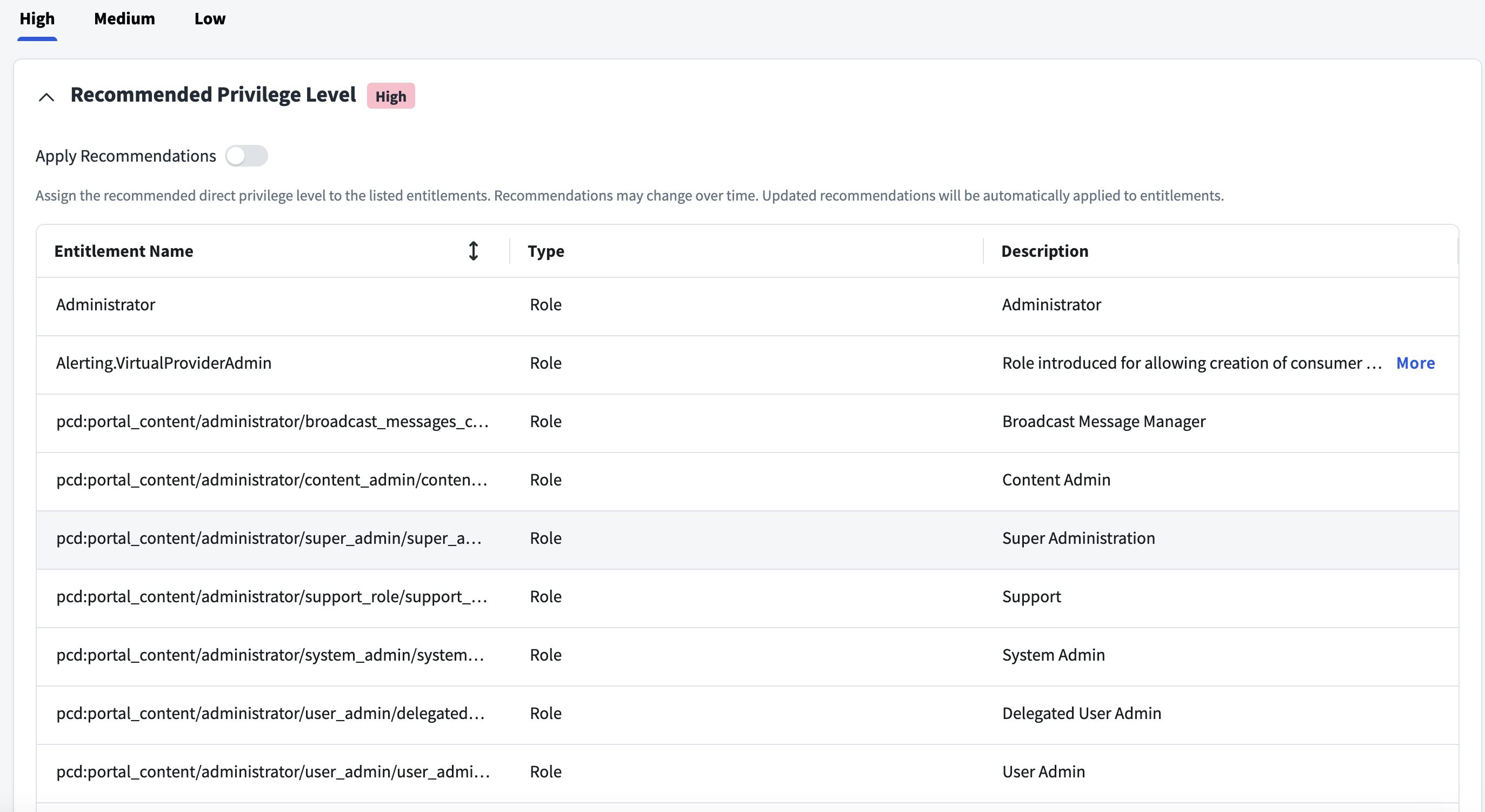
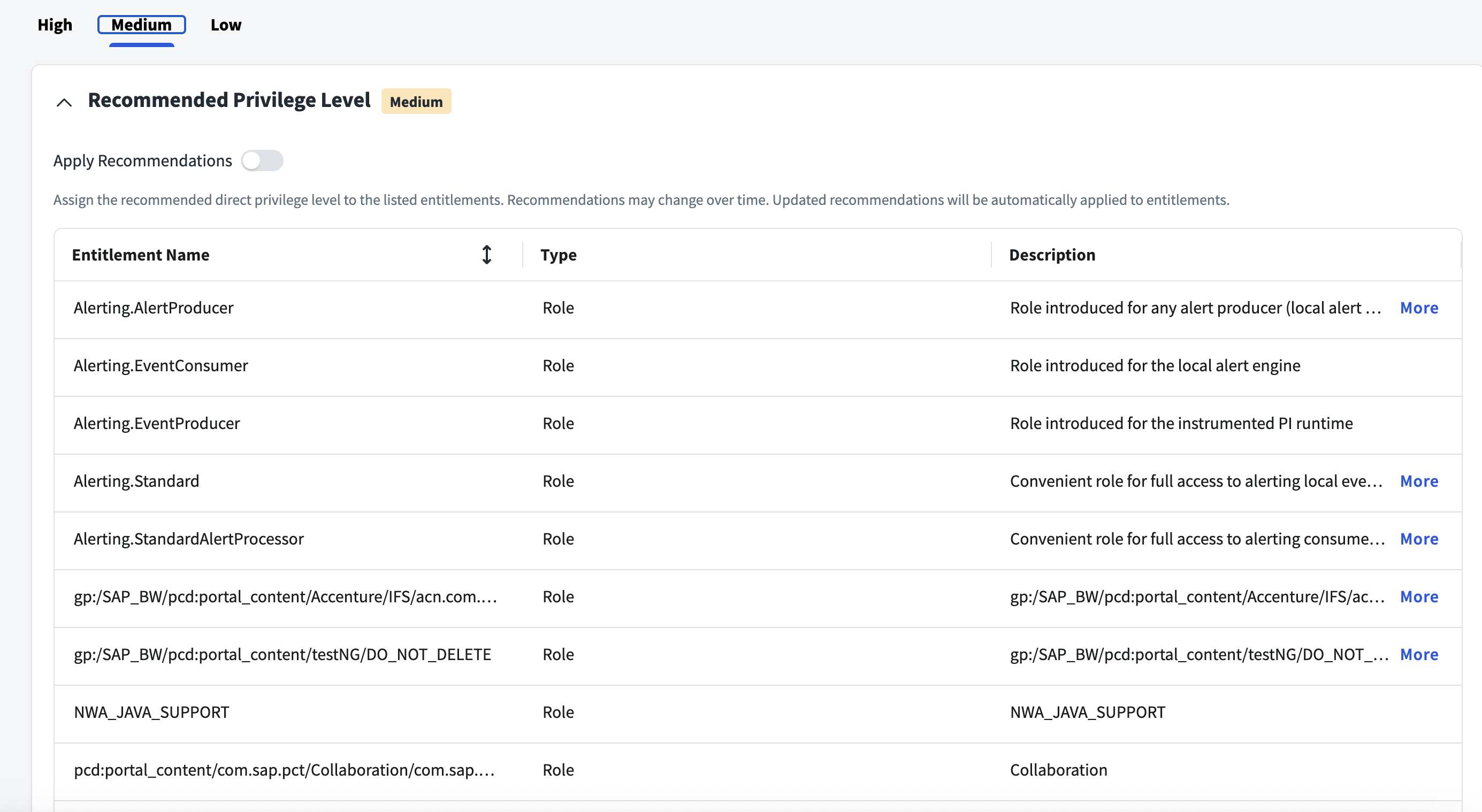
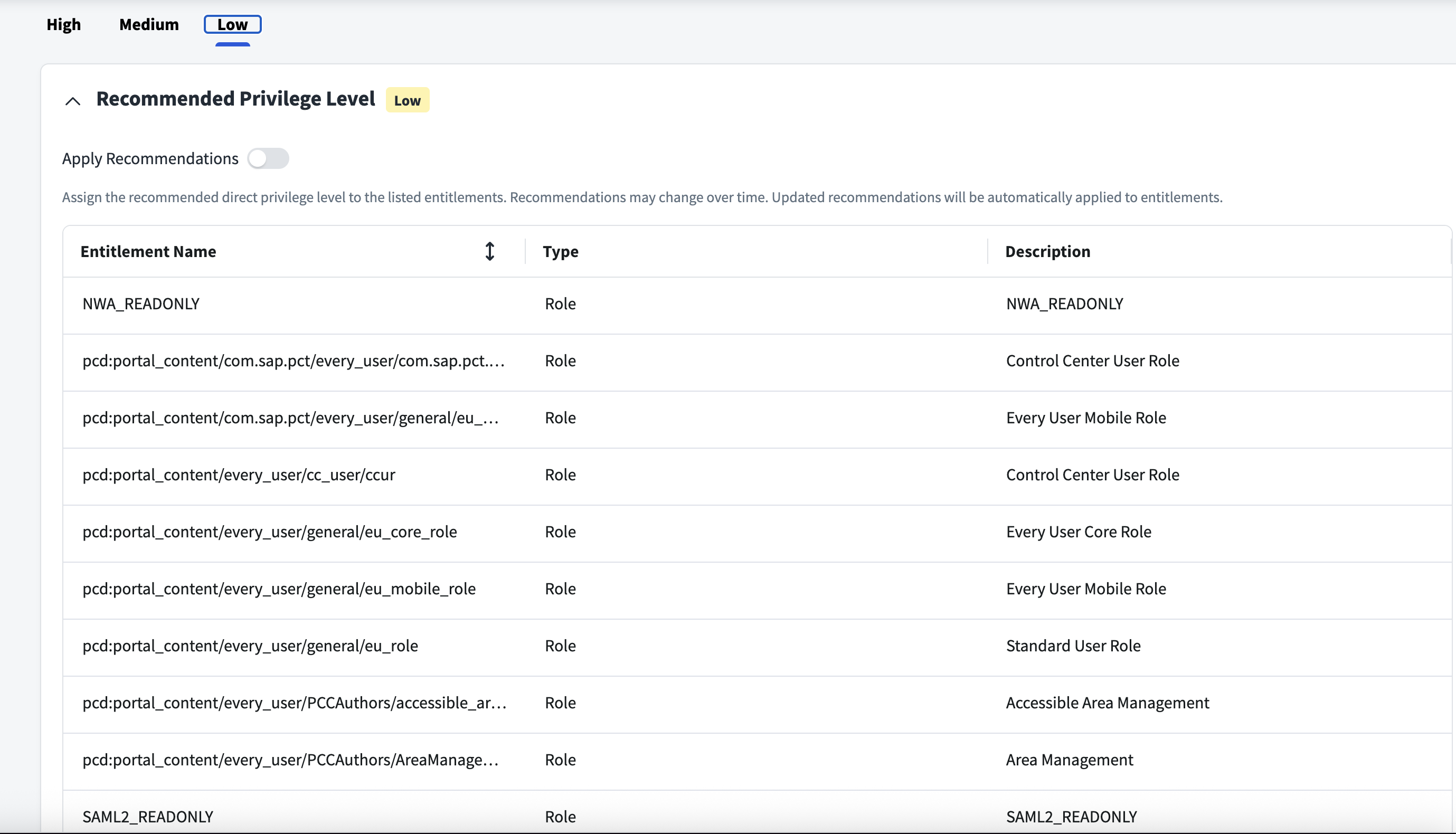
SailPoint Privilege Classification helps organizations systematically categorize and manage the privilege levels of entitlements within their sources. By classifying entitlements as high, medium, or low, administrators can better understand the potential risk and impact associated with specific access rights. This allows automatic assignment of privilege levels based on system recommendations, custom-defined criteria, or a same level across all entitlements.
| Privilege Level | Description |
|---|---|
| High | Administrative level access to accounts |
| Medium | Administrative level access for a specific role or function |
| Low | Only basic access of data |
Note
To manage Privilege Classification, users must have administrative roles such as Org Admin, Source Admin or Source Sub-Admin.
For more information, refer to Managing Privilege Classification.
Example
Prerequisites
- Configure at least one virtual appliance cluster and successfully test the connection.
- The
sailpoint_ume.sdafile must be deployed on the SAP Enterprise Portal server which must be provisioned. For more information on deploying thesailpoint_ume.sdafile, see Installation of SDA. - (For OAuth 2.0 Authentication Type only) All the roles to be managed by SailPoint must have the scope assigned that was created under Register a Client Application.
Installation of SDA
Perform the following steps to deploy the sailpoint_ume.sda file:
- Download the latest .sda file from the SailPoint SAP Portal Integration: SDA File page.
- Copy the
SDAfile to a temporary directory on the SAP server. - Open the telnet connection to the server (for example, telnet
<hostname>:<telnet port>) and login with a J2EE administrator user credential. For telnet to work, you must log into the operating system. - Execute the
lsccommand to list the available server nodes. - Go to the server node, default is 0. Use the
jump 0command. -
Run the following command to deploy the
SDAfile:For example,
deploy C:\<user name>\sailpoint_ume.sda on_deploy_error=stop -
Verify by going to the System Information tab.
Uninstallation of SDA
To uninstall the deployed SDA file, enter the following command:
Supported Managed Systems
The following versions of SAP NetWeaver are supported by the SAP ERP - SAP Portal - User Management Web Service:
- SAP NetWeaver 7.5 (up to SP28)
Note
The SAP ERP - SAP Portal - User Management Web Service manages SAP User Management Engine users.
Required Permissions
The service account must have the following permissions for performing test connection, aggregation and provision operations:
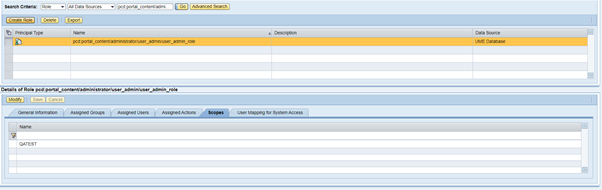
pcd:portal_content/administrator/user_admin/user_admin_rolepcd:portal_content/administrator/system_admin/system_admin_rolepcd:portal_content/administrator/super_admin/super_admin_roleSAP_J2EE_ADMIN
For OAuth 2.0 authentication, the scope created in Register a Client Application must be provided which must be assigned to any one of these Roles.
For example,
Screenshot
Documentation Feedback
Feedback is provided as an informational resource only and does not form part of SailPoint’s official product documentation. SailPoint does not warrant or make any guarantees about the feedback (including without limitation as to its accuracy, relevance, or reliability). All feedback is subject to the terms set forth at https://developer.sailpoint.com/discuss/tos.