Integrating SailPoint with SAP Analytics Cloud SaaS
Integration
This is an integration and requires additional licensing or subscriptions to utilize it. For more information, contact your customer success manager.
SAP Analytics Cloud is an end-to-end cloud solution that brings together business intelligence, augmented analytics, predictive analytics, and enterprise planning in a single system. SAP Analytics Cloud Identity Governance is a new SailPoint SAP Cloud integration that empowers businesses to enhance the security and compliance of their systems and data. It offers robust tools for efficiently managing and overseeing user access, roles, and entitlements ensuring high control and governance.
Note
This integration of SAP Analytics Cloud has been built using SAP Identity Provisioning Services (IPS). The credentials used to connect to SAP Analytics Cloud are the same for SAP Identity Provisioning Services.
Note
To view the latest features, enhancements, and fixes for all SaaS connectors, refer to the SaaS Release Notes page.
Supported Features
The SAP Analytics Cloud SaaS connector supports the following features:
-
Aggregation
- Account Aggregation
- Groups Aggregation
-
Roles Aggregation
Note
SailPoint does not support direct role aggregation. Roles are aggregated as promoted attributes.
-
Add / Remove Entitlement
- Groups
- Roles
-
Account Provisioning
- Create, Update (in the update operation, only the Manager ID is supported)
- Delete. For more information, refer to FAQs.
- Enable and Disable
Privilege Classification
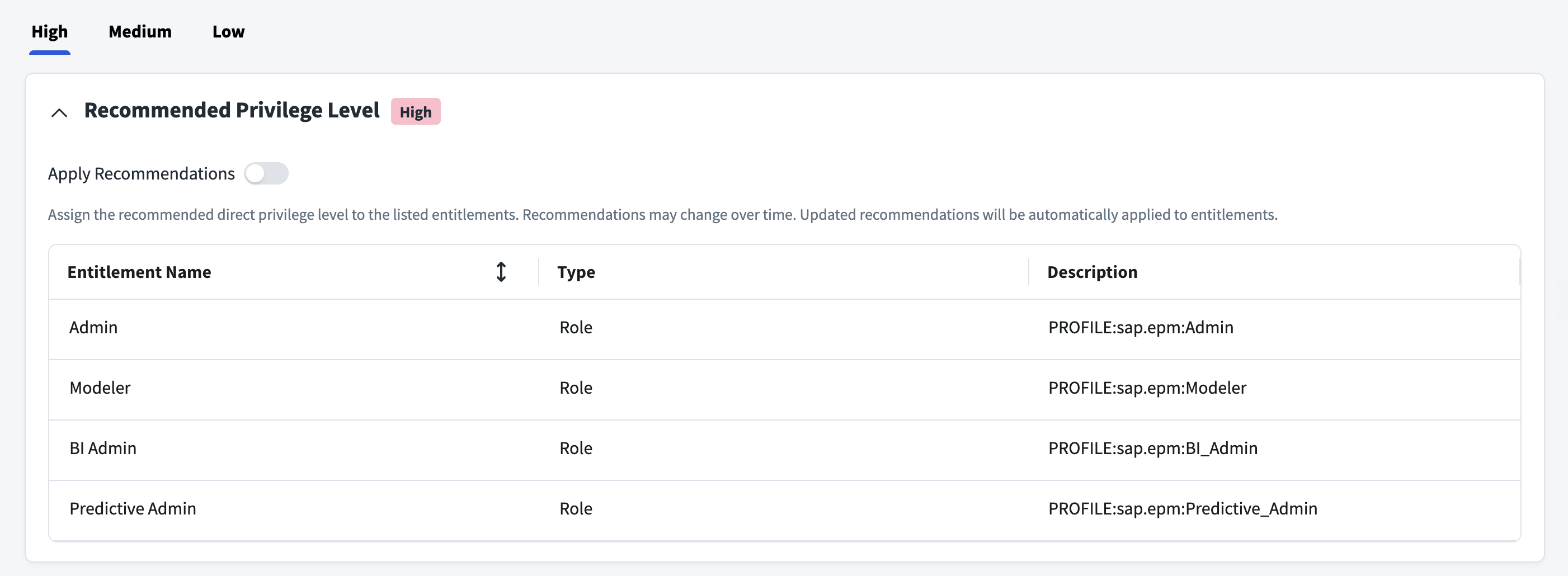
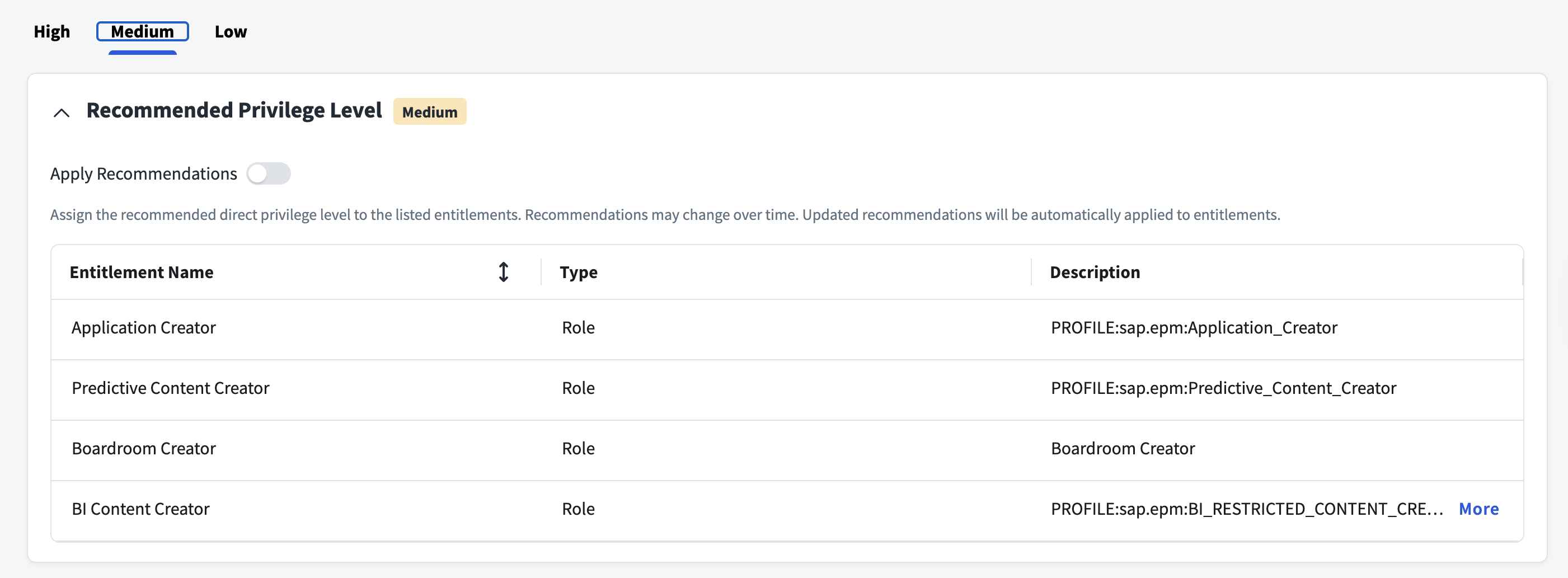
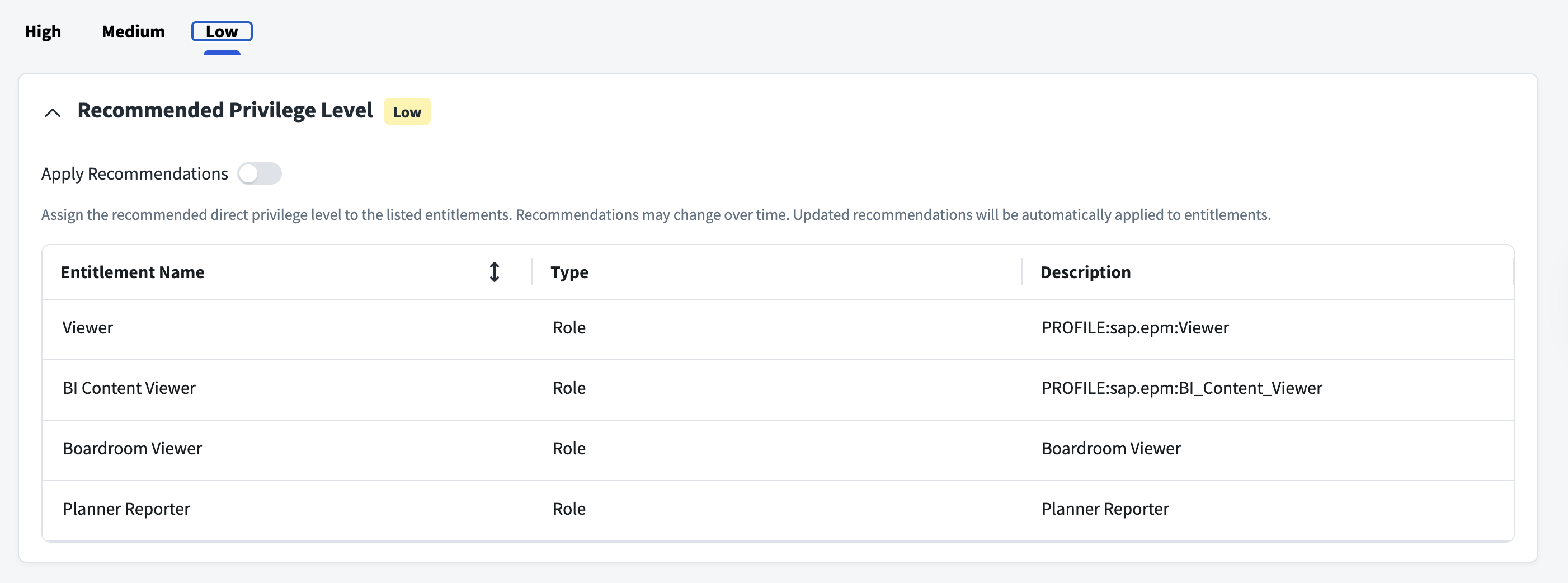
SailPoint Privilege Classification helps organizations systematically categorize and manage the privilege levels of entitlements within their sources. By classifying entitlements as high, medium, or low, administrators can better understand the potential risk and impact associated with specific access rights. This allows automatic assignment of privilege levels based on system recommendations, custom-defined criteria, or a same level across all entitlements.
| Privilege Level | Description |
|---|---|
| High | Administrative level access to accounts |
| Medium | Administrative level access for a specific role or function |
| Low | Only basic access of data |
Note
To manage Privilege Classification, users must have administrative roles such as Org Admin, Source Admin or Source Sub-Admin.
For more information, refer to Managing Privilege Classification.
Example
Supported Managed Systems
- SAP Analytics Cloud standard edition.
Prerequisites
- The following set of credentials must be created to configure the IPS Proxy of SAP Analytics Cloud and connect to SailPoint to allow it to handle associated identity governance use cases.
- Obtain a Bundle Tenant. To get identity provisioning services, refer to Initial Setup of Bundle Tenants in the SAP Help Portal.
The configuration steps are detailed in the following links:
Configure OAuth Client for SAP Analytics Cloud
Configure the SAP Analytics Cloud (SAC) OAuth client by performing the following steps:
-
Prerequisites
- You must have the necessary permissions to create the OAuth client.
-
Sign in to the SAC System and go to OAuth Client Management. From the side navigation menu, go to System > Administration > App Integration tab.
-
Under Configured Clients, select Add a New OAuth Client. In the dialog, provide the following details:
- Name: Provide a name for the OAuth client. For example,
My SAP S/4HANA tenant. - OAuth Client ID: Specify an ID for the OAuth client. For example,
my300xxx.
- Name: Provide a name for the OAuth client. For example,
-
Select the purpose as Interactive Usage and API Access. In Access, select User Provisioning to allow third-party applications to access SAC public APIs without a SAML assertion.
- Select Save.
Configure Technical User in SAP Identity Provisioning Service
Perform the following steps to configure the technical user and connect to identity provisioning.
Enable Basic Authentication
- Sign in to the SAP Cloud Identity Services admin console, and go to Users & Authorizations > Administrators.
- Add an administrator user of the type
System, and then provide the name of the user. - Select the Access Proxy System API permission in Configure Authorizations.
- Select Save.
- Go to Configure System Authentication > Secrets > Add, and copy the Client Secret and Client ID. These are the technical user credentials that you will use to communicate to SAP Analytics Cloud.
Configure the SAP Identity Provisioning Service Proxy System
Use one of the following options to configure the proxy system. It is recommended to use the import file template.
Option 1 - Use the import file template
- Sign in to the SAP Cloud Identity Services admin console. Go to Identity Provisioning > Proxy Settings, and select the +Add button.
- Download the provided template, edit the placeholders with the appropriate property values, and Save the changes.
- Select Import File, and browse to the downloaded file.
Option 2 - Use the manual process
- Sign in to the SAP Cloud Identity Services admin console. Go to Identity Provisioning > Proxy Settings, and select the +Add button.
-
Enter the following values on the configuration details page.
- Type:
SAP Analytics Cloud - System Name:
User defined name - Description:
User defined description
- Type:
-
Select Save.
-
Set the read transform to exchange data with the target system in the SCIM2 compliant format.
- Select Read Transformation, and switch to the JSON editor.
- Select Edit link, and replace the transformation content with the provided data.
- Select Save.
-
Set the write transform to exchange data with the target system in the SCIM2 compliant format.
- Select Write Transformation, and switch to the JSON editor.
- Select Edit link, and replace the transformation content with the provided data.
- Select Save.
-
Select Properties. It is mandatory to set properties to configure the proxy connection to target systems.

-
The following table contains the properties for the SAP Analytics Cloud system. Enter the values, and then select Save.
Property Name Description and Value Type Enter HTTPURL Enter the URLto your SAP Analytics Cloud system without adding the path informationProxyType Enter InternetAuthentication Enter BasicAuthenticationUser Enter the Client IDto retrieve the OAuth access token for SAP Analytics CloudPassword Enter the Client Secretto retrieve the OAuth access token for SAP Analytics Cloud.OAuth2TokenServiceURL Enter the URLof the access token provider service for your SAP Analytics Cloud instance. This token URL is listed in the OAuth Clients section of the App Integration page. For more information, refer to Authorize API Access for OAuth Clients.scim.api.csrf.protection Specifies whether to fetch a Cross-Site Request Forgery (CSRF) token when sending requests to the system. This property is automatically added to the system. Default value: enabled.csrf.token.path The path that is appended to the URL to retrieve the CSRF token. This property is automatically added in the system. Value: /api/v1/scim2/Users?count=1sac.api.version Manages the version of SAP Analytics Cloud SCIM API. Value: Indicates that SAP Analytics Cloud SCIM API version 2 is used. (Optional) ips.trace.failed.entity.content If a provisioning job repeatedly fails and you need problem investigation, you can enable logging and tracing for the personal and sensitive data of your provisioned entities. To do this, set the property to true.
Required Permissions
The following permissions are required for the OAuth client and Technical user (IPS):
-
SAP Analytics Cloud (to configure the OAuth Client)
- OAuth client required to be created by System user. Select Interactive Usage and API Access. In Access select User Provisioning to allow third-party applications to access SAC public APIs without an SAML assertion.
-
SAP Identity Provisioning Service (to configure technical user)
- Technical user required to be created by Tenant Administrator. Select Access Proxy System API permission in Configure Authorizations.
Documentation Feedback
Feedback is provided as an informational resource only and does not form part of SailPoint’s official product documentation. SailPoint does not warrant or make any guarantees about the feedback (including without limitation as to its accuracy, relevance, or reliability). All feedback is subject to the terms set forth at https://developer.sailpoint.com/discuss/tos.