Configuring ECA Authentication
External Client Application (ECA) Authentication
To configure External Client Application (ECA) authentication, complete the following steps:
Important
Before you begin, install External Client Application from Salesforce AppExchange. For information, refer to Installing External Client Application.
Screenshot
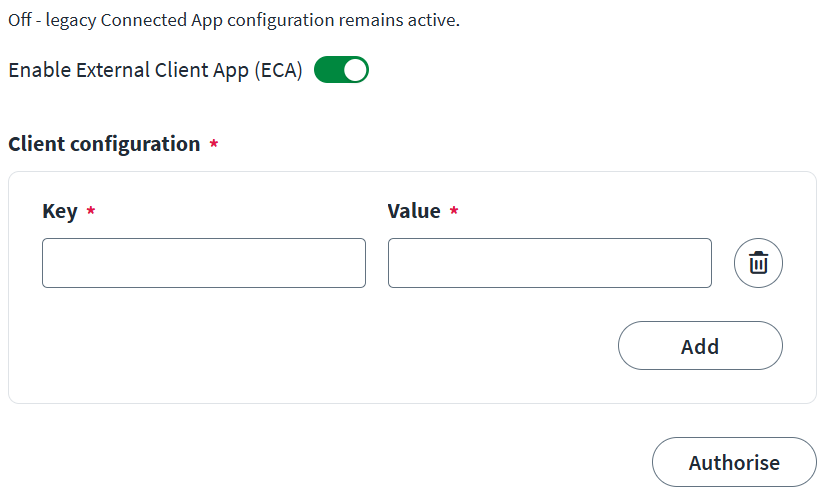
- Turn on the Enable External Client App (ECA) toggle.
-
Under Client configuration, enter the required key-value pairs:
- In the Key box, enter the key as
host_name. - In the Value box, enter the Token URL to generate the token. For example:
test.salesforce.comorlogin.salesforce.com.
- In the Key box, enter the key as
-
Select Save.
- Select Authorise.
Note
- The Human account you use to authorise the ECA must have adequate permissions to manage the required Salesforce objects.
- If you encounter issues with ECA authentication, you can turn off the feature and revert to your previous, working configuration.
Important Considerations for Salesforce ECA Integration
Maximum concurrent tokens: Salesforce limits active refresh tokens to five per user for each External Client App (ECA) or Connected App. If you request a sixth connection, Salesforce automatically and silently revokes the oldest active token to accommodate the new request.
Revoked token reuse: If an authenticated source attempts to authenticate by using a previously revoked token (such as the silently dropped oldest token), Salesforce flags the attempt as a critical security threat. As a result, Salesforce immediately invalidates all active refresh tokens and sessions for that user across all clients. If this occurs, you must reauthorize the integration to continue.
Installing External Client Application
Perform the following steps to install External Client Application:
- Go to SailPoint Identity Security for Salesforce on AppExchange, and select Get It Now.
- Enter your Salesforce credentials to authorize the installation.
- Select the installation option that aligns with your organization's security requirements.
For more information on configuring External Client Application (ECA) authentication, refer to External Client Application Authentication.
Documentation Feedback
Feedback is provided as an informational resource only and does not form part of SailPoint’s official product documentation. SailPoint does not warrant or make any guarantees about the feedback (including without limitation as to its accuracy, relevance, or reliability). All feedback is subject to the terms set forth at https://developer.sailpoint.com/discuss/tos.