Configuring Legacy Authentication
The Basic and OAuth 2.0 authentication types are deprecated and will be removed in a future release. SailPoint recommends External Client Application (ECA) authentication for new and existing connections.
Basic Authentication (Deprecated)
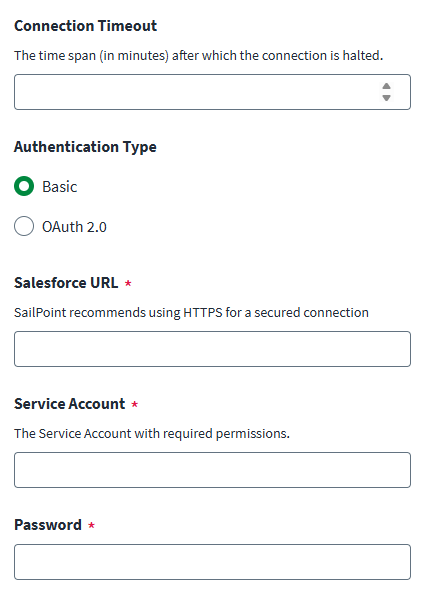
The following information is required if the Basic Authentication type is selected.
Screenshot
-
Enter the fully qualified URL to the root of the Salesforce server in Salesforce URL. For example:
http://login.salesforce.com/services/Soap/u/To find your site's URL, sign in to Salesforce.com, and perform the following:
- Select Develop under the Application heading.
- Select API > Generate Partner WSDL.
- Select Generate.
The URL is located under the SalesforceService service name.
-
Enter the Salesforce Service Account that has the required permissions.
-
Enter the Password that is used to sign in to the managed system.
Note
This is the API user's Salesforce.com password. If the client's IP address has not been added to your organization's allowed list, you must add a security token to your password for OAuth 2.0 authentication.
-
Select Save.
OAuth 2.0 Grant Type: Password (Deprecated)
The following information is required if the Password Grant Type is selected.
Prerequisites: To support the Password grant type, you must create a connected application on the Salesforce system.
For more information on creating the connected application, refer to Create a Connected App in the Salesforce documentation.
Note
The linked document is not maintained by SailPoint and is subject to change without notice.
After creating the connected application, you can get the Consumer Key and Consumer Secret from the connected application.
Screenshot
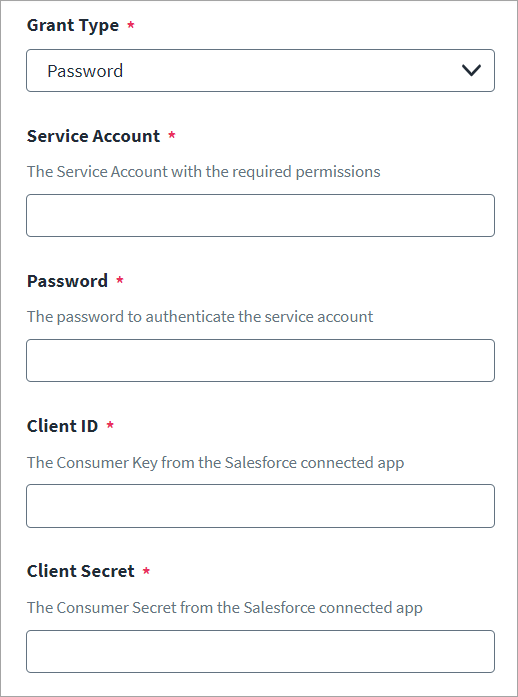
- Enter the Salesforce Service Account name with the required permissions.
-
Enter the Password used to sign in to the managed system. This is the API user's Salesforce.com password.
Note
If the client's IP address has not been added to your organization's allowed list, you must add a security token to your password for OAuth 2.0 authentication.
-
Enter the Consumer Key and Secret from the Salesforce connected application in Client ID and Client Secret.
Refer to OAuth 2.0 Authentication Prerequisites for more information.
-
Select Save.
OAuth 2.0 Grant Type: JWT (Deprecated)
The following information is required if the JSON Web Token (JWT) Grant Type is selected.
Screenshot
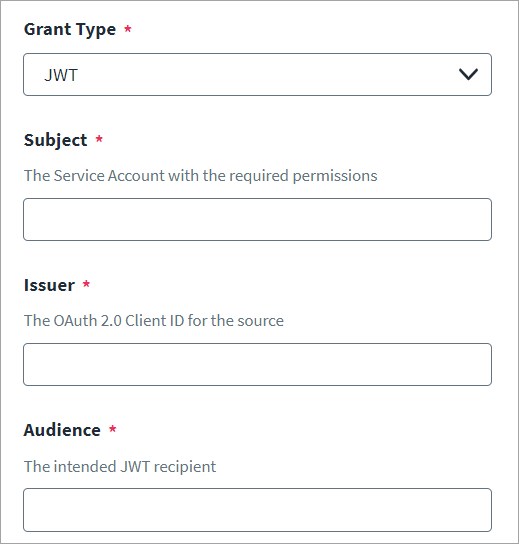
- Enter the Salesforce username in Subject.
- Enter the OAuth Client ID for the connected application for which you registered the certificate in Issuer.
- Enter the recipient for which the JWT is intended in Audience.
-
Enter the Private Key to be used to assert the JWT.
For information on generating the JWT assertion, refer to Generating a JWT Assertion.
Note
The private key should be in standard PKCS #1 format. Currently, SailPoint doesn't support private keys in PKCS #8 format.
-
Enter the Private Key Password for the Private Key.
Note
This is only needed if the Private Key is encrypted with a passphrase.
-
Select Save.
Note
Additional JWT Header and JWT Payload can be added with the additionalJwtHeader and additionalJwtPayload attributes, respectively, using the REST API if required per the managed system.
For information on the REST APIs, refer to Authentication and Update Source (Partial) in the SailPoint Developer Community.
Generating a JWT Assertion
Perform the following steps in Salesforce to generate a JWT Assertion:
-
Construct a JWT header with the following format:
{"alg":"RS256"}Encode the header with Base64url.
-
Construct a JSON Claims Set for JWT with the following parameters and encode with Base64url:
- iss - The issuer must contain the OAuth client_id for the connected app for which you registered the certificate.
-
aud - The audience identifies the authorization server as an intended audience. The authorization server must verify that it is an intended audience for the token. Use the authorization server's URL for the
audif you are using the following values:https://login.salesforce.comhttps://test.salesforce.comor use the following if you are implementing for a community.
https://community.force.com/customers -
sub - The subject must contain the username of the Salesforce user or the Salesforce community user if implementing for a community. For backward compatibility, you can use principal (
prn) instead of subject (sub). If both are specified,prnis used. - exp - The validity must be the expiration time of the assertion within 3 minutes, expressed as the number of seconds from 1970-01-01T0:0:0Z measured in UTC.
The following is an example for JSON Claim Set for JWT.
-
Create a string for the encoded JWT Header and the encoded JWT Claims Set in this format.
encoded_JWT_Header + "." + encoded_JWT_Claims_Set -
Download the X509 Certificate from JKS.
- Sign the resulting string using RSA SHA256.
-
Create an Assertion string in the following format.
existing_string(Created in step 3) + "." + base64_encoded_signature-
API request to generate Access Token from JWT assertion:
-
OAuth 2.0 Grant Type: Refresh Token (Deprecated)
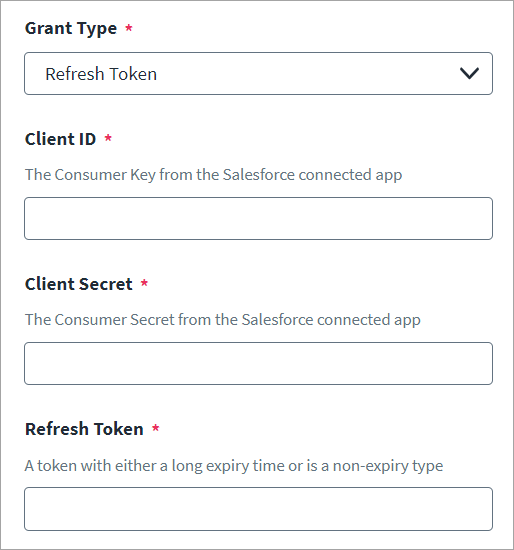
The following information is required if the Refresh Token Grant Type is selected.
Screenshot
-
Enter the Consumer key and secret from the Salesforce connected application in Client ID and Client Secret.
For more information, refer to OAuth 2.0 Authentication Prerequisites.
-
Enter a non-expiring Salesforce Refresh Token.
- Select Save.
Generating a Refresh Token
Perform the following steps in Salesforce to generate the refresh token:
-
In Salesforce, create a New Connected App.
Consider the following as you configure the new connected app:
- Salesforce generates a Consumer Key and Consumer Secret that can be found in Manage Consumer Details. Retain these for this process as you'll use them for the
client_idandclient_secretentries respectively. - Enter
https://login.salesforce.com/as the Callback URL. This will be used later in this process.
- Salesforce generates a Consumer Key and Consumer Secret that can be found in Manage Consumer Details. Retain these for this process as you'll use them for the
-
Generate an authorization code that will be used to generate a refresh token.
-
Copy the URL below and substitute your values for the
Consumer Keyand theCallback URL: -
Paste the modified URL into your browser and navigate to the page, then authenticate as needed.
Select Allow to authorize access.
After authorizing, the browser redirects you to the Callback URL you configured in the New Connected App. Note the authorization code appended to it.
For example:
https://login.salesforce.com/?code=<authorization code>If you have any issues generating the authorization code, ensure that Require Proof Key for Code Exchange (PKCE) Extension for Supported Authorization Flows is disabled in the Connected App in the Salesforce source.
Important
You may need to URL-decode the authorization code before using it in the next step.
-
-
Generate a refresh token using the authorization code in POSTMAN.
- method - POST
- URL -
https://login.salesforce.com/services/oauth2/token -
Body - Add the following:
grant_type=authorization_code
client_id=<Consumer Key>
client_secret=<Consumer Secret>
code=<New Authorization Code>
redirect_uri=<Callback URL>
You will receive the refresh token in the response this request returns.
-
(Optional) To test the refresh token, you can generate an access token.
Create an API request to generate an access token using the refresh token as follows:
OAuth 2.0 Grant Type: Client Credentials (Deprecated)
The Salesforce SaaS connector supports the Client Credentials grant type for authentication.
Screenshot
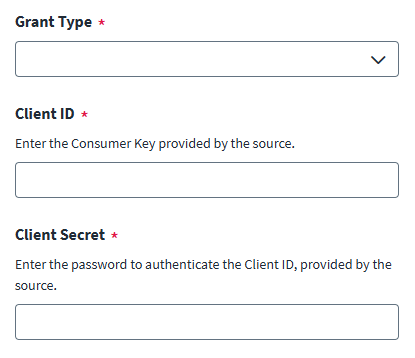
To configure the client credentials grant type:
- In the Client ID field, enter the Consumer Key from the Salesforce source.
- In the Client Secret field, enter the Consumer Secret from the Salesforce source.
- Select Save.
Documentation Feedback
Feedback is provided as an informational resource only and does not form part of SailPoint’s official product documentation. SailPoint does not warrant or make any guarantees about the feedback (including without limitation as to its accuracy, relevance, or reliability). All feedback is subject to the terms set forth at https://developer.sailpoint.com/discuss/tos.