Troubleshooting
If you encounter any of the following issues or errors, SailPoint recommends that you follow the guidance provided below to resolve the error before contacting SailPoint Support.
For issues or errors that are not addressed in this connector guide, refer to the following resources for troubleshooting information:
- SailPoint Identity Services Documentation
- SailPoint Support Knowledge Base
- SailPoint Developer Community
Failed to Deserialize GetCertificate
Error:
Resolution: Check the encrypted field in the source.xml to ensure it has the password,domainConnPassword values. For example: "encrypted": "password,domainConnPassword"
Decrypting the Password Attribute Fails
Error:
Resolution: Check the encrypted field in the source.xml to ensure it has the password,domainConnPassword values. For example: "encrypted": "password,domainConnPassword"
Missing Entitlements in Aggregations with More Than 300 Entitlement with Same Prefixed with "AH_"
Error:
Resolution: Add the following entry using the application Debug page: update-source
In the body of the POST, use form-data as follows:
- Key:
handleSpecialCharsForRoleSearch - Value:
true
Note
For more information on SailPoint's REST APIs, refer to Best Practices: REST API Authentication and REST API - Update Source (Partial) in the SailPoint Developer Community.
Password Error
There is an error if the Confirm Password field does not match the New Password field.
Resolution: Perform the following:
- Go to the user component interface.
- Delete the Password field.
- Drag and drop the OPERPSWD from PSUSRPRFL_WRK.
- Rename the OPERPSWD field to Password.
- Regenerate the jar file.
When Creating a User an Error Message Appears
Error:
openconnector.ConnectorException: openconnector.ConnectorException: Could not find property info for: IDTypes
This error appears if the PSOPRALIAS attribute has not been renamed to IDTypes when creating the component interface.
Resolution: The PSOPRALIAS attribute must be renamed to IDTypes.
Connection Errors
Error:
Cannot connect to PeopleSoft - Direct application from the Application configuration page with jars location specified.
The jar file that is created may not have the correct folder structure. For example, if the newly created folder is C:\CI then the Class files must be present under the "C:\CI\PeopleSoft\Generated\CompIntfc" directory. The jar command needs to be run from the outer directory.
Resolution: In a Command Window enter the following:
- cd C:\CI
- Run the command:
jar -cvf iiqPeoplesoftCompInt.jar *
When trying to connect the following error message appears:
This error occurs when the PeopleSoft server is not accessible and has one of the following reasons:
-
The application server is down
Resolution: Restart the Application Server by navigating to the application designer and then restarting it for the specified version.
-
The configuration details are not correct.
Resolution: Enter the correct configuration values for the respective fields.
PeopleSoft Account Creation Fails with an Error When Employee ID Is Provided in the Provisioning Form
Error:
Sailpoint.connector.ConnectorException: ERROR (0,0) : Failed to execute PSBusComp request ERROR (91,34) : Error changing value. {IIQ_USERS.IDTypes(2).Attributes(1).AttributeValue} (91,34) ERROR (15,11) : Invalid value -- press the prompt button or hyperlink for a list of valid values (15,11)
Resolution: The error occurs when the EMP_ID provided in the provisioning form is not a valid employee. Provide a valid active employee in the provisioning form to assign the newly created user.
Failed to Deserialize GetCertificate During Test Connection
Error:
Resolution: This error during the test connection. Upload the JAR file manually to the CCG/custom folder, and then reboot in order for the source to work in the test connection.
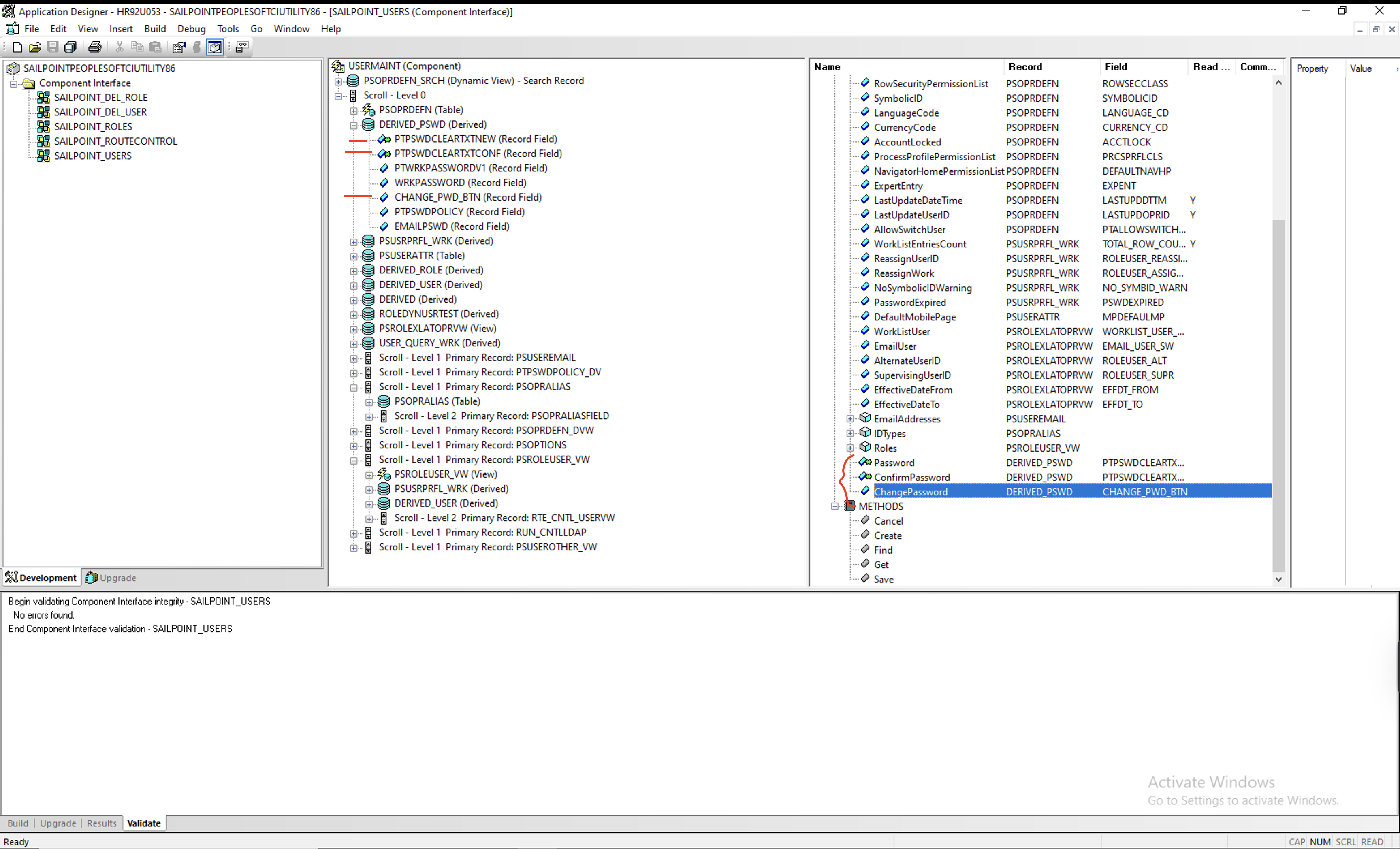
"SAILPOINT_USERS" Component Interface Throws an Error After Importing in PeopleSoft 8.62 Version
Resolution: Follow the below steps to make the necessary changes for the "SAILPOINT_USERS":
-
Delete all the attributes that are incorrect in the left side panel as shown in the attached screenshot as an example.
Screenshot
-
Expand DERIVED_PSWD in the right side panel.
-
Drag and drop the same attributes from the right side panel and update the Attribute Name.
Existing Attribute Name New Attribute Name PTPSWDCLEARTXTNEW Password PTPSWDCLEARTXTCONF ConfirmPassword CHANGE_PWD_BTN ChangePassword
PeopleSoft Entitlement Aggregation Hangs When the Target Server Is Unavailable
During a PeopleSoft Direct entitlement aggregation, if the target application server becomes unavailable due to downtime or a network interruption, the aggregation task does not terminate. Instead, it remains indefinitely in a Running or In Progress state.
This interruption can also cause the aggregation to retrieve incomplete data, which may lead to the unintended removal of entitlements during the reconciliation process.
Resolution: To handle transient connection issues, configure a retry mechanism by setting the retryCount parameter. This allows the system to attempt to reconnect to the PeopleSoft server a specified number of times before terminating the task. For example,
Test Connection Fails with TM_ALLOW_NOTLS Error
During test connection for a source the operation fails with an error indicating that the TM_ALLOW_NOTLS environment variable is not set, which prevents the system from making a connection to the target application.
Resolution: To resolve this issue, follow these steps:
-
Open a terminal to the VA and run the following command:
-
Open the
vi ~/ccg/java_overwrites.yaml -
Add the following lines to the file.
-
Save the file and restart the CCG service to apply the new configuration.
Documentation Feedback
Feedback is provided as an informational resource only and does not form part of SailPoint’s official product documentation. SailPoint does not warrant or make any guarantees about the feedback (including without limitation as to its accuracy, relevance, or reliability). All feedback is subject to the terms set forth at https://developer.sailpoint.com/discuss/tos.