Integrating SailPoint with Microsoft Dynamics 365 for Finance and Operations
Dynamics 365 is a cloud service from Microsoft, combining several business needs into a single, scalable, and agile platform. Microsoft Dynamics 365 for Finance and Operations (FO) is an ERP system which is a part of the Dynamics 365 product line. It offers the ability to keep track of finances and inventory of the business.
Connecting SailPoint to your Dynamics 365 for Finance and Operations connector allows you to manage Users and Security Role assignments related to read and provision various Dynamics 365 Finance and Operations Native IAM Objects as follows:
- Users: Users are employees of the organization synced from Entra ID or created in Finance and Operations, maintaining the same Email and UserID as in Entra ID.
- Security Roles: Users must be assigned to at least one security role to access Finance and Operations. Only security roles can be assigned to users. Granular permissions and child roles are not included in the current scope.
Note
To view the latest features, enhancements, and fixes for all SaaS connectors, refer to the SaaS Release Notes page.
Supported Features
The Microsoft Dynamics 365 for Finance and Operations connector supports the following features:
- Account Management
- Account-Group Management
Account Management
The following table describes the supported operations on various objects for the Microsoft Dynamics 365 for Finance and Operations connector:
| Operations | User |
|---|---|
| Aggregation | Yes |
| Get Account | Yes |
| Enable/Disable Users | Yes |
| Add/Remove Entitlements - Add/Remove Groups |
Yes |
| User Creation | Yes |
Entitlement Management
| Operations | Groups |
|---|---|
| Aggregation | Yes |
Privilege Classification
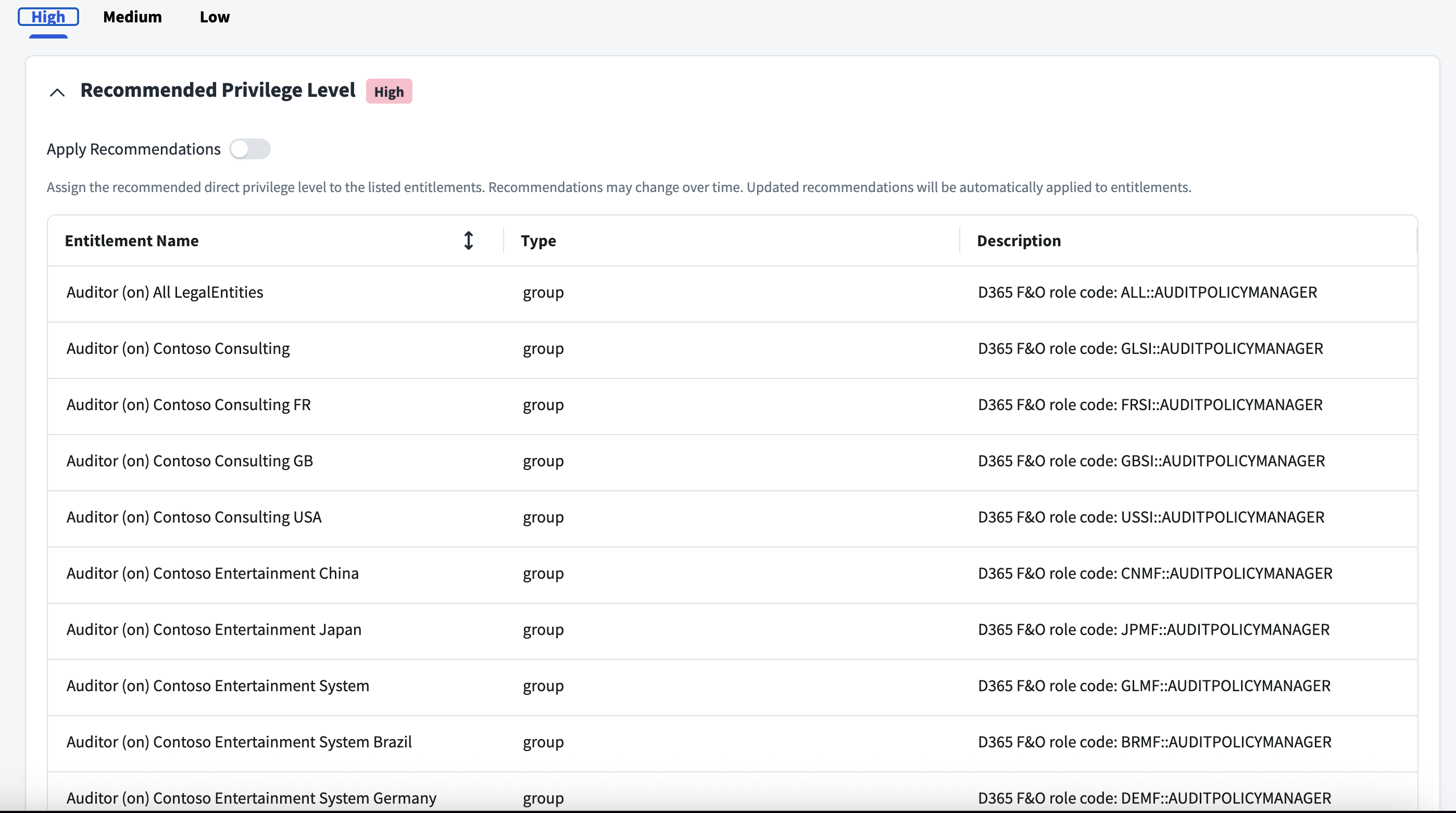
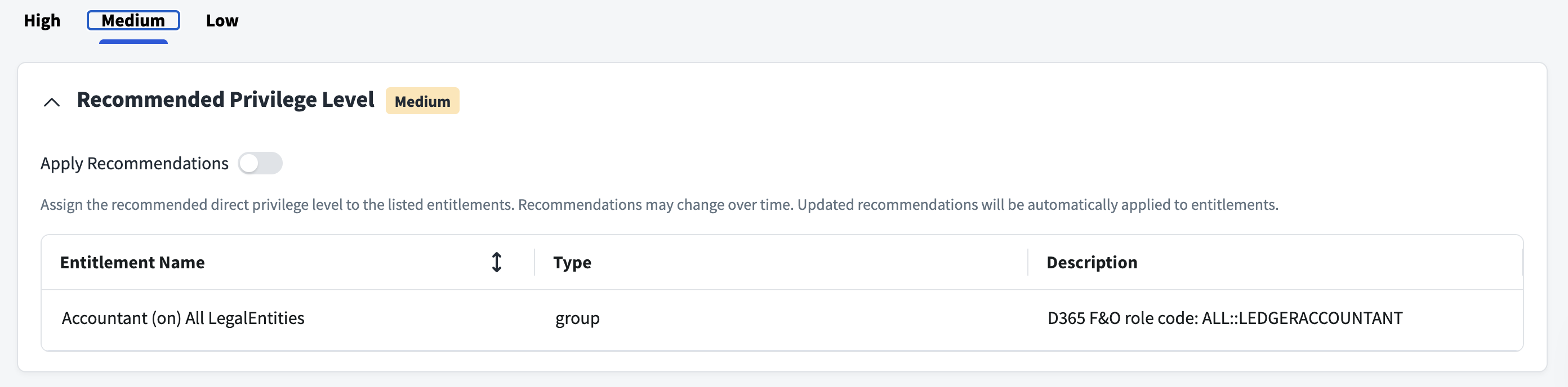
SailPoint Privilege Classification helps organizations systematically categorize and manage the privilege levels of entitlements within their sources. By classifying entitlements as high, medium, or low, administrators can better understand the potential risk and impact associated with specific access rights. This allows automatic assignment of privilege levels based on system recommendations, custom-defined criteria, or a same level across all entitlements.
| Privilege Level | Description |
|---|---|
| High | Administrative level access to accounts |
| Medium | Administrative level access for a specific role or function |
| Low | Only basic access of data |
Note
To manage Privilege Classification, users must have administrative roles such as Org Admin, Source Admin or Source Sub-Admin.
For more information, refer to Managing Privilege Classification.
Example
Prerequisites
- Configure at least one virtual appliance cluster and successfully test the connection. For more information, refer to the Virtual Appliance Reference Guide.
The Microsoft Dynamics 365 for Finance and Operations connector supports OAuth 2.0 authentication with the following grant types:
- Client Credentials
- JWT Certificate Credentials
The following sections describe the configuration that must be performed for each grant type.
Registering an Application on Microsoft Entra ID
Registering the application generates the Tenant ID, Client ID, and Client Secret required for authentication. These are required for later processes.
Perform the following:
- Use either of the following methods to access the Microsoft Entra admin center to perform the configuration:
- Select Entra ID in the left pane.
- Select App registrations.
- Select New registration.
- On the Register an application page, in the Name field, enter the name of the application that you want to set up.
- Select Register. An Application is created. On the Application page the Application ID (Client ID) and Tenant ID are displayed.
- On the left-hand panel, select Certificates & secrets. On the Certificates & secrets page, in the Client secrets section, select New client secret.
-
On the Add a client secret page, enter the Description to generate a secret, and select the validity duration in the Expires list. Select Add.
Note the value of the client secret that you have just created.
Client Credentials
For the Client Credentials (default) grant type based authentication following are the required configurations:
- Obtain the Tenant ID, Client ID, and Client Secret from Microsoft Entra by registering the application (steps mentioned in Registering an Application on Microsoft Entra ID).
JWT Certificate Credentials
JWT Certificate Credentials support authentication based on JWT assertions prepared from a certificate and private key.
- Obtain the Tenant ID and Client ID from Microsoft Entra by registering the application (up to step 6 mentioned in Registering an Application on Microsoft Entra ID).
-
To create a self-signed or CA-signed type X.509 certificate and private key, perform the following steps to register the certificate with the Microsoft identity platform:
Important
The private key must be encrypted with the RSA algorithm and registered at the Entra portal.
- Log in to the Entra Portal.
- Select the client application. In the Entra app registration for the client application, select Certificates & secrets.
- Select Upload certificate and select the certificate file to upload.
- Select Add.
- Obtain values for the following configurations:
- Certificate: Obtain the text file of the same certificate which was uploaded on the Entra portal.
- Private Key: Obtain the private key text file.
- Private Key Password
Additional Steps on the Finance and Operation Instance
Complete the following in the Dynamics 365 Finance and Operation source.
- Create a Microsoft Entra ID application by providing the following details:
- ClientID: Client ID must match the Client ID registered in Entra ID.
- Name: Logical name to differentiate the application.
-
UserID: Select the user that is used to manage the connector operation.
Note
The selected user must be assigned to a security role that has the privileges defined in Required Permissions.
Required Permissions
The following table defines the minimum privileges required by the Security Role assigned to the service account for the connector:
| Privilege Name | Permission on Entity/Table provided |
|---|---|
| Maintain security user role association entity | SystemSecurityUserRoleAssociationEntity: Required for fetching information related to Users and their associated roles. |
| Maintain system security user role duty privilege entity | SystemSecurityRoleDutyEntity: Required for fetching information regarding duties associated with a Security Role.SystemSecurityRoleEntity: Required for viewing Security Role information.SystemSecurityUserRoleEntity: Required for viewing and updating User roles. |
| Maintain system security user role organization entity | SystemSecurityUserRoleOrganizationEntity: Required for viewing and updating user roles for legal entities. |
| CompanyInfoEntityView | CompanyInfoEntity: Viewing company details present on the managed system. |
| View legal entities entity | OMLegalEntity: Required for viewing legal entity details present on the managed system. |
| Maintain users Maintain users entity View users entity |
These set of privileges are required for viewing and updating information related to Users on the managed system. These include permissions for: Tables: SecurityUserRole and UserInfoEntities: SystemUserEntity |
Documentation Feedback
Feedback is provided as an informational resource only and does not form part of SailPoint’s official product documentation. SailPoint does not warrant or make any guarantees about the feedback (including without limitation as to its accuracy, relevance, or reliability). All feedback is subject to the terms set forth at https://developer.sailpoint.com/discuss/tos.