TLS Communication
Completely secure the connection with the source by enabling and configuring Transport Level Security (TLS) protocol between the each of the components that make up your system.
Enabling TLS Communication
The Transport Layer Security (TLS) protocol provides encryption, authentication and integrity to all applications. To use TLS-secured communication for the Mainframe Connector, TLS communication must be defined and configured in the following relevant components:
- TCP/IP in the system where the Mainframe Connector will be active
- Connector Gateway
- SailPoint
Enabling Traces
Enabling logs for Cluster enables debug level logs for all sources which use that cluster.
On the Connector Gateway
-
Edit the
log4j2.propertiesfile on the Connector Gateway by setting the following line:log4j2.rootLogger = DEBUG, commonLog -
Restart the Connector Gateway.
Configure TLS Between the Connector Gateway and Mainframe
To enable TLS communication between the Connector Gateway and Mainframe, the Connector Gateway must validate the CN of the subject of certificate against the value provided in the agentCertSubject parameter in the init.xml file. The agentCertSubject parameter must only be set by using the following command:
java -jar ConnectorGateway.jar -agentCertSubject <VALUE>
For example:
java -jar ConnectorGateway.jar -agentCertSubject CertSubject
By running the above command, the Connector Gateway encrypts the value and stores it in the init.xml file under the SM tag as follows:
<agentCertSubject>ENCRYPTED_VALUE</agentCertSubject>
Note
The value of agentCertSubject parameter must not be set directly in the init.xml file, it must be set only by using the above command.
If agentCertSubject is not specified then the Connector Gateway validates the CN of the certificate subject against the FQDN of the machine hosting the Mainframe Connector.
To enable TLS between the Connector Gateway and the Mainframe Connector:
- Set up AT-TLS on the Mainframe where the Mainframe Connector (Agent) is installed. The certificate must be exported from the Mainframe and imported into the Connector Gateway machine.
-
Use the following command to set the
enableCGtoAgentTLSparameter totrueand set the truststore path:java -jar ConnectorGateway.jar -enableCGtoAgentTLS "true" -trustStore "truststorePath"where
trustStoreis the full path of truststore.Note
All the components the Connector Gateway, CCG, and the Mainframe Connector must be restarted after modifying the configurations.
Configure Mutual TLS Authentication Between the Connector Gateway and Mainframe
After you enable and configure TLS authentication, you can configure mutual TLS authentication on the Connector Gateway and Mainframe hosts.
Mutual TLS enables the Connector Gateway to validate the authenticity of Mainframe at the same time that Mainframe validates the Connector Gateway itself.
To enable mutual TLS authentication between Mainframe and the Connector Gateway:
-
In the init.xml file, set the
enableCGTLSAuthparameter totrueand provide supporting authentication credentials:Important
Don't set the
keyStorePassCGTLSAuthandkeyPassCGTLSAuthparameter values directly in the init.xml file. They must be set only by using the method in this step.java -jar ConnectorGateway.jar -enableCGTLSAuth "true" -keyStoreCGTLSAuth "keystorePath" -keyStorePassCGTLSAuth "keystorePassword" -keyPassCGTLSAuth "keyPassword"Consider the following for these commands:
Variables Description enableCGTLSAuth Only used if enableCGtoAgentTLS is set to true. When this is set totrue, Mainframe validates the authenticity of the Connector Gateway. This is set tofalseby default.keyStoreCGTLSAuth This is a file location where a keytool utility generated keystore.jks file can be found. Typically this is in the Connector Gateway host. This keystore.jks file is used by Mainframe to authenticate the Connector Gateway. keyStorePassCGTLSAuth The keystore.jks file is protected with a keystorePassword. The password grants access to the keystore.jks file upon successful mutual TLS authentication. keyPassCGTLSAuth This private/secret keyPasswordis a fallback authentication method used if the configured keystore password fails, and the keytool needs to recover the keys.Note
The
keystorePasswordandkeyPasswordvalues are encrypted by the Connector Gateway while updating the init.xml file. -
Copy or transfer the certificate from the Connector Gateway host to the Mainframe dataset and add it as a trusted certificate.
-
Set the
HandshakeRole ServerWithClientAuthandClientAuthType Requiredvalues in the Mainframe AT-TLS policy.For more information on these values, refer to Implementing AT-TLS Policy for Mainframe Connector Communication.
Configure TLS/mTLS Between SailPoint Mainframe Connector and the Connector Gateway (CG)
This section describes how to configure Transport Layer Security (TLS) and mutual TLS between SailPoint Mainframe Connector and CG.
- TLS: Configuration between the SailPoint Connector and CG.
- Mutual TLS: Configuration between CG and Mainframe system.
TLS and mutual TLS require certificates for authentication. Certificates can be self-signed or issued by a Public Key Infrastructure (PKI).
The following steps use keytool and a self-signed certificate example.
Prerequisites
- Configure the SailPoint Connector.
- Install and configure the SailPoint Connector Gateway.
- Configure at least one virtual appliance cluster and successfully test the connection. For instructions, refer to the Virtual Appliance Reference Guide.
Validate the CG Connection
Before configuring TLS and mutual TLS, validate the connection to the CG and enable TLS in the source configuration.
- Go to Admin > Connections > Sources.
- Select the Source you configured.
- Go to Connection Settings, and disable the Enable TLS toggle.
-
Go to Review and Test and select Test Connection to validate the connection.
Important
Test Connection must be successful.
-
After the connection is successful, go to Connection Settings and enable the Enable TLS toggle.
- Select Save.
Create the Encryption Key File
Important
The following steps apply only to CG 2025 and later. They do not apply to CG versions earlier than Connector Gateway-Jun-2025.
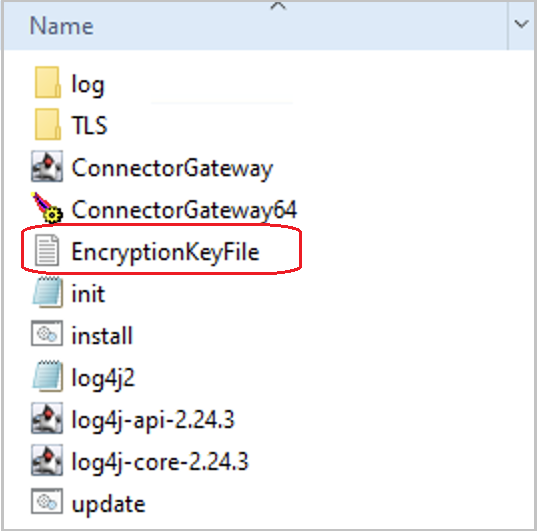
- In the CG deployment directory, create an empty
.txtfile. - Change the name to
encryptionKeyFileor another suitable name. -
Add a key value to the file and save it.
For more details on key value, refer to Details of encryptionKeyFile.
The file stores the symmetric key that encrypts sensitive values in init.xml.
Caution
If the encryption key file is not provided, the CG uses a hard-coded default key which is not recommended for production environment.
Configure the Encryption Key File in init.xml
-
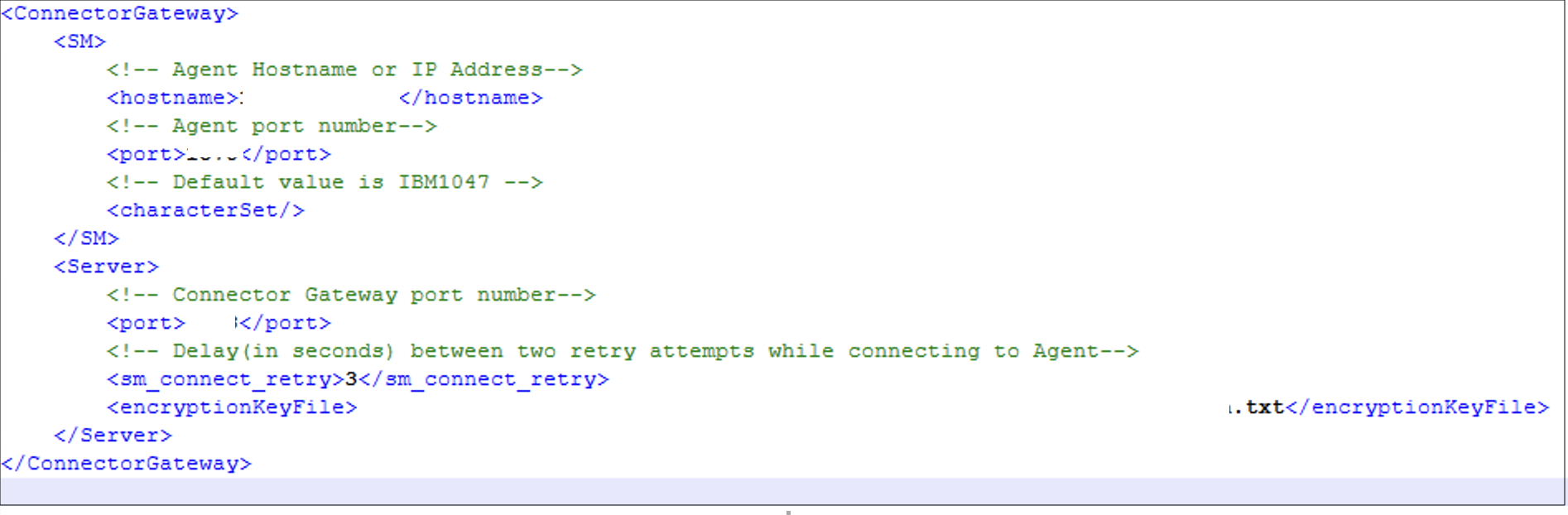
In the
init.xml, set the<encryptionKeyFile>parameter to the absolute path of the encryption key file, including the file name.Screenshot
Configure TLS (CG as TLS Server)
-
Create and configure a server certificate on the CG. The Connector validates the server certificate during the TLS handshake.
Note
A client certificate is not required.
-
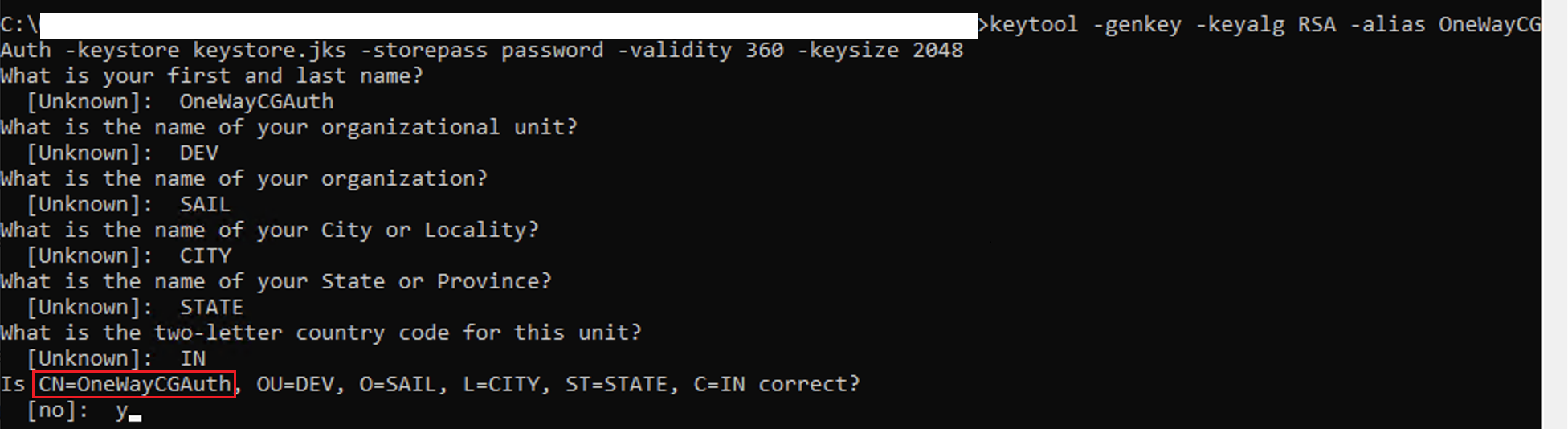
Use the
keytoolto run the following command to generate thekey pairandkeystore:keytool -genkey -keyalg RSA -alias OneWayCGAuth -keystore keystore.jks -storepass password -validity 360 -keysize 2048Use the settings:
- Algorithm: RSA, 2048-bit
- Validity: 360 days (or per policy).
keystoreformat: JKS,- Alias and passwords: User defined (for example,
OneWayCGAuth, password).
-
Generate the certificate using the Common Name (CN), for example
OneWayCGAuth. This value is used later in the Certificate Subject / CGCertSubject on the SailPoint Mainframe Connector.Screenshot
-
Run the following command to export the server certificate (CER):
keytool -export -alias OneWayCGAuth -storepass password -file server.cer -keystore keystore.jksScreenshot

The certificate is stored in
server.cer.
Configure TLS and Keystore in init.xml
-
From the CG deployment directory that contains
ConnectorGateway.jar, run the following command to configure thekeystore:Important
Before you run commands that update
init.xml, make sureencryptionKeyFileis configured ininit.xml.java -jar ConnectorGateway.jar -keystorepass <storepass> -keypass <keypass> -keystore "<absolute_path_to_keystore.jks>"Important
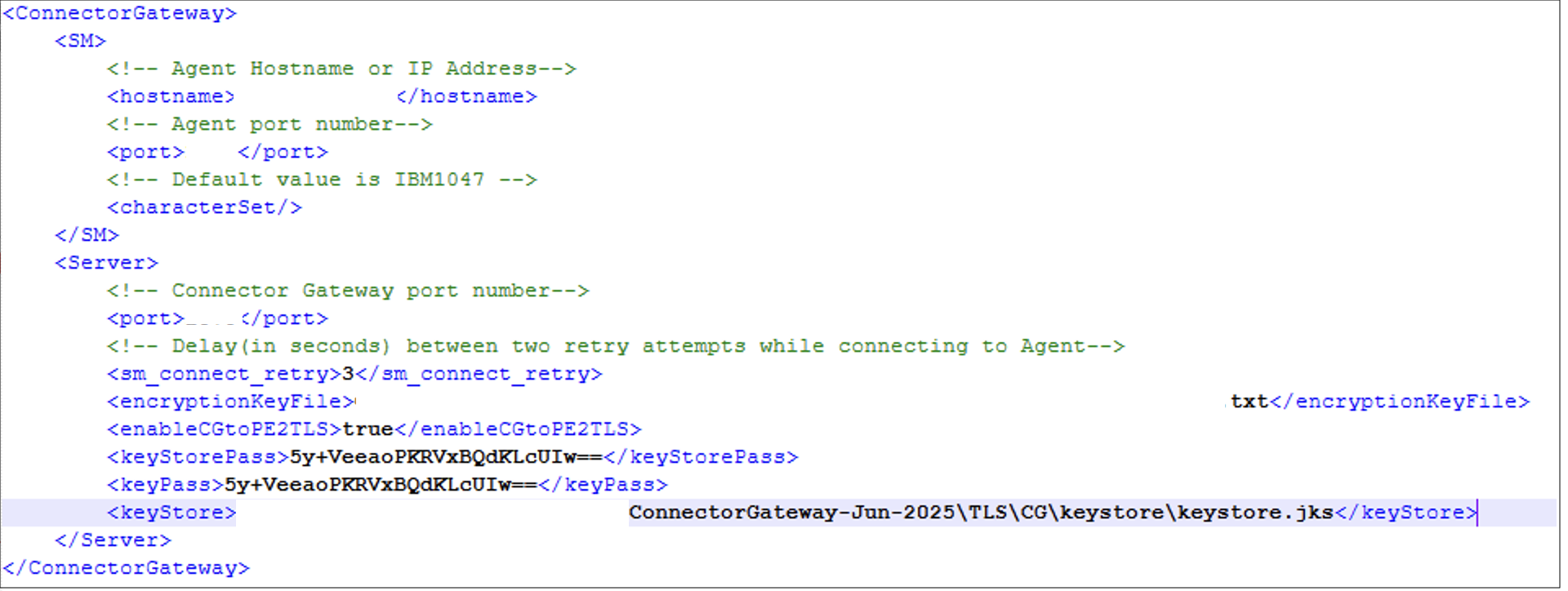
The command stores encrypted
keystorePassandkeyPass(keystore path) intoinit.xml. -
Run the following command to enable TLS:
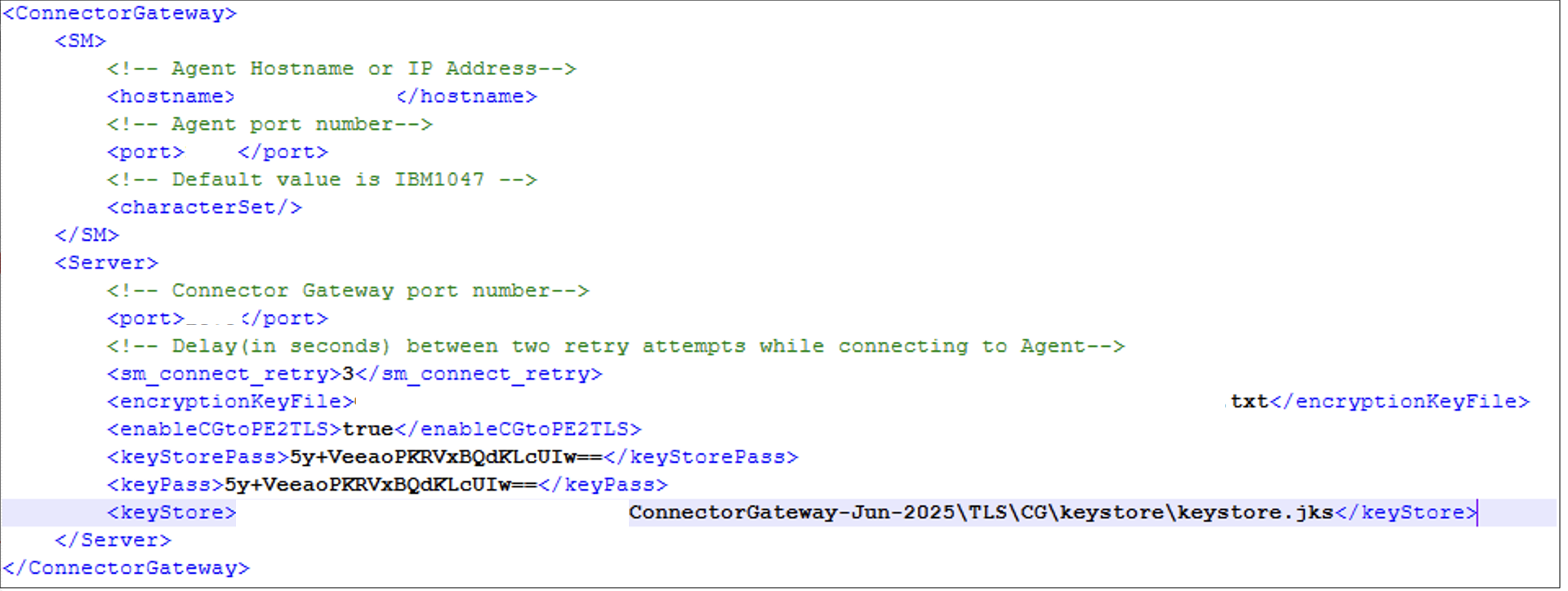
java -jar ConnectorGateway.jar -enableCGtoPE2TLS "true" -
Restart the CG to apply the changes. After the configuration,
init.xmlcontains entries similar to the following:Screenshot
Configure the Connector for TLS
- Copy the
server.certo/home/sailpoint/certificates. - Restart the Client Connector Gateway (CCG) service on the virtual appliance.
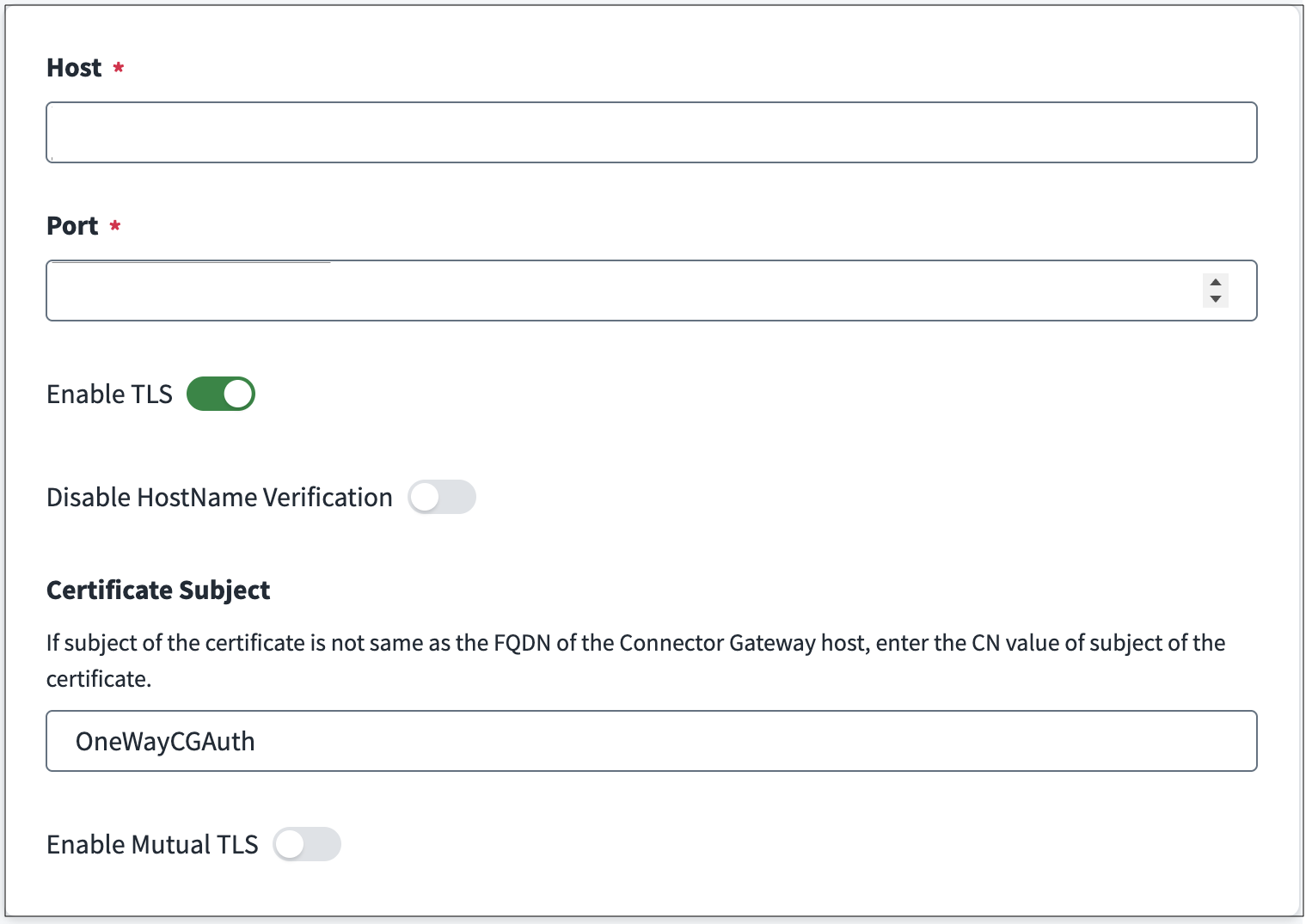
- Open the source.
- Go to Connection Settings.
-
In the Certificate Subject, enter the Common Name (CN) of the CG certificate, for example:
OneWayCGAuth.Screenshot
-
Select Save.
-
Go to Review and Test and select Test Connection to validate the connection.
Important
Test Connection must be successful.
Configure Mutual TLS
After you configure the TLS successfully, configure mutual TLS to enable client certificate authentication.
In mutual TLS, the Connector presents a client certificate and the CG validates it against a truststore.
Generate the Client Certificate for the CG Connection
- Generate a dedicated keystore and export the client certificate on the virtual appliance.
-
Run the following command to generate the key pair and keystore:
keytool -genkey -keyalg RSA -alias TwoWayServerAuth -keystore keystore.jks -storepass password -validity 360 -keysize 2048 -
Run the following command to export the certificate:
keytool -export -alias TwoWayServerAuth -storepass password -file server.cer -keystore keystore.jks -
Generate the certificate using the Common Name (CN), for example:
TwoWayServerAuth. This value is used later asPE2CertSubjectin CG configuration.
Configure the Connector for Mutual TLS
-
Copy the
server.cerandkeystore.jksto/home/sailpoint/certificates.Rename the files if necessary to avoid overwriting existing files.
-
Restart the CCG service on virtual appliance.
-
Copy the
server.certo the CG and optionally copy thekeystore.jksfor reference.The certificate is now imported into the CG
truststore.
Configure CG Truststore and init.xml
- Create a directory on the CG. For example:
ConnectorGateway_location\TLS\CG\truststore. - Copy the JVM
cacertsfile into thetruststoredirectory. Example location:JAVA_HOME/lib/security -
Run the following command to import the SailPoint connector certificate into the
cacertstruststore:keytool -import -v -trustcacerts -alias TwoWayServerAuth -file server.cer -keystore cacerts -keypass <password>Note
If trust or certificate chain warnings appear, try another JVM's
cacertsfile or make sure that the certificate chain is complete. -
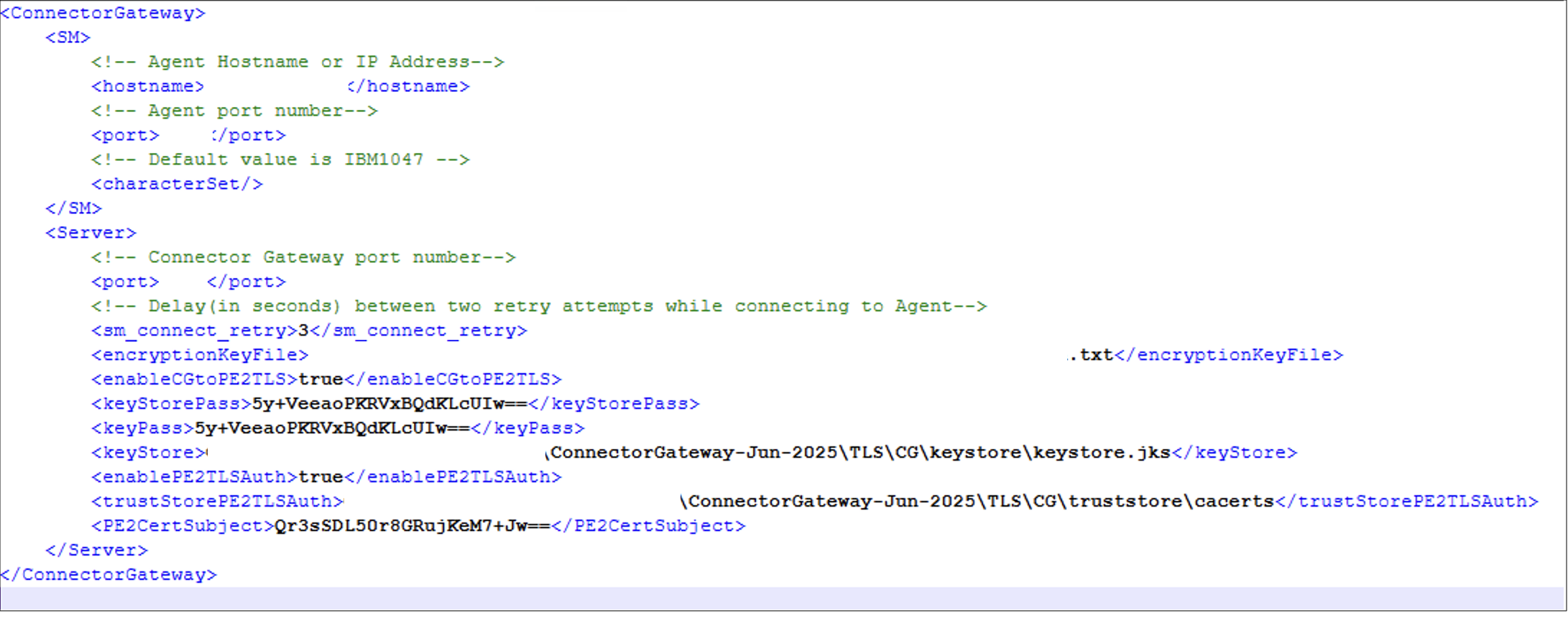
Run the following command to add the mutual TLS configuration to
init.xml:Important
Before you run commands that update
init.xml, make sureencryptionKeyFileis configured ininit.xml.java -jar ConnectorGateway.jar -enablePe2TLSAuth true -trustStorePE2TLSAuth "<absolute_path_to_truststore_cacerts>" -PE2CertSubject TwoWayServerAuth -
Restart the CG.
Screenshot
Configure Mutual TLS in SailPoint Mainframe Connector
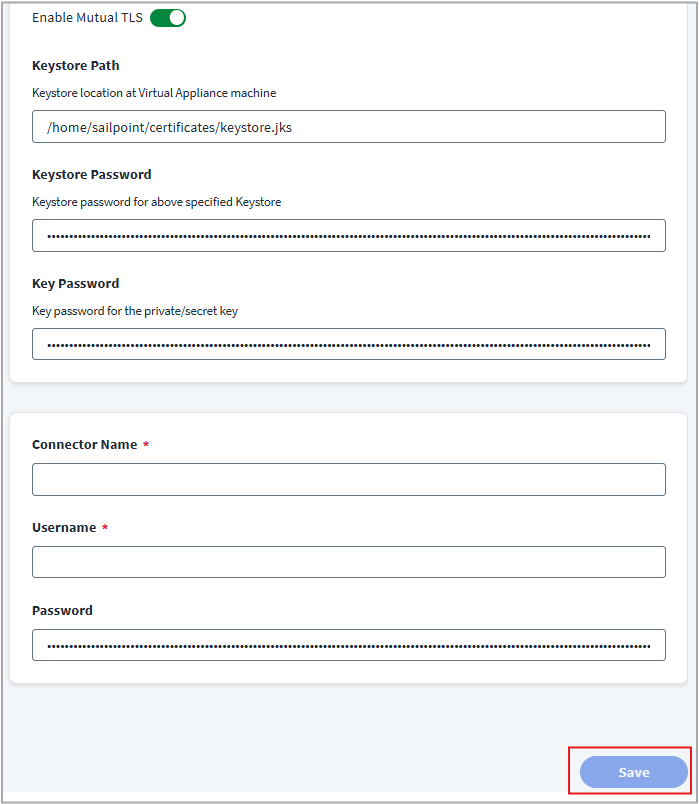
- Go to Configuration Settings and enable the Enable Mutual TLS toggle.
- In KeyStore Path, enter the path to the Keystore file on the Virtual Appliance. For example:
/home/sailpoint/certificates/keystore.jks - In Keystore Password, enter the password for the specified Keystore.
- In Key Password, enter the password for the private/secret key.
-
Select Save.
Screenshot
-
Go to Review and Test and select Test Connection to validate the connection.
Summary of init.xml Elements
| Attribute Name | Description |
|---|---|
encryptionKeyFile |
Specifies the path to file that contains 16/24/32 - byte encryption key used to encrypt sensitive values in init.xml. Required for CG 2025 and later. |
keystore / keystorePass / keyPass |
Specify the CG server certificate for TLS. These values are encrypted when generated using ConnectorGateway.jar. |
enableCGtoPE2TLS |
Enables TLS on CG for connections from SailPoint Connectors. |
enablePe2TLSAuth |
Enables client certificate authentication for mutual TLS. |
trustStorePE2TLSAuth |
Specifies the path to the truststore (for example, cacerts) that contains SailPoint Connector certificates. |
PE2CertSubject |
Specifies the Common Name (CN) of the allowed SailPoint Connector certificate. This value is stored in encrypted form in init.xml. |
Configuring TLS on the Mainframe Connector
Secured communication to the Mainframe Connector must be implemented using an AT-TLS policy. An AT-TLS policy states that communication must be implemented on a port defined to Mainframe as non-secured. The TLS processing is done by TCPIP and is transparent to the Mainframe Connector. For more information, refer to Implementing AT-TLS Policy for Mainframe Connector Communication.
The secured communication is implemented using server authentication.
Common implementation procedure to set up TLS for the Mainframe Connector
- A valid server certificate with its associated server private key must be defined. This certificate must be signed by a trusted Certificate Authority's (CA).
- The server certificate and the CA certificate must be connected to a key ring.
- The server certificate signed by CA must be transferred (using FTP with ASCII mode) to the client and installed there to be used for certificate verification by the TLS handshake process.
Note
For testing purposes, a local CA can be defined for signing the server certificate.
Implementing AT-TLS Policy for Mainframe Connector Communication
For detailed information about implementing AT-TLS policy, refer to the Application Transparent Transport Layer Security Data Protection chapter of z/OS Communications Server IP Configuration Guide.
The required policy attributes for AT-TLS policies are listed below. You can copy and paste them into your AT-TLS policy.
- Local Port Range - ports defined in Mainframe Connector as non-secured
- Direction = Inbound
- TLS Enabled = On
- TLS v1.1 = On
- TLS v1.2 = On
-
# For one way TLS
Handshake Role = Server
-
# For mutual TLS
Handshake Role = ServerWithClientAuth
-
# For one way TLS
Client Authorization Type = PassThru
-
# For mutual TLS
Client Authorization Type = Required
-
Application Controlled = Off
- Secondary Map = Off
- The name of the certificate created for the secured communication and the name of the key ring to which the server certificate and the CA certificate are connected, must be specified.
Note
TCPIP must be granted permission to access the key ring to which the Mainframe Connector certificate and the CA certificate are connected.
Sample File for AT-TLS Policy
RULE for Mainframe Connector CTSGATE

####################################################

TTLSRule CTSGATE
{
LocalAddr ALL
RemoteAddr ALL
LocalPortRange 2470-2471
Direction Inbound
Priority 255 # highest priority rule
Userid CTSGATE
TTLSGroupActionRef GrpAct_CTSGATE
TTLSEnvironmentActionRef GrpEnv_CTSGATE
TTLSConnectionActionRef GrpCon_CTSGATE
}
TTLSGroupAction GrpAct_CTSGATE
{
TTLSEnabled On
Trace 7
HandshakeRole Server
}
TTLSEnvironmentAction GrpEnv_CTSGATE
{
Trace 7
HandshakeRole Server
EnvironmentUserInstance 0
TTLSKeyringParmsRef PrmKeyRing_CTSGATE
TTLSEnvironmentAdvancedParmsRef PrmEnvAdv_CTSGATE
}
TTLSEnvironmentAdvancedParms PrmEnvAdv_CTSGATE
{
TLSv1.1 On
TLSv1.2 On
#Comment out the following line out if enabling Mutual TLS
ClientAuthType PassThru
#To Enable Mutual TLS between Mainframe and Connector Gateway use below
#ClientAuthType Required
}
TTLSConnectionAction GrpCon_CTSGATE
{
#Comment out the following line out if enabling Mutual TLS
HandshakeRole Server
#If you are enabling Mutual TLS between Mainframe and Connector Gateway use below
#HandshakeRole ServerWithClientAuth
TTLSCipherParmsRef PrmCipher_CTSGATE
TTLSConnectionAdvancedParmsRef PrmConAdv_CTSGATE
CtraceClearText Off
Trace 7
}
TTLSConnectionAdvancedParms PrmConAdv_CTSGATE
{
ApplicationControlled Off
CertificateLabel CTSGATE
SecondaryMap Off
}
TTLSCipherParms PrmCipher_CTSGATE
{
# supported cipher suites - we used a wide list, that should be decreased according to specific needs V3CipherSuites TLS_DH_DSS_WITH_DES_CBC_SHA
V3CipherSuites TLS_DH_RSA_WITH_DES_CBC_SHA
V3CipherSuites TLS_NULL_WITH_NULL_NULL
V3CipherSuites TLS_RSA_WITH_NULL_MD5
V3CipherSuites TLS_RSA_WITH_NULL_SHA
V3CipherSuites TLS_RSA_EXPORT_WITH_RC4_40_MD5
V3CipherSuites TLS_RSA_EXPORT_WITH_RC2_CBC_40_MD5
V3CipherSuites TLS_RSA_WITH_DES_CBC_SHA
V3CipherSuites TLS_DHE_DSS_WITH_DES_CBC_SHA
V3CipherSuites TLS_DHE_RSA_WITH_DES_CBC_SHA
V3CipherSuites TLS_RSA_WITH_AES_256_CBC_SHA256
V3CipherSuites TLS_RSA_WITH_AES_256_CBC_SHA
V3CipherSuites TLS_ECDHE_ECDSA_WITH_AES_128_CBC_SHA256
V3CipherSuites TLS_ECDHE_RSA_WITH_AES_128_CBC_SHA256
V3CipherSuites TLS_RSA_WITH_AES_128_CBC_SHA256
V3CipherSuites TLS_ECDH_ECDSA_WITH_AES_128_CBC_SHA256
V3CipherSuites TLS_ECDH_RSA_WITH_AES_128_CBC_SHA256
V3CipherSuites TLS_DHE_RSA_WITH_AES_128_CBC_SHA256
V3CipherSuites TLS_DHE_DSS_WITH_AES_128_CBC_SHA256
V3CipherSuites TLS_ECDHE_ECDSA_WITH_AES_128_CBC_SHA
V3CipherSuites TLS_ECDHE_RSA_WITH_AES_128_CBC_SHA
V3CipherSuites TLS_RSA_WITH_AES_128_CBC_SHA
V3CipherSuites TLS_ECDH_ECDSA_WITH_AES_128_CBC_SHA
V3CipherSuites TLS_ECDH_RSA_WITH_AES_128_CBC_SHA V3CipherSuites TLS_DHE_RSA_WITH_AES_128_CBC_SHA
V3CipherSuites TLS_DHE_DSS_WITH_AES_128_CBC_SHA V3CipherSuites TLS_ECDHE_ECDSA_WITH_AES_128_GCM_SHA256
V3CipherSuites TLS_ECDHE_RSA_WITH_AES_128_GCM_SHA256
V3CipherSuites TLS_RSA_WITH_AES_128_GCM_SHA256
V3CipherSuites TLS_ECDH_ECDSA_WITH_AES_128_GCM_SHA256
V3CipherSuites TLS_ECDH_RSA_WITH_AES_128_GCM_SHA256
V3CipherSuites TLS_DHE_RSA_WITH_AES_128_GCM_SHA256
V3CipherSuites TLS_DHE_DSS_WITH_AES_128_GCM_SHA256
V3CipherSuites TLS_ECDHE_ECDSA_WITH_3DES_EDE_CBC_SHA
V3CipherSuites TLS_ECDHE_RSA_WITH_3DES_EDE_CBC_SHA
V3CipherSuites TLS_ECDH_ECDSA_WITH_3DES_EDE_CBC_SHA
V3CipherSuites TLS_ECDH_RSA_WITH_3DES_EDE_CBC_SHA
}
TTLSKeyringParms PrmKeyRing_CTSGATE
{
Keyring CTSRING
}
- Relevant entities - TCPIP and PAGENT
- In TCPIP, AT-TLS must be active
- PAGENT must be up
- PAGENT requires a policy
- Refresh definitions: after member/file is updated, use the
F PAGENT,UPDATEorF PAFGENT,REFRESH - CTSGATE does not have to be restarted when the policy is changed
- CA certificate must be sent to Connector Gateway side.
Note
The HandshakeRole ServerWithClientAuth and ClientAuthType Required attributes are commented out in the sample AT-TLS policy provided above. If you are configuring mutual TLS, remove the comment tags same and comment out the HandshakeRole Server and ClientAuthType PassThru line instead. These are not needed for mutual TLS.
Documentation Feedback
Feedback is provided as an informational resource only and does not form part of SailPoint’s official product documentation. SailPoint does not warrant or make any guarantees about the feedback (including without limitation as to its accuracy, relevance, or reliability). All feedback is subject to the terms set forth at https://developer.sailpoint.com/discuss/tos.