Connecting SailPoint and CyberArk Privilege Cloud Shared Services PAM
To connect SailPoint and CyberArk Shared Services PAM, perform the following tasks:
Adding Discovery Connector in SailPoint
Discovery connectors have categories that encompass a group of discovery sources to find enterprise applications. You can automatically discover enterprise applications using discovery sources, which search for applications your organization has on-boarded or can on-board. For more information, refer to Discovering Enterprise Applications.
- Go to Admin > Connections > Discovery Connectors.
- Select Create Connector.
- Select Connector Category.
- Select Continue.
- Search for a source type and select Configure.
- Review the directions and select Start Connector Setup.
-
Review the pre-populated source name, source owner, and description. To update, select Edit.
Note
Source name must be unique.
-
(Optional) If enabled for your organization, select the Use a Credential Provider checkbox to manage the source's authentication using a credential provider.
Note
To add a Credential Provider in SailPoint, go to Admin > Connections > Credential Providers. For more information about credential providers, refer to Credential Providers.
-
Configure the authentication to allow SailPoint to connect to the source. For more information, refer to the Connection Settings page.
- Select Finish. A test connection is performed in the background.
-
If the test connection is successful, your source is created, and you are prompted to run a discovery.
-
If you want to discover applications now, select Discover.
- Additional Settings > Discovery Settings - The latest application discovery history is shown.
- Additional Settings > Discovery Activity - Discovered applications are listed.
-
If you want to discover applications later, select Cancel. As no discovery has taken place, in the source details:
- Additional Settings > Discovery Settings - The latest application discovery history is blank.
- Additional Settings > Discovery Activity - No discovered applications are listed.
You are navigated to the Sources page, where the source created is listed.
-
Base Configuration
Provide the base configuration parameters. Information you entered in the Connector Setup dialog is automatically entered into the fields in the Base Configuration page. You can edit this information, if necessary.
Note
Ensure that the name and description of each connector is unique.
- Enter a descriptive Connector Name for the connection.
- Enter the Description that provides details necessary to distinguish it from similar connection sources.
-
In Connector Owner, enter the name of the owner responsible for administrating, operating and managing the source system.
-
Select Save.
Connection Settings
The connector must authenticate with CyberArk Shared Services to access and manage data.
OAuth 2.0 Authentication
The connector uses OAuth 2.0 as the default authentication method to connect to CyberArk Shared Services. Use the credentials generated during the Service User creation process to configure the connection.
Screenshot
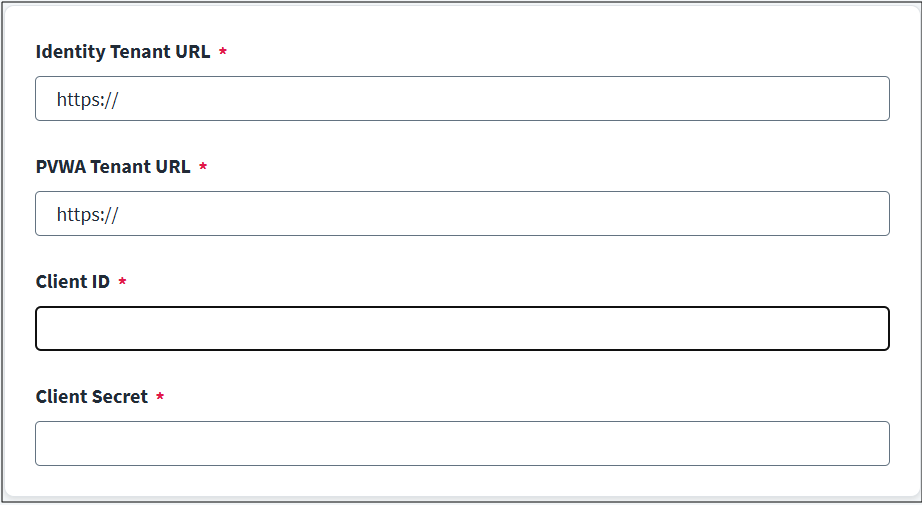
- Enter the Identity Tenant URL.
- Enter the PVWA Tenant URL.
- Enter the Client ID.
- Enter the Client Secret.
- Select Save.
Review and Test
Perform a test to confirm the connection to SailPoint.
- Go to the Review and Test page.
- Review the configuration details for accuracy.
- If any information is incorrect, return to the relevant section and update the fields.
- Select Test Connection.
A success message appears if the connection is established. If the test fails, review your Authentication and Base Configuration settings.
Documentation Feedback
Feedback is provided as an informational resource only and does not form part of SailPoint’s official product documentation. SailPoint does not warrant or make any guarantees about the feedback (including without limitation as to its accuracy, relevance, or reliability). All feedback is subject to the terms set forth at https://developer.sailpoint.com/discuss/tos.