Configuring BeyondTrust Password Safe On-Premise (Secrets Manager)
Base Configuration
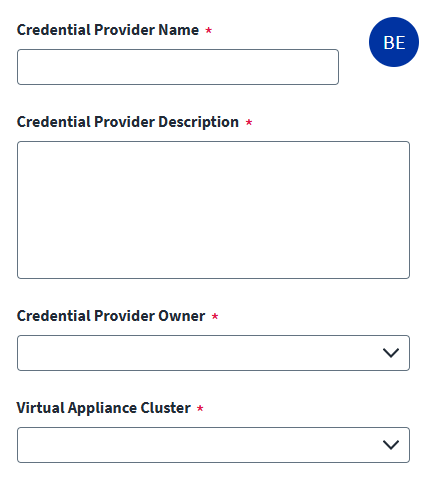
Provide the base configuration parameters. Information you entered during the initial creation of the credential provider is automatically entered into the fields in the Base Configuration page. You can edit this information if necessary.
Screenshot
Note
Ensure that the name and description of each credential provider is unique.
- Go to Admin > Connections > Credential Providers.
- Search for the credential provider you want to edit.
- Enter a unique Credential Provider Name.
- Enter a Credential Provider Description that provides details necessary to distinguish it from similar credential providers.
- Select a Credential Provider Owner by typing the owner's name into the field provided. Matches display after you type at least two letters. Select the credential provider owner as required.
- Select a Virtual Appliance Cluster with connectivity to the credential provider. For more information about configuring and deploying virtual appliances, refer to the Virtual Appliance Reference Guide.
-
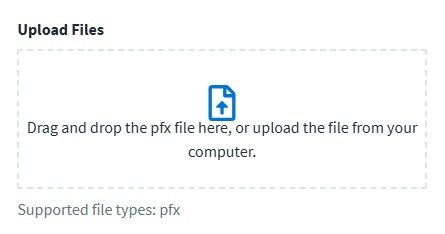
(Optional) If your BeyondTrust API registration uses client certificate authentication, upload a valid client certificate (.pfx file) required to support this feature. Drag and drop the file onto the Upload Files box to upload it, or select anywhere within the Upload Files box to choose the file on your computer.
Note
You can download the client certificate from Password Safe. Go to Configuration > System > Downloads.
-
Select Save.
Connection Settings
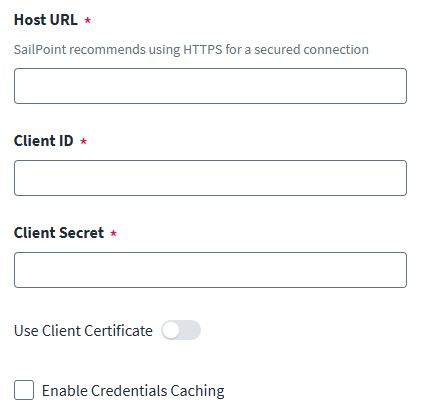
Configure the authentication parameters to connect to and authenticate with BeyondTrust Password Safe On-Premise (Secrets Manager).
Screenshot
To configure an authenticated connection:
- Enter the Host URL to connect to BeyondTrust Password Safe.
- Enter the Client ID and Client Secret assigned to the Application User Account.
-
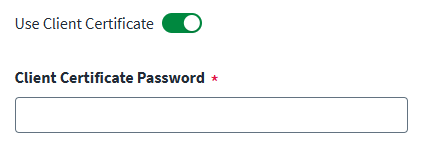
(Optional) Enable Use Client Certificate if your API registration in BeyondTrust uses client certificate authentication. Then, in the Client Certificate Password field, enter the password used to authenticate the client certificate.
Important
To support this feature, you need to upload a valid client certificate from BeyondTrust in Base Configuration.
-
(Optional) Enable credential caching. For more information, refer to Caching Credentials.
- Select Save.
Documentation Feedback
Feedback is provided as an informational resource only and does not form part of SailPoint’s official product documentation. SailPoint does not warrant or make any guarantees about the feedback (including without limitation as to its accuracy, relevance, or reliability). All feedback is subject to the terms set forth at https://developer.sailpoint.com/discuss/tos.