Connection Settings
Choose the appropriate authentication type and provide the information required to connect and interact with the source.
Note
Each time you change the Authentication Type for the ServiceNow Connector, you must perform a Test Connection.
You can configure your source using the following authentication types:
Configure the Connection with Basic Authentication
 Screenshot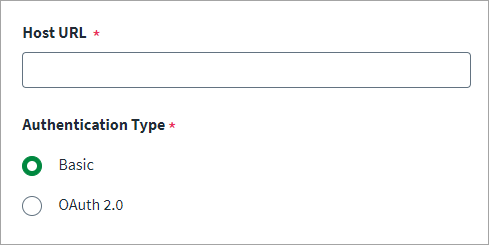
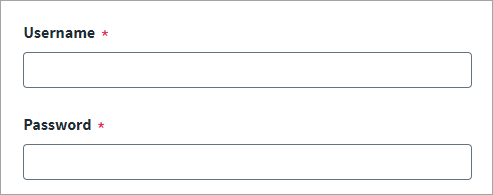
-
Enter the Host URL for the ServiceNow instance that is used for communication.
-
Select Basic as the Authentication Type.
-
Enter the Username and Password that have the appropriate permissions. For more information, refer to Required Permissions.
-
Select Save.
Configure the Connection with OAuth 2.0 Authentication
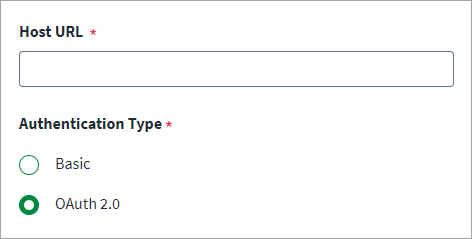
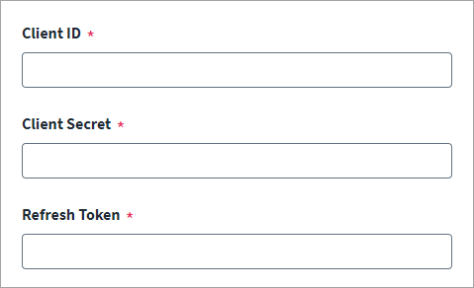
-
Enter the Host URL for the ServiceNow instance that is used for communication.
-
Select OAuth 2.0 as the Authentication Type.
-
Enter the Client ID and Client Secret for OAuth 2.0 authentication.
-
Enter the Refresh Token for OAuth 2.0 authentication. For more information on creating an OAuth 2.0 profile on your ServiceNow instance, refer to ServiceNow: Create an endpoint for clients to access instance .
To create a refresh token use the following curl command:
Copy$ curl -d "grant_type=password&client_id=be3aeb583ace210011c15b24a43e25d8
&client_secret=client_password
&username=admin&password=admin"
POST https://instancename.service-now.com/oauth_token.doFor more information, refer to ServiceNow: OAuth API request parameters .
-
Select Save.