Additional Settings
On the Additional Settings page, configure the advance settings as well as aggregation settings.
Note
SailPoint recommends that you do not change the default settings. Changing the settings could result in performance issues.
Aggregation Settings
In the Additional Settings > Aggregation Settings section, configure the aggregation settings such as filter and page size. Use a semicolon delimiter to add multiple filter conditions.
For more information about aggregation, refer to Loading Account Data.
 Screenshot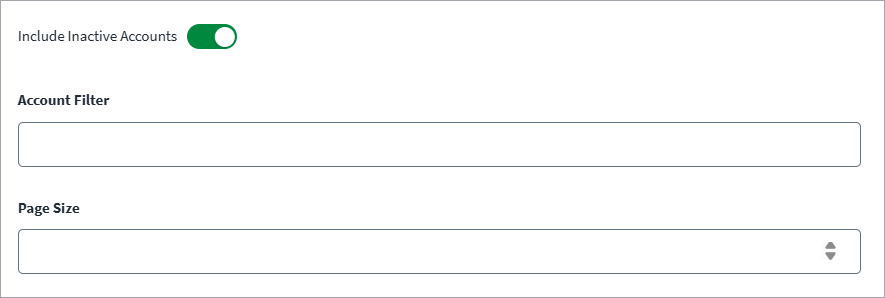
-
(Optional) Select Include Inactive Accounts to aggregate inactive users as well.
-
(Optional) Enter Account Filter to filter the accounts during aggregation. Only strings are supported as a filter condition. For multiple conditions, use a semicolon delimiter. For example, use the following to retrieve only those accounts with a display name that starts with
johnorchris.john;chris
-
(Optional) In the Page Size field, enter the number of records per page. The default is 50 records per page. The minimum value is 1 and the maximum is 1000.
-
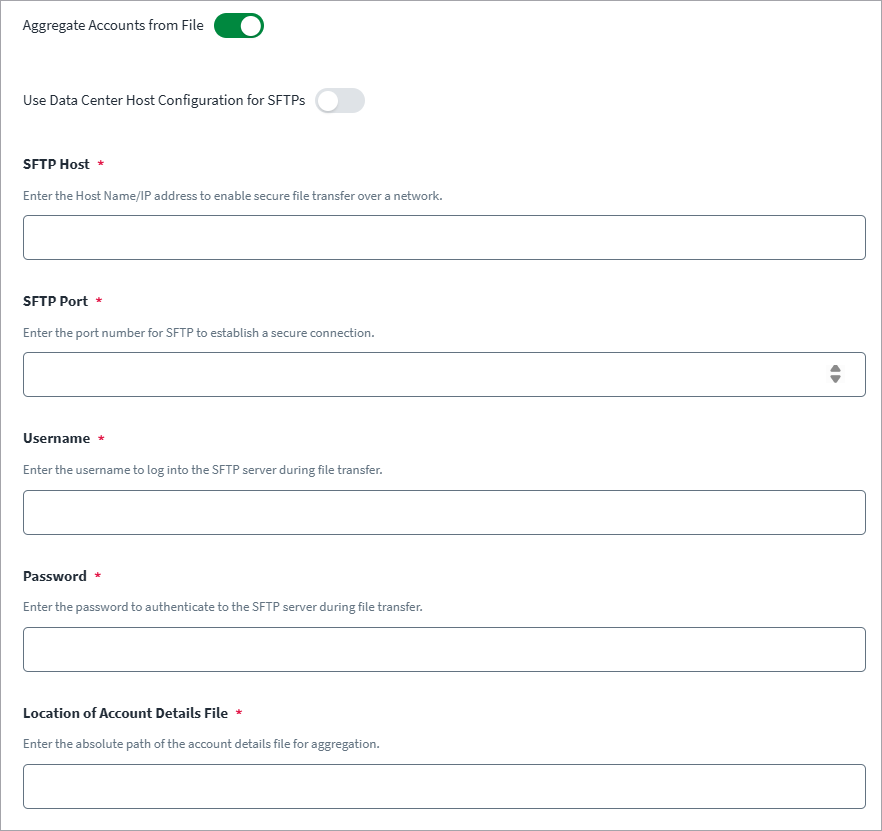
Enable Aggregate Accounts from File to aggregate accounts from Atlassian Data Center Version 10.X and later.
-
Enable Use Data Center Host Configuration for SFTP to apply the Data Center host settings( SFTP Host, Username and Password) for establishing a secure SFTP configuration.
-
In SFTP Host, enter the Host Name/IP address of the server.
-
In SFTP Port, enter the port number to connect to server.
-
Enter the Username to log into the SFTP server during file transfer.
-
Enter the Password to authenticate to the SFTP server during file transfer.
-
In Location of Account Details File field, enter the absolute path.
/C:/Data/Accounts/<filename>.csv
Advanced Settings
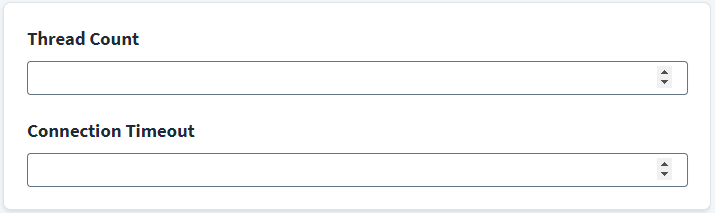
In the Additional Settings > Advanced Settings section, you can provide settings for Thread Count and Connection Timeout.
-
(Optional) In the Thread Count field, enter the maximum number of threads for account aggregation. The default is 8.
-
(Optional) Enter the Connection Timeout in minutes to hold the HTTP connection with the Atlassian system in an idle state. The default is 1.
-
Select Save.