Editing Reports
The following fields are available to edit a customized report:
-
Custom fields to display (where supported)
-
Recipients list
-
Name
-
Description
-
Scheduling
Note: It is not possible to change the query filter of a saved customized report.
To edit report parameters for a customized report:
-
Navigate to Reports.
-
Select a scheduled report from the list to edit.
-
Click Edit.
The Welcome to the Schedule Report Wizard screen displays. -
Click Next on the Schedule Report Wizard Welcome page.
-
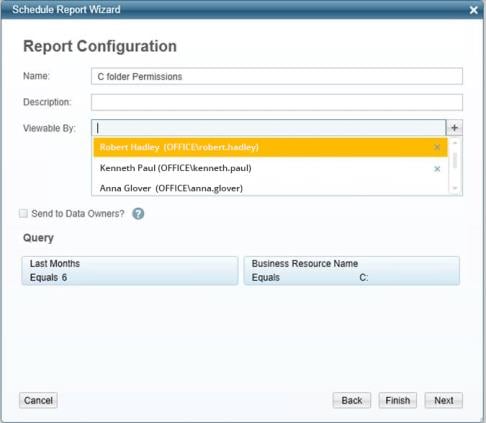
The Report Configuration screen of the Schedule Report Wizard already displays the name in the Name field.
-
Type a description in the Description field.
-
Double click in the Viewable By field to view a list of users who can view the report.
-
Click on a user’s name and click the + sign.
-
The user’s name appears in the box under the Viewable By field.
-
Check the Send to Data Owners check box to send the report to data owners.
-
Relevant queries appear in the Query section of the Report Configuration screen.
-
To send the configuration to the system without configuring a report schedule, click Finish.
-
If you click Finish, the following Confirmation popup displays: “You are creating a report without a scheduler. Do you wish to continue?”
-
Click Yes to save the report without configuring a report schedule, or No to return to the Report Configuration screen.
-
If you click Yes, and the following Warning popup displays: “This action can only run by a File Access Manager user that is associated with a user from the authentication store. The action will not be executed.” This means that you logged into the client with a local File Access Manager user, rather than with an Active Directory user from the Authentication Store. Only Active Directory users can create reports, since File Access Manager needs the email address of the user and the user’s identity to generate the report.
-
-
To schedule the configured report, click Next.
-
The Report Configuration screen displays.
-
Check the Create a Schedule check box to create a schedule, or click Finish to send the report configuration to the system without a schedule.
-
If you click Finish, the following Confirmation popup displays: “You are creating a report without a scheduler. Do you wish to continue?”
-
Click Yes to send the configuration to the system without configuring a report schedule, or No to return to the Report Configuration screen.
-
If you click Yes, the following Warning popup displays: “This action can only run by a File Access Manager user that is associated with a user from the authentication store. The action will not be executed.”