New Review Process–Levels Definition
The review process is composed of one or more approval levels. Each subsequent approver receives the approval request only if the previous level approvers have approved the request. As part of the configuration, you can set the number of required approves for a decision.
Each approval level defines the user, users, or group selected as an approver of the request at this level, according to the following logic:
Dynamic Field
Approvers are selected according to various requestor parameters.
Static List of Users
A constant list of approvers.
Data Owners
The data owners of the resource being applied.
-
Select the New Level icon
 to open a new level. The default name is “Level 1."
 Each level receives an automatic sequenced name: Level 1, Level 2, and so on.
-
Select one of the following, depending upon the type of field desired for Level 1: Dynamic Field, Static list of users and groups, or Data Owners.
Dynamic Field
If you select the dynamic field, then select Data Source or Decision Table.
A Data Source gathers data from a source outside of the system, while a Decision Table gathers data from within the system.
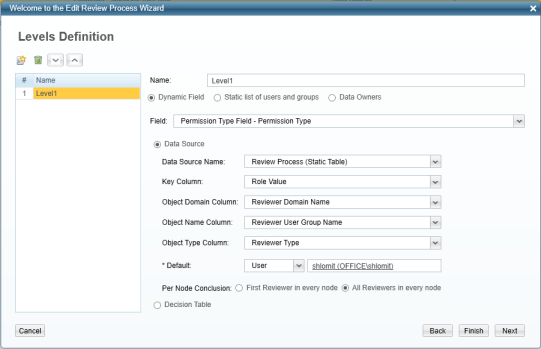
Data Source
If you select Data Source, fill in the following fields:
Data Source Name
Select a data source name from the dropdown menu to find the reviewer, and the following fields will be mapped with the data source:
Field
Description
Key Column
This field matches the data source with the relevant permission. Select a key column from the dropdown menu and enter a name for that key column. Object Domain Column This entity conducts the review. Select an object domain column from the dropdown menu or enter a name for that object domain column.
This corresponds to the Reviewer Domain Name (ACME) in the Data Source Wizard.
Object Name Column This column contains the name of the User or Group. Select an object name column from the dropdown menu or enter a name for that object name column.
This corresponds to the Reviewer User/Group Name in the Data Source Wizard.Object Type Column This column defines the type of reviewer (user or group). This corresponds to the Reviewer Type, or user, in the Data Source Wizard. Default This is the default data source. Select either User or Group from the dropdown menu, and then enter the name of the default user or default group. The default user or group can be the same as the entity in the Key Column of the Data Source. While the default entity may also be one of the entities listed in Key or Value, the system selects the default entity if no other entity is available.
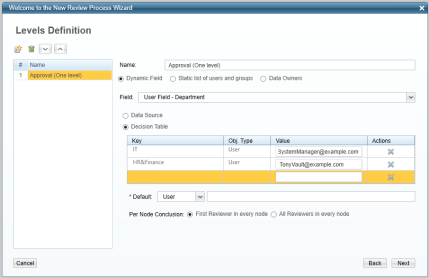
Decision Table
If you select Decision Table, the following columns must be filled in:
Field
Description
Key
What to look for in the field above. Object Type The User or Group of reviewers.
Value
The user or group to which to send the review. Actions
Select the X in this column to delete the corresponding row of the Decision Table.
Default
This is the default reviewer. Select either User or Group from the dropdown menu, then enter the name of the default User or default Group. The default User or Group can be the same as the entity in the Key column of the Decision Table. While the default entity may also be one of the entities listed in Key or Value, the system selects the default entity from the authentication store if no other entity is available.
For more information on the authentication store, see File Access Manager Initial Configuration Wizard.
-
After completing the necessary values for either the Data Source or the Decision Table, under Per Node Conclusion, select either First Reviewer in every node or All Reviewers in every node.
First Reviewer in Every Node
The first reviewer’s approval of the review is sufficient.
All Reviewers in Every Node
The approval must be unanimous. If one reviewer revokes, the entire review is revoked.
The choice of first review or all reviewers may differ at each level.
-
If you select Static list of users and groups:
- Click inside the Reviewers field.
- Select each entity to serve as a reviewer.
- Select the + at the right of the field to add that reviewer.
-
If you select Data Owner, continue with step 4.
-
-
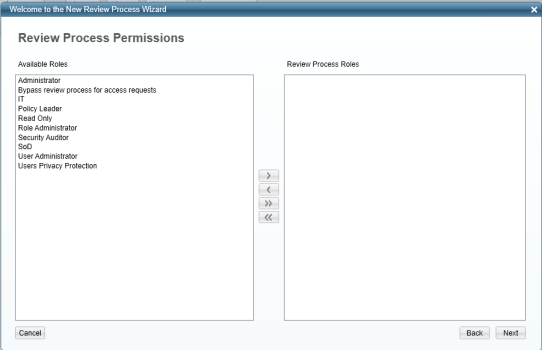
Select Next. The Review Process Permissions window opens.
-
Select > or > to associate available roles to review process roles.
The review process must be associated with at least one role. If not, a warning displays.
-
Select Next to open the Review Process Summary Report window.
-
The Review Processes window displays with a list of all the review processes.

-
Select Finish.