Completed Goals
To see details on completed goals, navigate to Goals > Completed Goals.
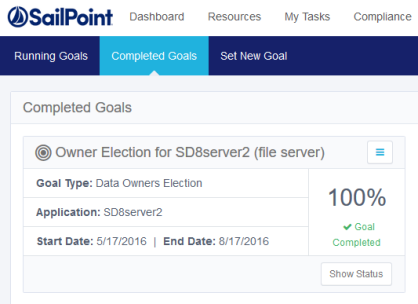
A summary of the completed goals displays, including the following information:
-
Goal Type
-
Application
-
Start Date
-
End Date
-
Percentage of Goal Completed
Status Activities
Select Menu to display a list of status activities.
The Completed Goals status actions include:
View Details
Displays all the goal details.
Reinitialize
Starts the goal creation process from the beginning. After reinitializing, the status will be “Ready for Execution” and the system will delete all votes. This action cannot be undone.
A confirmation dialog displays, reminding you that proceeding will result in the permanent loss of all the data for that goal.
Select Yes to reinitialize or No to return to the Running Goals screen.
Delete
Deletes the goal. This action cannot be undone.
A confirmation dialog displays.
Select Yes to delete or No to return to the Running Goals screen.
Show Status
Select Show Status at the bottom right of the Completed Goals box.
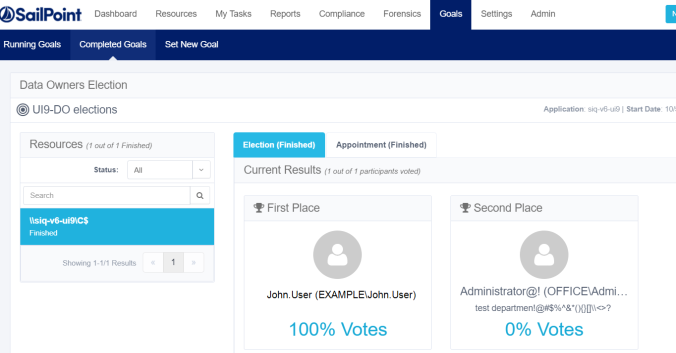
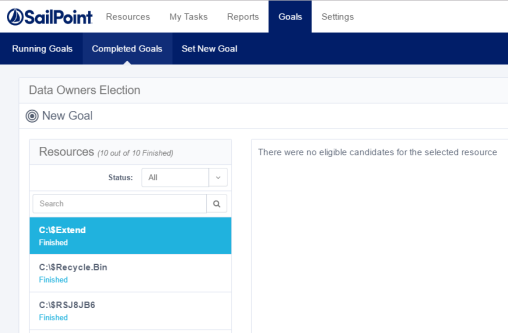
A panel opens with the results of the goal and the users selected to be owners as a result of the goal campaign.
.
In the example shown above, there are two final candidates pending the review of one reviewer. After a user for whom a review process is required has voted, the system adds a review task to the reviewer’s task list.
One user can be both a final candidate and a reviewer.
If a goal is ready for execution, it is possible to see the status of that goal before executing it, by selecting Show Status to the right of Execute Now at the bottom right of each goal marked Ready for Execution.
If goal creation is in progress, Execute Now and Show Status are not available. The only available option is Refresh.
Select Show Status to view status details for a newly created goal on the Data Owners Election screen.
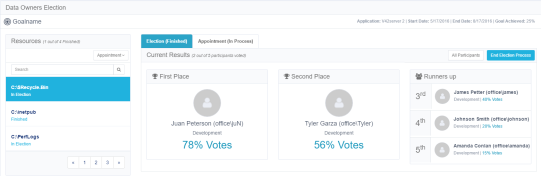
The Resources section on the left side of the Show Status screen displays the number of total activities (resources) that have been finished for the displayed goal.
In the Status dropdown menu under Resources, the following options are available:
-
All – displays all the resources in this goal.
-
Election – displays activities pending completion of voting.
-
Appointment – displays resources pending review.
-
Finished – displays all the resources for which the Election and Appointment processes have been completed.
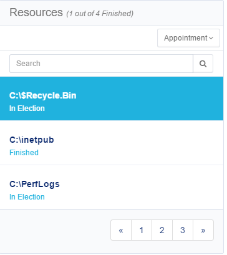
The bottom right side of the Resources section displays the previous or next screen, and the number of the total number of screens displayed; for example, 1/2 indicates the first of two screens.
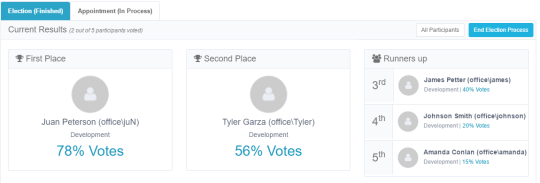
The Election section of the Show Status screen displays the current results, which is the number of participants out of the total who have voted. Up to five data owner candidates may be displayed, with their names, place, and percentage of votes received. However, the first and second place data owner candidates are given prominence.
View the Election Section of the Show Status Screen by completing the following:
-
Select All Participants in the top right of the Election Participants section.
A summary of the election participants displays. -
The viewing options are:
-
All Participants
-
Voted – number who have already voted.
-
Pending – number of votes still pending.
-
Note: Navigation in the All Participants view of the Election section of the Show Status screen is the same as in the Resources section of the Show Status screen.
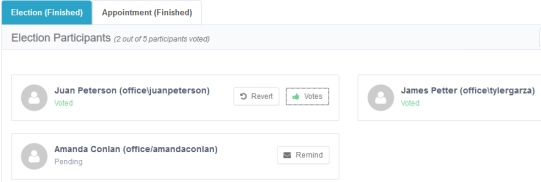
Navigate to the All Participants View by completing the following:
-
Select Remind next to a user who has not yet voted to remind the user to vote.
-
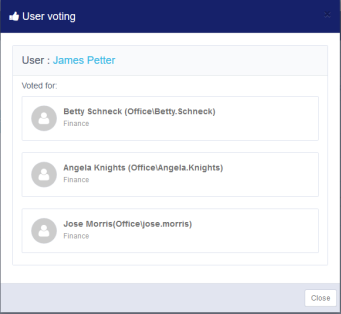
Select Votes next to a user who has voted to see a list of the people for whom that user voted.
Return to the Summary view by completing the following:
-
Select See Summary in the top right of the Election section to return to the Summary view.
-
Select End Election Process in the top right of the Election section to end the election process even if it does not include 100% of the votes.
A confirmation dialog displays, asking whether you want to end the election process. -
Select Yes to end the election process or No to return to the previous screen.