Campaign Management
Navigate to: Compliance > Access Certification > Campaign Management .
Valid campaign statuses are:
-
Completed
-
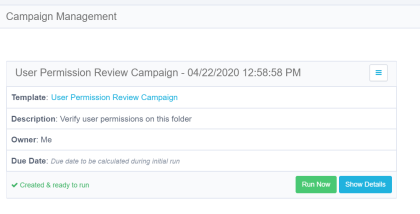
Created
-
Creation Failed
-
Deletion Failed
-
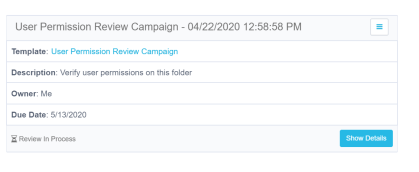
In Progress
-
Pending Completion
-
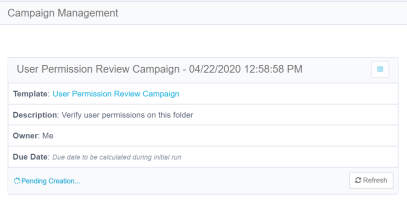
Pending Creation
-
Pending Deletion
-
Pending Re-initialization
-
Pending Review in Progress
Manage Existing Campaigns
-
To manage existing campaigns, perform the following steps:
-
Navigate to Compliance > Access Certification > Campaign Management.
The campaigns display from left to right, sorted chronologically, by date of campaign creation.
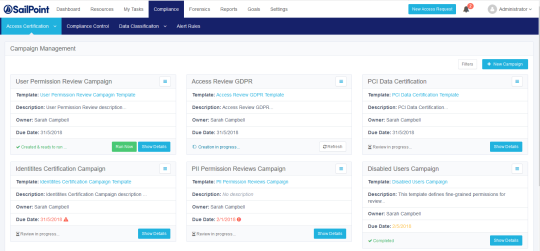
Each displayed campaign lists the following information:
Template
The template name displays as a link, which the user can select to edit the template. Any changes that the user makes to the template will only affect future campaigns. If the campaign was created without a template, “No Template” will display (but not as a link).
Description
The template description
Owner
The template owner
Due Date
The due date displays. If the status is Creation in Progress or Created & ready to run, then “Due date to be calculated during initial run.”
When the campaign status is Review in Progress, the due date is yellow for 0-7 days before the date, or red if the due date has passed.
Refresh
This button refreshes the current campaign status and is located on the bottom left of the displayed campaign.
Run Now
This button only displays for a campaign whose status is Created & ready to run.
When you select this tab, it creates a task that:
-
Runs the campaign
-
Sets a campaign due date
-
Sets the campaign reviewers
-
Sends email notification to the reviewers, requesting them to approve or reject suggested user accesses
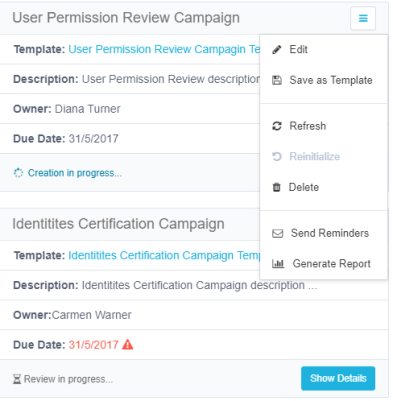
The menu button on the top right of each campaign display contains various options depending upon the campaign status. Options include:
Edit
Edit the campaign
Save as Template
Save the campaign as a template
Refresh
Refresh the user’s view of the campaign status
Reinitialize
Create a task that reinitializes the campaign
Delete
Delete the campaign
Send Reminders
Send reminder emails to reviewers to complete the campaign
Generate Report
After you select this option, you can view the generated reports by navigating to Reports > My Reports.
Note: This report contains a detailed list of all records, including their process levels and a summary of their statuses.
 Filter the campaigns
-
Select Filters.
-
Under Filters, type or select the relevant data in the following fields to narrow your search of campaigns:
Campaign Name
Type the campaign name, or the first few characters of the campaign name, and then select the Search button next to that field.
Owner
Type the owner (user) name, or the first few characters of the name, and then select the Search button next to that field.
Status
Select a valid status from the drop-down menu (See full list above).
Type
Select All, Permissions, or Identities from the drop-down menu.
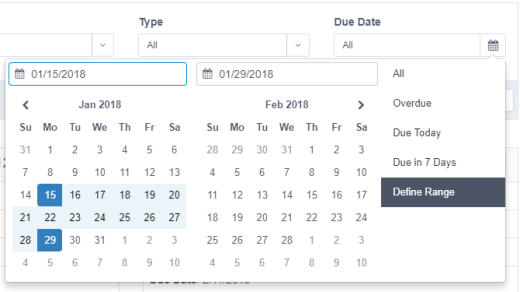
Due Date
Select All, Overdue, Due Today, Due in 7 Days, or Define Range from the drop-down menu.
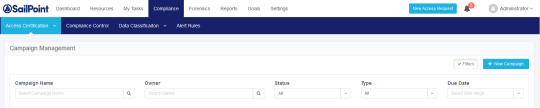
If you select Define Range from the drop-down menu, a calendar displays for you to select a date range.