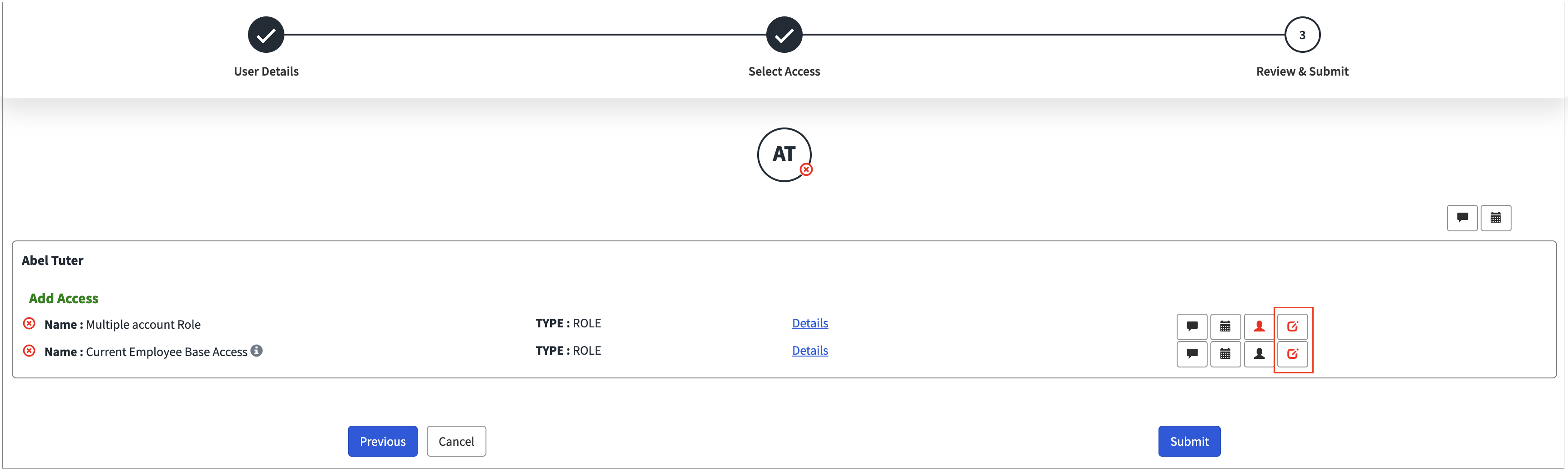
Configuring Custom Questions
This functionality provides the ability to collect additional information before raising the requests. Users can provide additional information in a question-and-answer format when submitting access requests through the SailPoint Portal.
The collected responses are:
-
Saved in ServiceNow under the Request Item (RITM)
-
Sent to SailPoint Identity Security Cloud (ISC) as metadata when creating the access request
Questionnaire Rules and Questions
-
In ServiceNow, open SailPoint Identity Security Cloud from the App Navigator.
-
Open the Questionnaire Rules module, and create a rule for:
A specific access object, or
A general rule that applies to all access objects of a certain type. Access object name needs to be defined as 'Generic'
-
Add Questions to the Rule. Multiple questions with option “is mandatory” of the following types can be added.
-
Single-Line Text
-
Multi-Line Text
-
Dropdown Selection
-
 Screenshot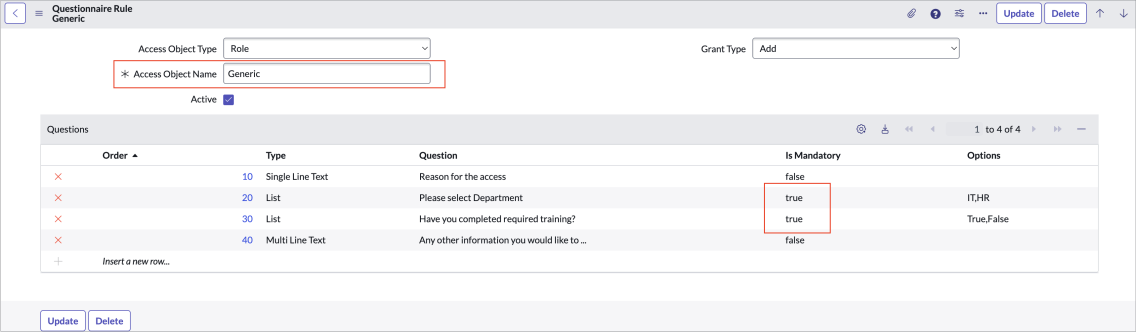
Rule Mapping to Object
The following order is used to find the appropriate rule:
-
Exact Match:
Access Object Name, Type, and Grant Type
-
Generic Name Match:
Access Object Name = "Generic", with matching Type and Grant Type
-
Fully Generic Match:
Access Object Name = "Generic", Type = "ALL", and matching Grant Type
Displaying the Questionnaire on the Request Page
-
Enable the instance option. Select Show Additional Information to display the questionnaire.
Note
Applicable to the widgets for Review and Submit or Review and Submit 2.