External Client Application Authentication
To configure External Client Application (ECA) authentication, complete the following steps:
Important: Before you begin, install External Client Application from Salesforce AppExchange. For information, refer to Installing External Client Application.
 Screenshot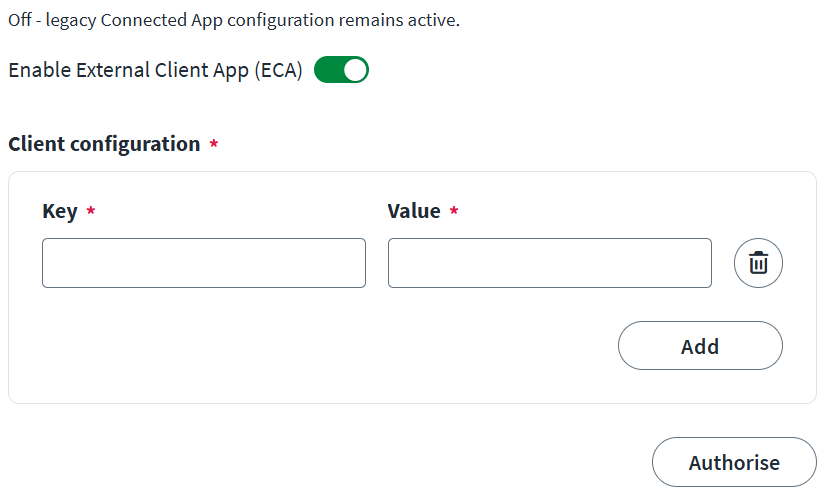
-
Turn on the Enable External Client App (ECA) toggle.
-
Under Client configuration, enter the required key-value pairs:
-
In the Key box, enter the key as
host_name. -
In the Value box, enter the Token URL to generate the token.
For example:
test.salesforce.comorlogin.salesforce.com
-
-
Select Save.
-
Select Authorise.
Note
- The service account you use to authorise the ECA must have adequate permissions to manage the required Salesforce objects.
- If you encounter issues with ECA authentication, you can turn off the feature and revert to your previous, working configuration.
Important considerations for Salesforce ECA integration
Maximum concurrent tokens:
Salesforce limits active refresh tokens to five per user for each External Client App (ECA) or Connected App. If you request a sixth connection, Salesforce automatically and silently revokes the oldest active token to accommodate the new request.
Revoked token reuse:
If an authenticated source attempts to authenticate by using a previously revoked token (such as the silently dropped oldest token), Salesforce flags the attempt as a critical security threat. As a result, Salesforce immediately invalidates all active refresh tokens and sessions for that user across all clients. If this occurs, you must reauthorize the integration to continue.