Troubleshooting
If you encounter any of the following issues or errors, SailPoint recommends that you follow the guidance provided below to resolve the error before contacting SailPoint Support.
 Error: Account creation is slow during single account aggregation
This performance issue occurs because the connector makes numerous API calls to the Microsoft Graph API to retrieve Privileged Identity Management (PIM) membership data associated with the account.
Resolution: To improve performance, you can configure the connector to skip the retrieval of PIM membership data during the initial account creation. Set skipPIMMembershipOnCreateAccount parameter value to true. For more information, refer to skipPIMMembershipOnCreateAccount.
Error: Provisioning fails with 409 conflict error for license assignments requests
When a provisioning plan includes requests to add multiple assignedLicence values for a single user, the operation fails returning an API error code of 409. This occurs because the Microsoft cannot process simultaneous license assignment requests for the same user, treating it as a concurrency conflict.
Resolution: To resolve this issue, you can configure the connector to automatically retry the failed license assignment request. This allows a brief delay for the Microsoft tenant to process the initial request before the connector attempts the operation again.
Error: Authentication Error "AADSTS70011 Invalid scope" during provisioning
When attempting to provision Exchange Online, the operation fails with an error message:
AADSTS70011 Invalid scope. The scope has to be of the form "[https://resourceUrl/.default]""Mitigation: change the scope to be as expectedA configuration issue is preventing authentication - check the error message from the server for details.
Resolution: To resolve this authentication failure, you must verify that the application registration and permissions are correctly configured in both the source and Azure AD.
Follow these steps:
-
Verify App ID and Certificate Alignment
-
Confirm that the certificate used for authentication is uploaded to the correct Azure AD Application Registration Portal.
-
Ensure the Client ID configured in the source matches the Application (client) ID of the Azure AD application where the certificate is uploaded. A mismatch is a common cause of this failure.
-
-
Confirm Permissions
-
In Azure AD, go to the App Registration Portal used for Exchange Online.
-
Verify that the application has been granted the Exchange Administrator role and
Exchange.ManageAsApppermission.
-
Error: Unable to aggregate Azure PIM role membership
Resolution: To successfully aggregate Azure PIM role memberships, ensure that the Owner or User Access Administrator role is assigned to the Tenant Root Group/Subscription level within the Azure AD portal.
Error: "Invalid provider type specified" error during exchange online provisioning
When the Manage Exchange Online checkbox is selected, provisioning fails with the following error:
Exception during Connect-ExchangeOnline: System.Management.Automation.RemoteException: Invalid provider type specified.
This error indicates that the IQService, operating under a specific service account, lacks the necessary permissions to access the private key of the certificate used for connecting to Exchange Online.
Resolution:
To resolve this, grant the IQService's service account full control over the certificate's private key.
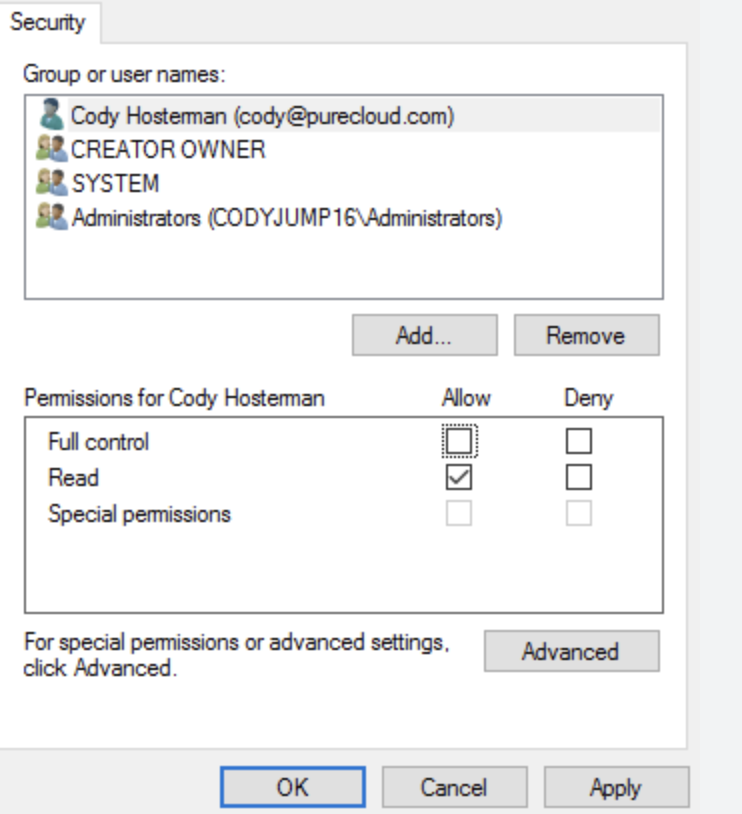
-
Open the Certificate Manager:
-
Press Win + R to open the Run dialog.
-
Type
certmgr.mscand press Enter.
-
-
Go to Personal > Certificates.
-
Select and right-click the certificate.
-
Go to All Tasks, and then select Manage Private Keys.
-
In the Permissions dialog box, click Add.
-
Enter the name of the service account under which IQService is running.
-
For the added service account, ensure Full control and Read permissions are granted.
-
Click Apply, then OK to save the changes.
-
Restart IQService for the new permissions to take effect.
Error: Test connection failure with an error when the Manage Exchange Online checkbox is selected
The test connection fails and displays the following error:
Error returned from IQService. One or more errors occurred
Resolution: Complete the following:
Verify that all of the prerequisites for the Microsoft Exchange Online Mailbox attributes are in place. For more information, refer to Prerequisites.
Once you have verified the prerequisites have been met, run the following PowerShell command on the IQService machine to verify connectivity.
Connect-ExchangeOnline -UserPrincipalName <userPrincipalName>
Error: Add entitlement request fails
While adding a Service Principal Name to a user, the add entitlement request fails with the following error message:
Response Code - 400 Error - Permission being assigned was not found on application
Resolution: Verify if the user already has the Service Principal Name added in entitlements.
Error: Test Connection fails
Test Connection fails with the following error message when Microsoft Entra ID application is checked for ‘SAML Bearer Assertion’ Grant Type:
OAuth2Exception [toString()=connector.common.oauth2.OAuth2Exception: Unable to generate access token. Response returned:
{"error":"invalid_grant","error_description":"AADSTS50008: The SAML token is invalid.\r\nTrace ID: a74df376-3ede-4c17-ba34-b352079e3300\r\nCorrelation ID: f8c370ec-4ef6-48a4-a393-0297a5ce3b20\r\nTimestamp: 2020-05-04 05:58:16Z","error_codes":[50008],"timestamp":"2020-05-04 05:58:16Z","trace_id":"a74df376-3ede-4c17-ba34-b352079e3300","correlation_id":"f8c370ec-4ef6-48a4-a393-0297a5ce3b20","error_uri":"https://login.microsoftonline.com/error?code=50008"}
]
Resolution: Verify if the time zone of ADFS machine is in synchronize with Azure time zone, that is, UTC. If not, change the ADFS machine time and re-start the ADFS services.
Error: Test Connection /Account Aggregation fails
Test Connection/ Account Aggregation fails with the following error message when Microsoft Entra ID application is checked for SAML Bearer Assertion Grant Type:
Error - invalid_grant: AADSTS5000811: Unable to verify token signature. The signing key identifier does not match any valid registered keys.
Resolution: Microsoft recommends to execute the following command from PowerShell running on ADFS server to manually renew token signing certificates:
Update-MSOLFederatedDomain –DomainName <domain>
Error: Provisioning of Exchange attribute fails
Provisioning of Exchange attribute fails if account aggregation is in progress. Exchange online module supports maximum three sessions per user hence limiting the parallel operations in execution.
Resolution: Connector uses all the three sessions while performing aggregation. Hence to improve the aggregation performance no other operation must be performed using the configured user.
Error: Account Aggregation fails
When new attributes are added in account schema, Get Object / Account Aggregation fails with the following error message:
Error - 501 This operation target is not yet supported
Resolution: Microsoft Graph API supports some of the following attributes only for retrieving single user:
-
aboutMe -
birthday -
hireDate -
interests -
mySite -
pastProjects -
preferredName -
responsibilities -
schools -
skills -
mailboxSettings
The addition of these attributes while retrieving collection of users leads to aggregation failure. Verify if the newly added attributes are in the list of these attributes and remove them from the schema.
Error: Update account fails
Update account fails for new attribute additions in the provisioning policy.
Resolution: Due to API limitations following are some of the attributes that are not applicable for updating user properties, fetching the attributes for a user through Account Aggregation or Get Account operation:
Attributes: birthday, mySite, interests, pastProjects, preferredName, responsibilities, schools, skills and mailboxSettings
Error: Unexpected errors
An unexpected 'PrimitiveValue' node was found when reading from the JSON reader. A 'StartArray' node was expected.
Or
Invalid value for the Property
Resolution: Ensure that the data type of the attribute is added correctly to the provisioning policy. For more information, refer to the Microsoft Documentation.
Note
For update account operation, the businessPhones attribute accepts only single value with the data type as String collection.
Error: Full Account Aggregation taking a long time to complete
In cases where the entitlement attributes (like groups, roles, and servicePrincipals) are present in the account schema, add the following entry in the max-thread-account-membership with a value of 6, 8, or 10 in accordance with your requirements. The default value is 4.
Note
This entry is not valid/used during delta aggregation.
For example:
<entry key="max-thread-account-membership" value="8"/>
Error: SharedMailbox displays alphanumeric values instead of a user-friendly display name
Resolution: If SharedMailbox displays Globally Unique Identifier (GUID) value instead of a readable DisplayName, add the useDisplayNameForSharedMailbox entry to the true. For example,
<entry key="useDisplayNameForSharedMailbox">
  <value>
    <Boolean>true</Boolean>
  </value>
</entry>When managing users and Service Principal Names (SPNs) as accounts under a single displayName attribute of the Account Schema is set to UserPrincipalName, you may encounter numeric values for SPN accounts instead of readable names.
Resolution: To display the correct SPN displayName, ensure that the mapSPNDisplayNameToUPN is added to the true. For example,
<entry key="mapSPNDisplayNameToUPN">
    <value>
        <Boolean>true</Boolean>
    </value>
</entry>The connector may return a 400 error or a message stating "Property usageLocation is invalid" when attempting to remove the usageLocation attribute.
Resolution:
To resolve this, configure the connector to wait after license operations are performed, ensuring they are fully processed before the connector attempts to modify the usageLocation. To do so, add the waitAfterLicenseOperations attribute to the
<entry key="waitAfterLicenseOperations" value="15"/>
where, value equals to 15 represents the wait time in seconds.
Error: DeltaLink older than 30 days is not supported
Resolution: This error occurs because delta token has expired. Run a full aggregation to reset it to the latest delta token.
400 Bad request on Microsoft Graph API filter
Resolution: Replace dirSyncEnabled with onPremisesSyncEnabled to check if a user is synced from on-premises directory.
For example, onPremisesSyncEnabled eq true