Connection Settings
This section contains the information that this connector uses to connect and interact with the application. Each application type requires different information to create and maintain a connection. The fields displayed in Connection Settings depend on your File Transport and Authentication Type selections. The following file transport methods are available:
-
SFTP
-
FTPS
-
SCP
-
AWS S3
-
SMB
 SFTP
SFTP
-
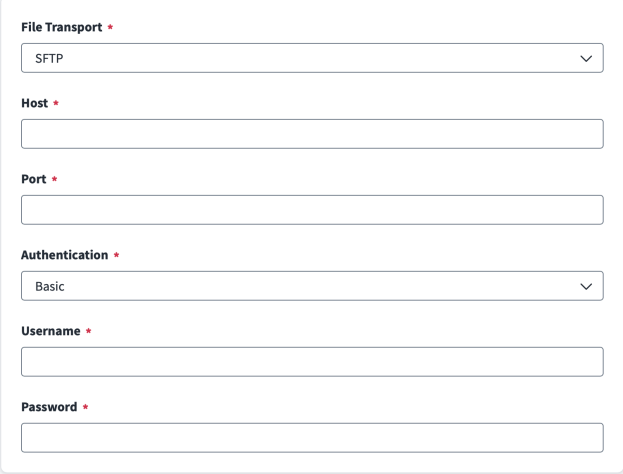
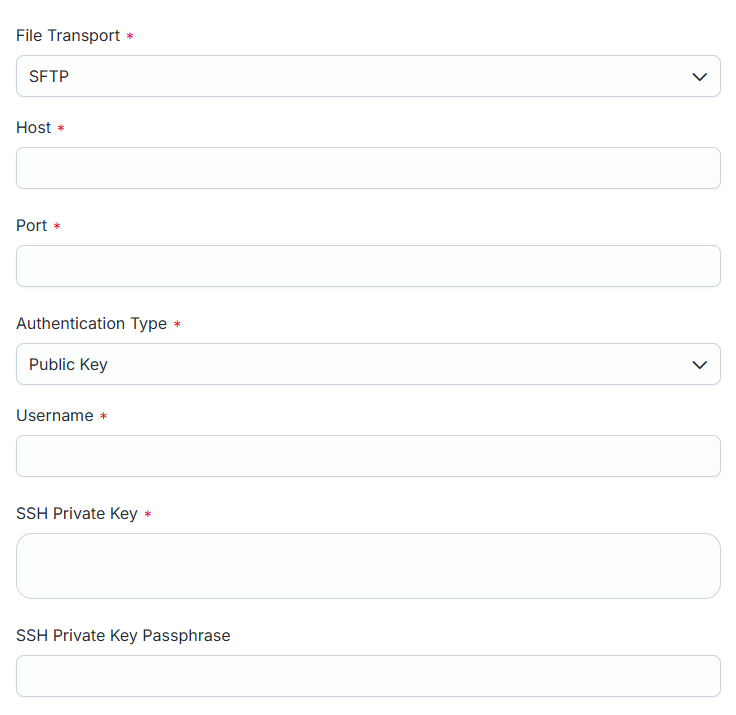
In File Transport, select SFTP to access the file.
-
Enter the Host name where the file is located.
-
Enter the Port number to use to establish a connection.
-
For Authentication Type, select Basic or Public Key.
-
Select Basic as the authentication type.
-
Enter the Username to use during the file transfer.
-
Enter the Password for the user to use during the file transfer.
-
Select Public Key as the authentication type.
-
Enter the Username to use during the file transfer.
-
Enter the SSH Private Key content to use to establish a connection. Paste the full private key in PEM or OpenSSH format. Do not enter a file path.
-
(Optional) Enter the SSH Private Key Passphrase for the private key.
-
Select Save.
Basic
Public Key
FTPS
-
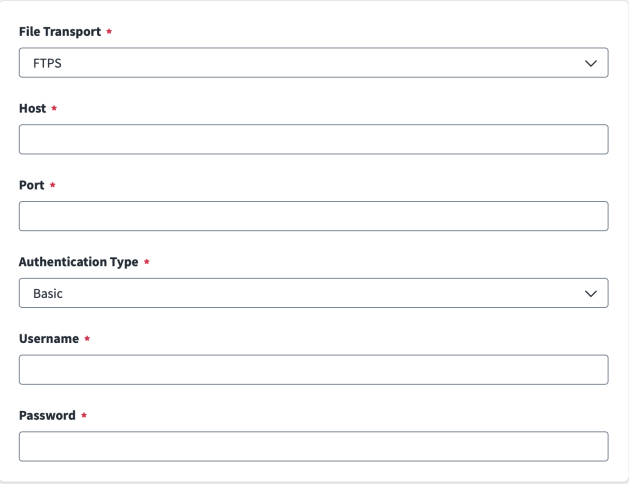
In File Transport, select FTPS to access the file.
-
Enter the Host name where the file is located.
-
Enter the Port number to use to establish a connection.
-
For Authentication Type, select Basic or Client Certificate.
-
Select Basic as the authentication type.
-
Enter the Username to use during the file transfer.
-
Enter the Password for the user to use during the file transfer.
-
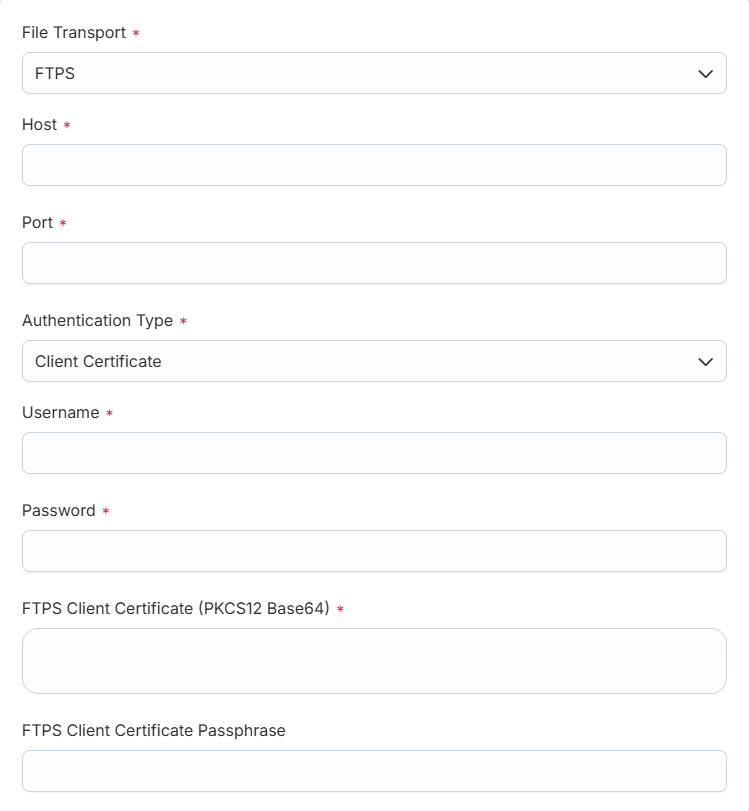
Select Client Certificate as the authentication type.
-
Enter the Username to use during the file transfer.
-
Enter the Password for the user to use during the file transfer.
-
Enter the FTPS Client Certificate (PKCS12 Base64) content to use to establish a connection. Paste the Base64-encoded content of your PKCS12 (
.p12) client certificate file. -
(Optional) Enter the FTPS Client Certificate Passphrase for the client certificate.
-
Select Save.
Basic
Client Certificate
Note
The connector uses a hybrid model: the client certificate authenticates the TLS layer, and Username and Password authenticate the FTP protocol layer. Both are always required.
SCP
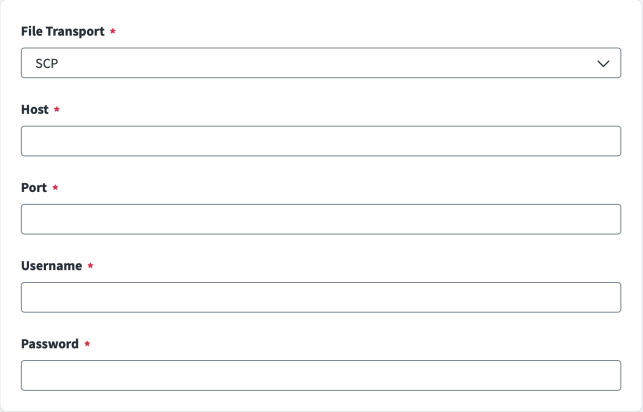
-
In File Transport, select SCP to access the file.
-
Enter the Host name where the file is located.
-
Enter the Port number to use to establish a connection.
-
Enter the Username to use during the file transfer.
-
Enter the Password for the user to use during the file transfer.
-
Select Save.
AWS S3
Before configuring AWS S3, ensure you have completed the S3 File Transport prerequisites, including the required IAM permissions on the target bucket and objects. For more information, refer to Prerequisites.
-
In File Transport, select AWS S3 to access the file.
-
Enter the S3 Bucket name where the file is located.
-
Enter the S3 Region name where the bucket is located.
-
For Authentication Type, select IAM User or IAM Role.
-
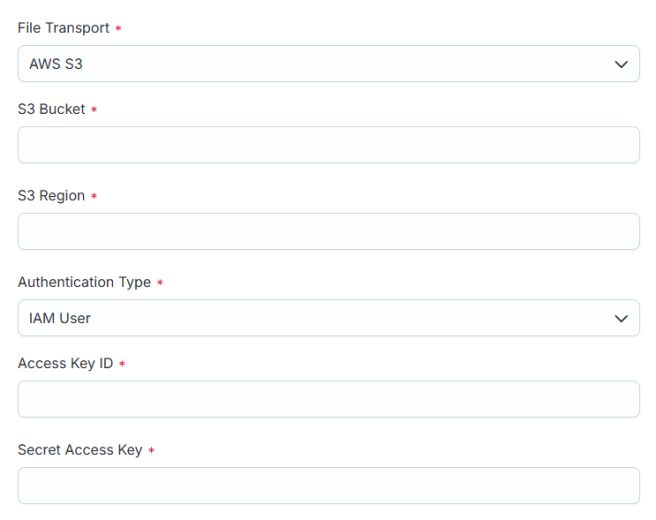
Select IAM User as the authentication type.
-
Enter the Access Key ID to use during the file transfer.
-
Enter the Secret Access Key to use during the file transfer.
-
Select IAM Role as the authentication type.
-
Enter the Role Name of the IAM role to assume, for example
S3ReaderRole. Enter the name only, not the full ARN. The connector builds the ARN. A path-qualified name such assailpoint/S3ReaderRoleis accepted. -
(Optional) Enter the Account ID, the 12-digit AWS account ID where the role exists. Leave this field blank when the role is in the same account as the virtual appliance - the connector detects that account automatically. This field is required only for cross-account access.
-
(Optional) Enter the External ID. Provide it only if the target role's trust policy requires an external ID. The value must match the policy's
sts:ExternalIdcondition exactly. -
(Optional) Enter the Role Session Name. This identifies the session in AWS CloudTrail and can be used in
sts:RoleSessionNamepolicy conditions. When blank, the connector generates a name from the source ID so each source is separately identifiable. -
(Optional) Enter the Role Session Duration (seconds), which is how long each assumed session lasts, between 3600 and 43200. Defaults to 3600. The value cannot exceed the target role's Maximum session duration. Credentials refresh automatically before expiry, so this does not limit how long an aggregation can run.
-
Select Save.
IAM User
IAM Role
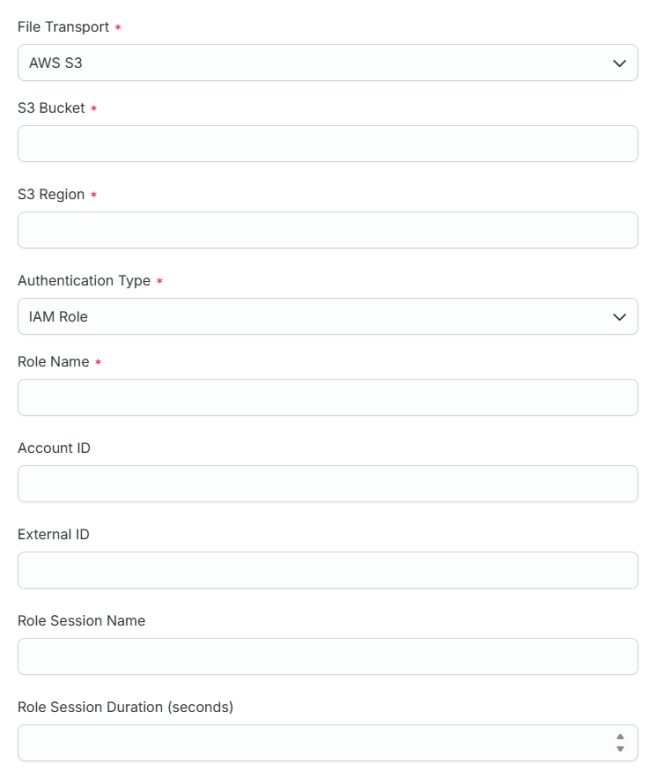
With IAM Role, the connector assumes a role through AWS STS. For the requirements and the AWS setup procedures, refer to Prerequisites.
SMB
SMB reads the file from a Windows File Server share or a Samba share. Before configuring SMB, ensure you have completed the SMB File Transport prerequisites, including the Kerberos and virtual appliance requirements. For more information, refer to Prerequisites.
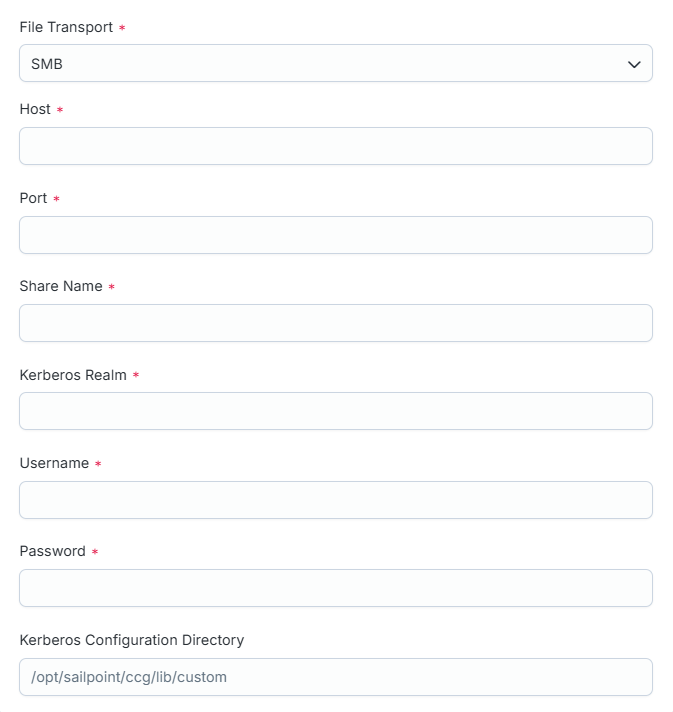
-
In File Transport, select SMB to access the file.
-
Enter the fully qualified Host name of the SMB server, for example
fileserver.example.com. Do not enter an IP address. -
Enter the Port number to use to establish a connection. Default: 445
-
Enter the Share Name to read from, for example
Data. Enter the share name only, without the server name or leading backslashes. -
Enter the Kerberos Realm that issues tickets for the service account, for example
EXAMPLE.COM. For Active Directory, this is the DNS domain in uppercase. -
Enter the Username of the service account to use during the file transfer. Enter either the account name, which the connector combines with the Kerberos Realm, or a full principal such as
svc_aggregation@EXAMPLE.COM. Use the full principal when the account belongs to a different realm than the share. -
Enter the Password for the service account.
-
(Optional) Enter the Kerberos Configuration Directory on the virtual appliance that contains the Kerberos configuration file,
krb5.conforkrb5.config. Enter the directory only, not the filename. If you leave this field blank, the connector searches/opt/sailpoint/ccg/lib/customand/home/sailpoint/ccg, then the default Java location. -
Complete the file settings, including the file name, delimiter, and schema. For more information, refer to File Settings.
-
Select Test Connection.
Note
SMB uses Kerberos authentication. A Windows server in a workgroup cannot be used because it has no key distribution center (KDC).
A successful Test Connection confirms that the service account authenticated with Kerberos, that the share was reached, and that the account file was opened. Aggregation still requires that the file contain account rows after the header. If Test Connection succeeds and aggregation reports that there is no valid data in the file, compare the file size on the share with the file size on the file server.